
Properties
After pressing New Scheme and setting the scheme type, the Scheme properties window will appear. Its look and functionality depend on the scheme type and selected GDS.
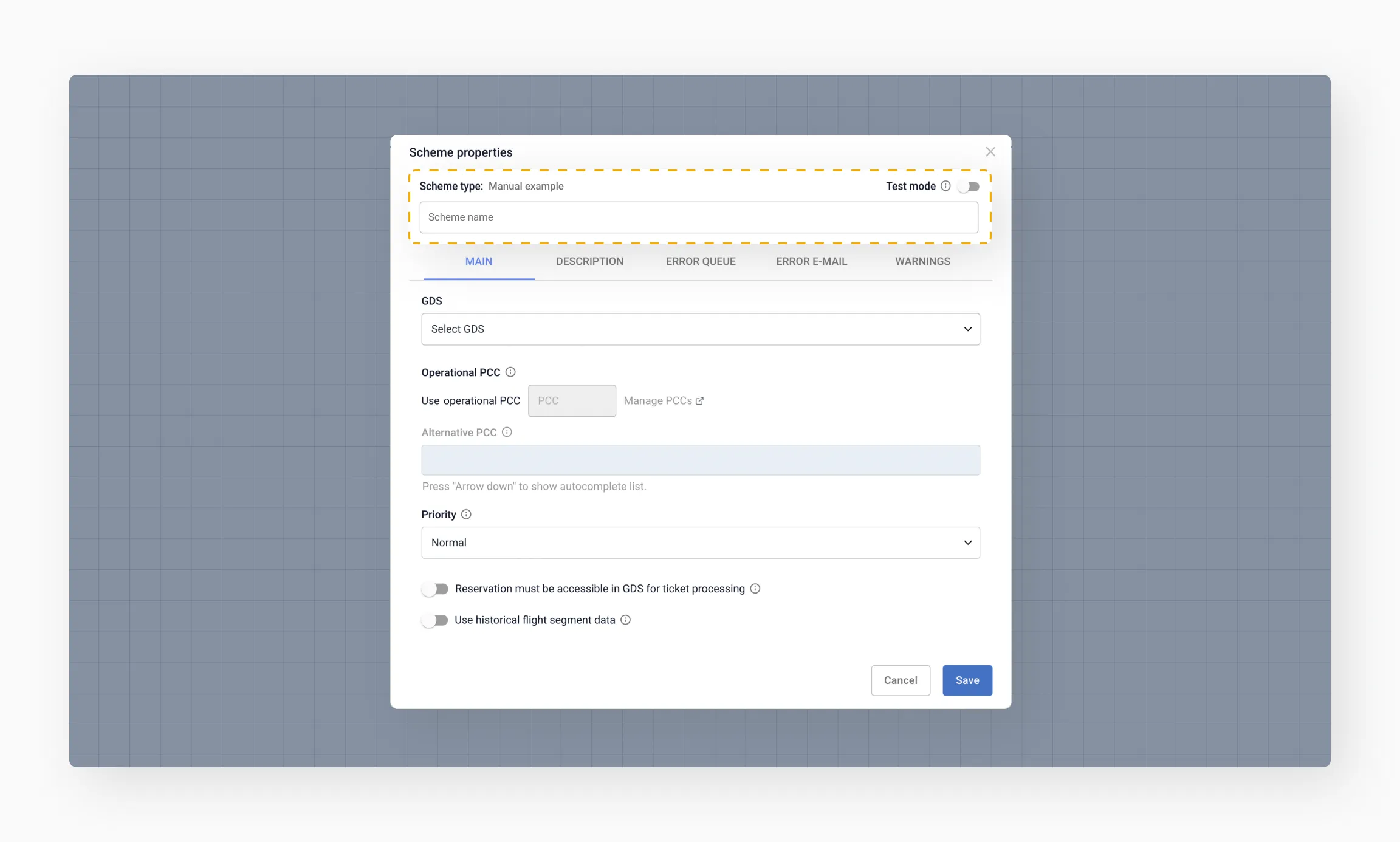
First, enter the scheme name. Use keywords that describe your workflow — this makes it easier to navigate the scheme list as it grows.
Tip
You can also enable Test mode. It runs a PNR, ticket, or EMD through the scheme to test its functionality without making actual changes in the GDS.Tabs
The Scheme properties window includes several tabs.
- Main and Error e-mail are compulsory. These tabs are essential for setting up the basic functionality of your scheme.
- Description, Error queue, and Warnings are optional but recommended for optimizing your workflows.

Tip
Note that the contents of the tabs vary by scheme type and GDS.Main
This is where you set the core parameters of your scheme.
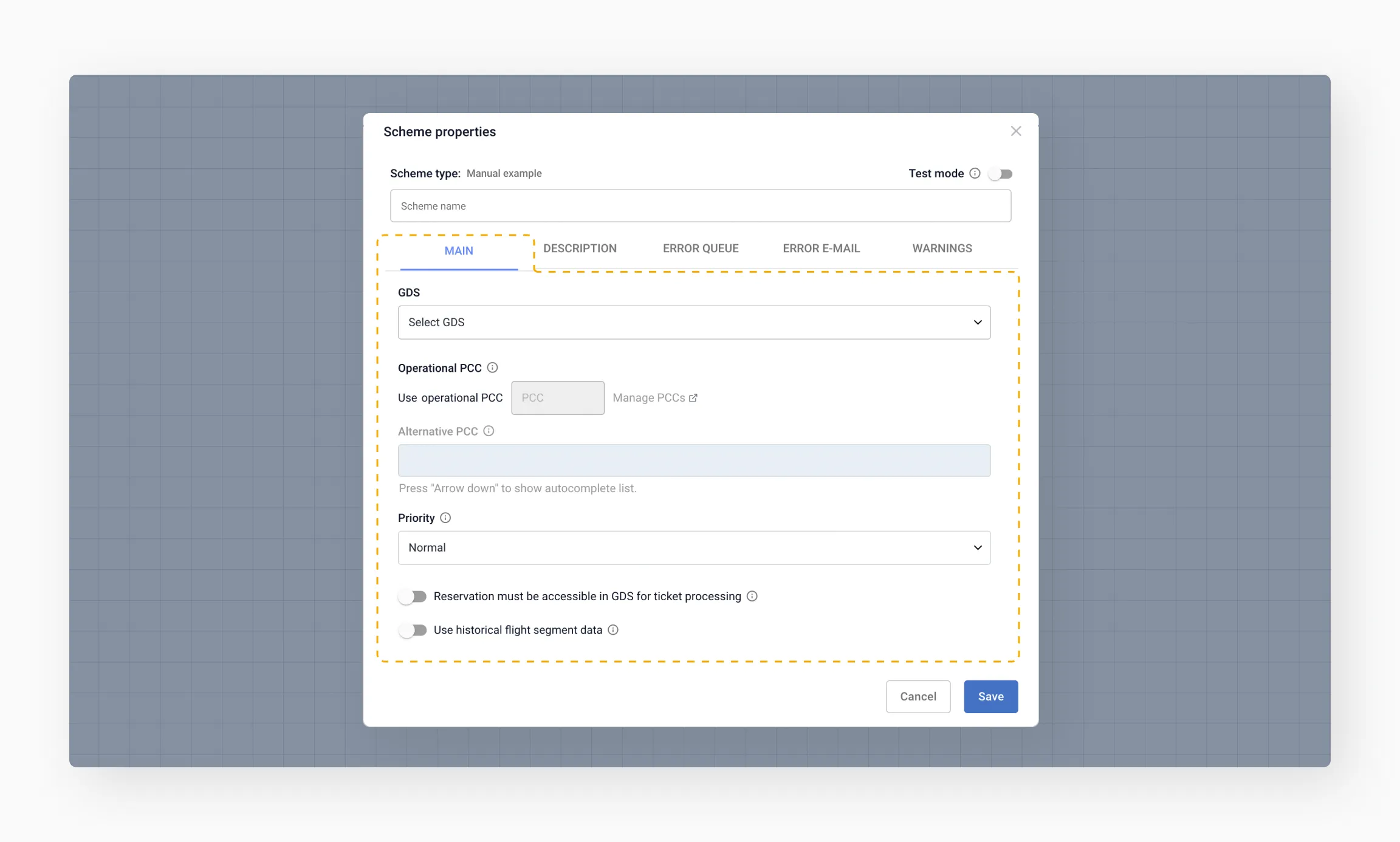
- GDS – Choose the GDS your scheme will work with. This is the source where your PNRs, tickets, and EMDs are stored.
- Operational PCC/OID – Specify the office where processing will occur. If the office you need is missing, add it via Manage PCC.
- Alternative PCC/OID – A substitution for the operational PCC when tickets or EMDs are unavailable in it.
- Priority – Set the scheme's priority: Urgent, Normal, or Low. Ticket issuance schemes should typically be set to Urgent.
- Reservation must be accessible in GDS for ticket (EMD) processing – Enable this if the scheme processes tickets or EMDs and requires the PNR to be accessible in the GDS.
- Use historical flight segment data – Enable this if historical segments need to be considered during processing.
Description
Add a general description of the scheme, including its purpose, objectives, and key settings. This helps other users understand the scheme without opening it.

Error queue
Define where the PNR will be placed in a queue if a processing error occurs. This feature is particularly useful for manual review of failed cases.
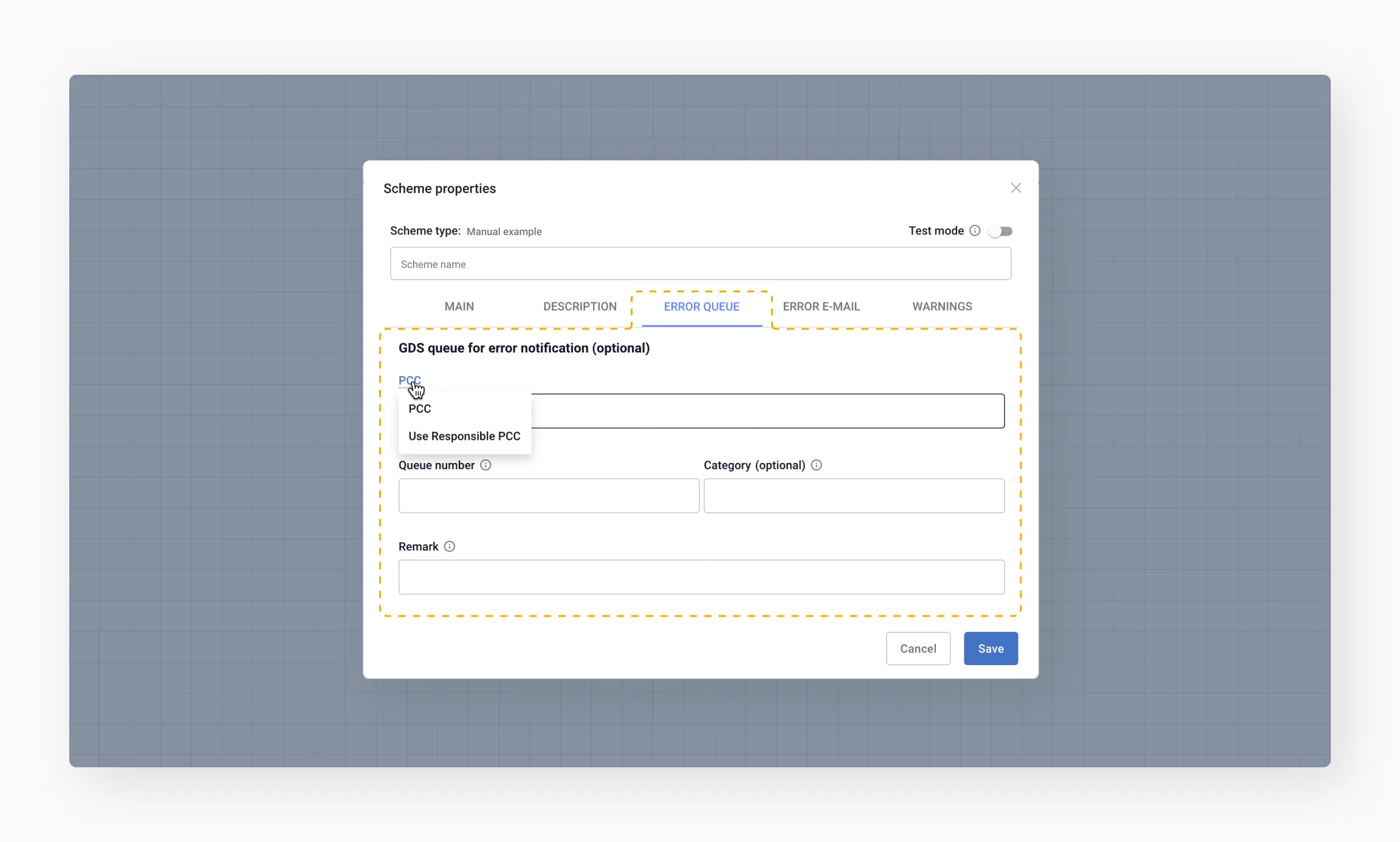
You have two options for specifying the PCC:
- Static – A fixed PCC value will always be used as the target.
- Dynamic – The system will automatically use the PNR owner (the Responsible PCC) as the target.
Warning
If the PNR fails to queue, a notification will be sent to the email address specified in the Error e-mail tab. Be sure to configure that tab as well.Error e-mail
Add an email address to receive notifications about fatal errors requiring manual intervention. Check this email regularly.

Make sure the sender's domain matches the SMTP server settings: System Settings → E-mail → E-mail SMTP server settings.
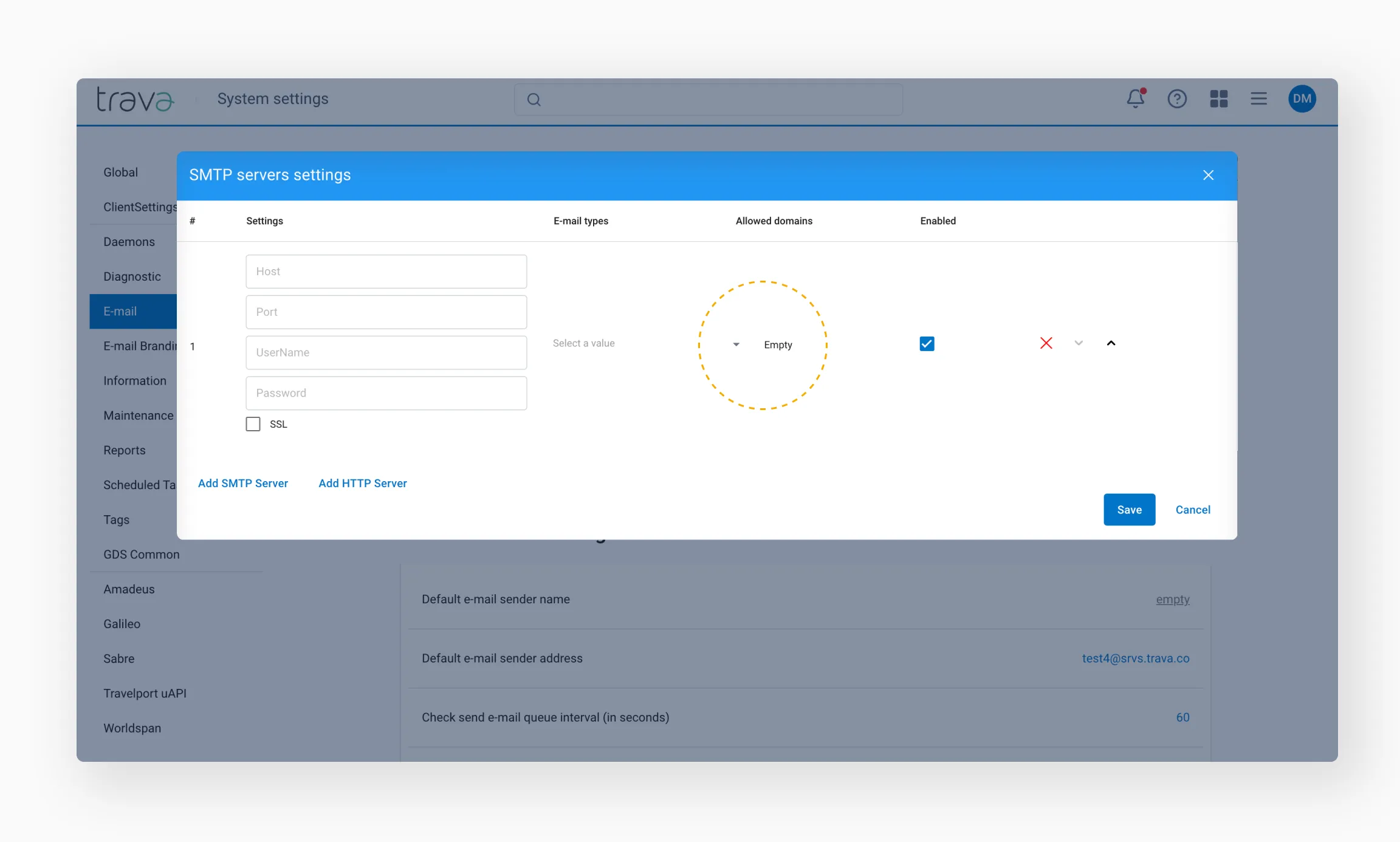
We recommend setting a custom sender's name to make it easier to find these emails in your inbox.
Warnings
Configure notification settings to monitor the workflow. If an active workflow has no processing activity for a defined period, this may signal a system freeze. Conversely, multiple PNR processing attempts could signal a process loop.

Notifications will be sent to the email addresses specified in the Error e-mail tab.
Final tips
- By carefully setting up the scheme properties, you can minimize potential disruptions and streamline operations.
- Regularly review scheme settings to ensure they align with your current operational needs.
- Monitor notifications to quickly identify and resolve potential issues, such as system freezes or processing loops.
- Use meaningful names and descriptions for easier navigation and troubleshooting.