
Test your scheme using a PNR
Learn how to test your scheme using a PNR – either in parts or as a full workflow. This article walks through the process using a simple pre-built scheme as an example.

PNR source
In the Start element, select External start as the source. This setting allows you to manually trigger the processing of reservations one at a time, giving you full control over the workflow.

As an example, use a newly created reservation to avoid modifying real PNRs. You can also test with an existing reservation. In that case, make sure to enable Test Mode to prevent any changes from being applied to the PNR via the GDS.
Tip
If you need to update a working scheme that is already linked to a specific source, create a separate test scheme for experimenting with complex conditions. Once you're confident the logic works, transfer those components into the main scheme.Conditions for testing
In the example scheme provided, the goal is to verify that all segments in the PNR have the status HK.

If all segments meet this condition, the scheme routes the PNR along the OK path. A remark will be added according to the settings of the Add remark element.

If any segment in the PNR does not have the status HK, the system routes the PNR down the Fail path and assigns a tag to the booking.

After building and checking the scheme, activate it and remember its name – you'll need to reference it later during testing.
Ingest a PNR
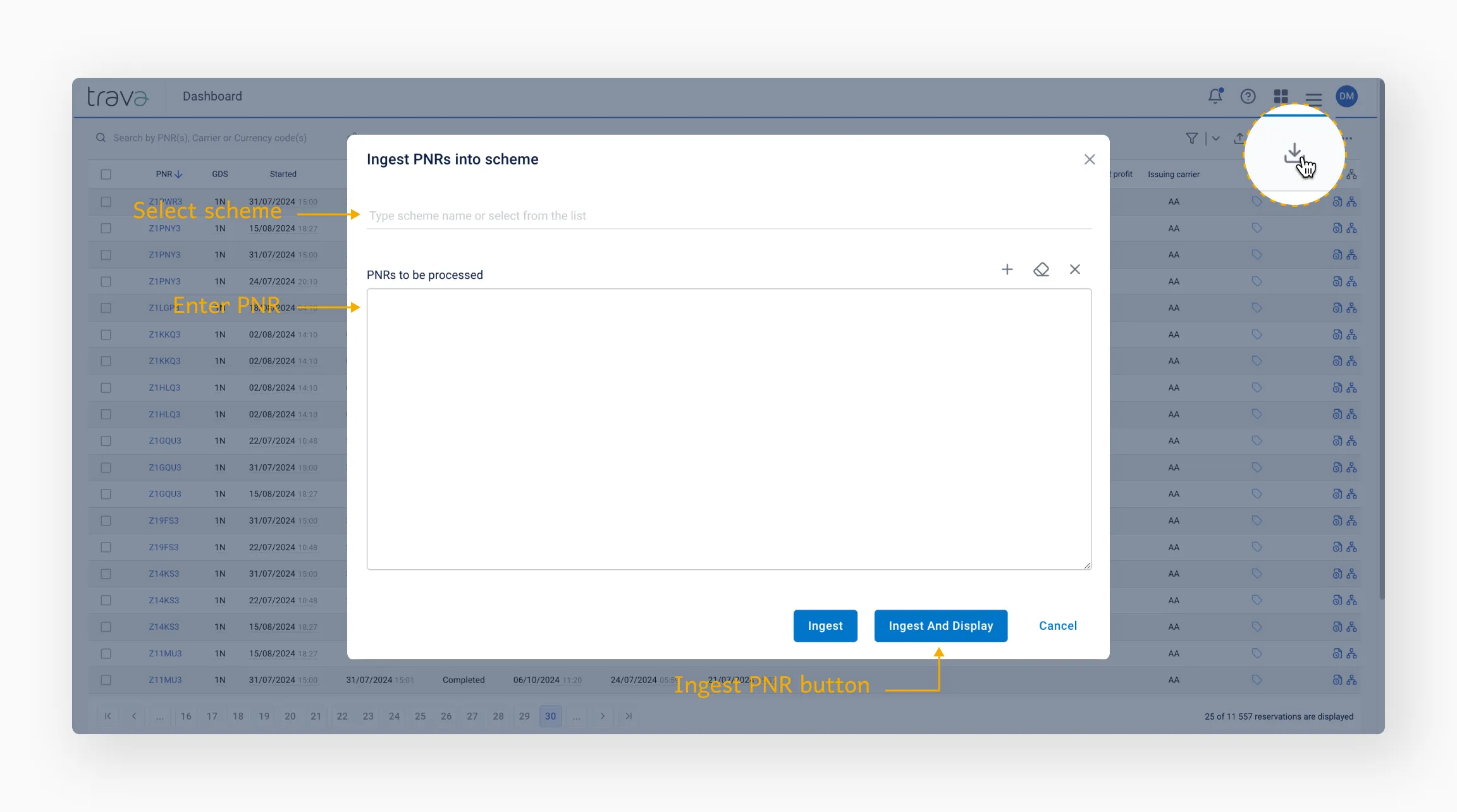
Go to the Reservation Processing page and click Ingest PNRs. In the window that opens, enter the name of the scheme and the PNR you want to process.
Warning
Make sure to enter the correct scheme name. Selecting the wrong scheme could result in unintended changes to the PNR.Start processing
To begin processing, click Ingest and Display. A pop-up message will confirm that processing has started.

Wait a few seconds, then refresh the page. Once processing is complete, the instance will appear on the Reservation Processing page.
Processing history
To view processing history, click History in the top-right corner.
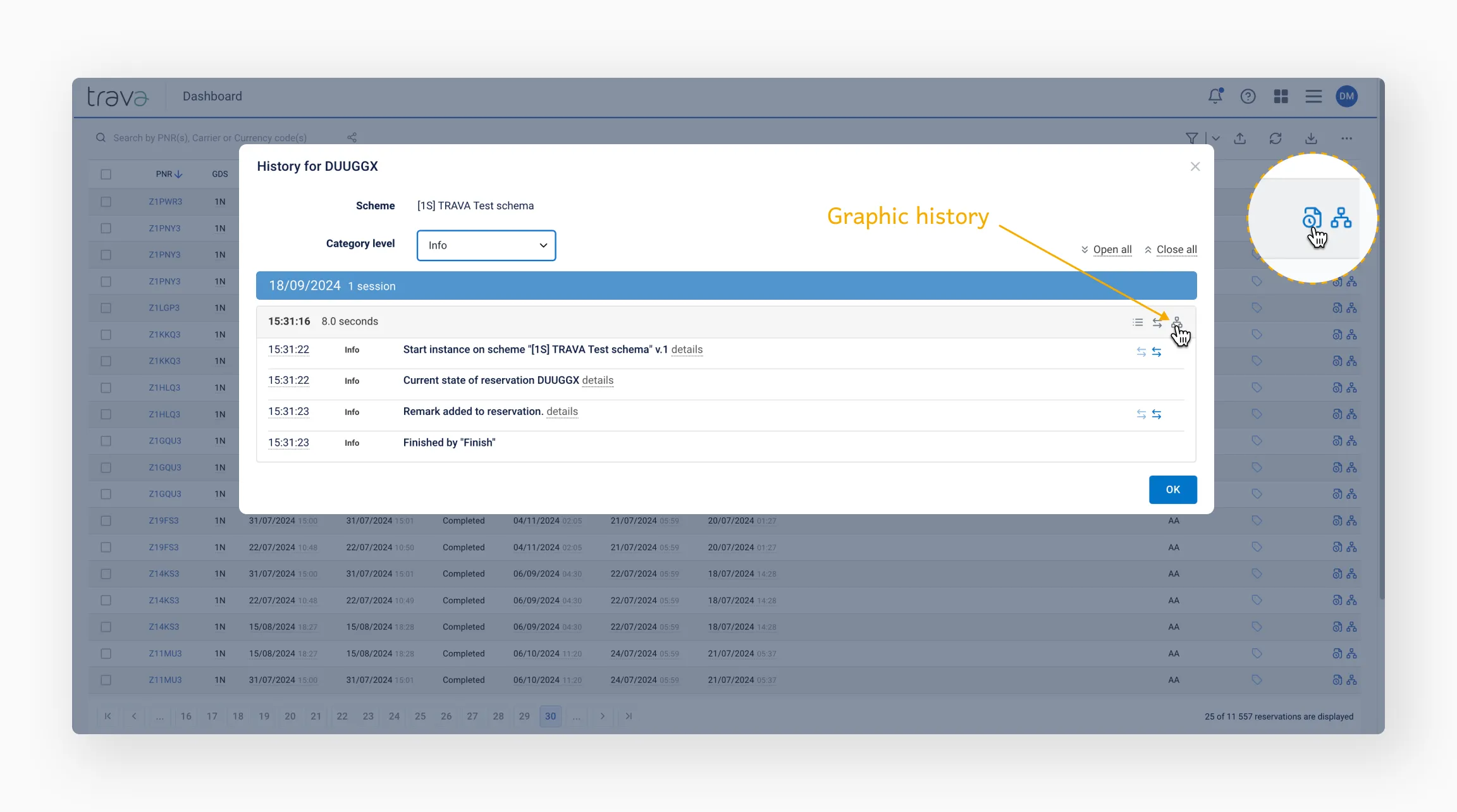
There are two types of history available:
- Textual: A detailed log of each step
- Graphical: A visual representation of the workflow
Click the Scheme icon at the end of a row to view the exact path the PNR followed.

Editing the scheme
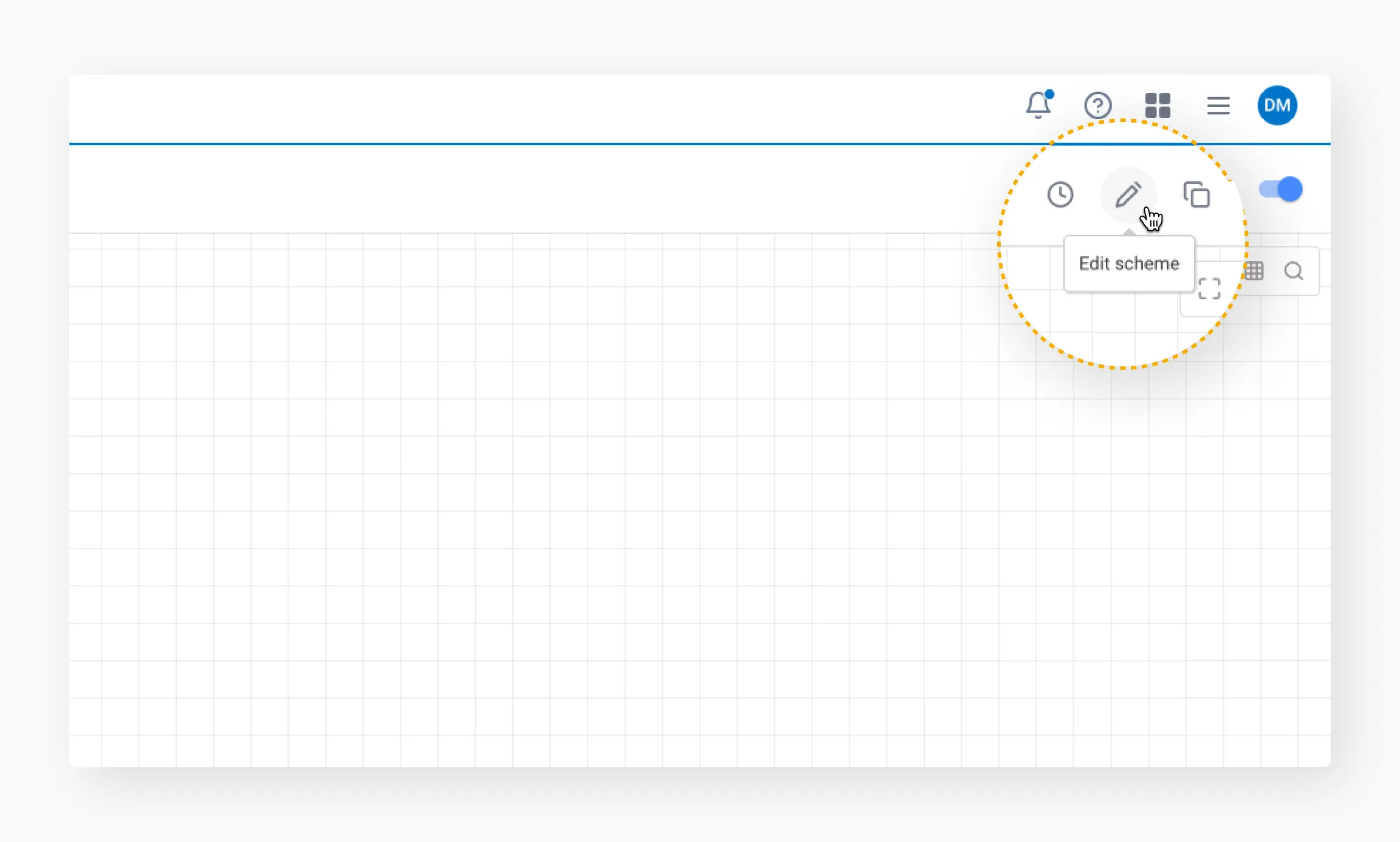
To make changes to the workflow, return to the Schemes list, open the scheme you want to modify, and click Edit scheme.
Start processing with the new version of the scheme
After making changes, reactivate the scheme. Then, on the Reservation Processing page, select the booking and click Run Now. The booking will be reprocessed using the updated version of the scheme.
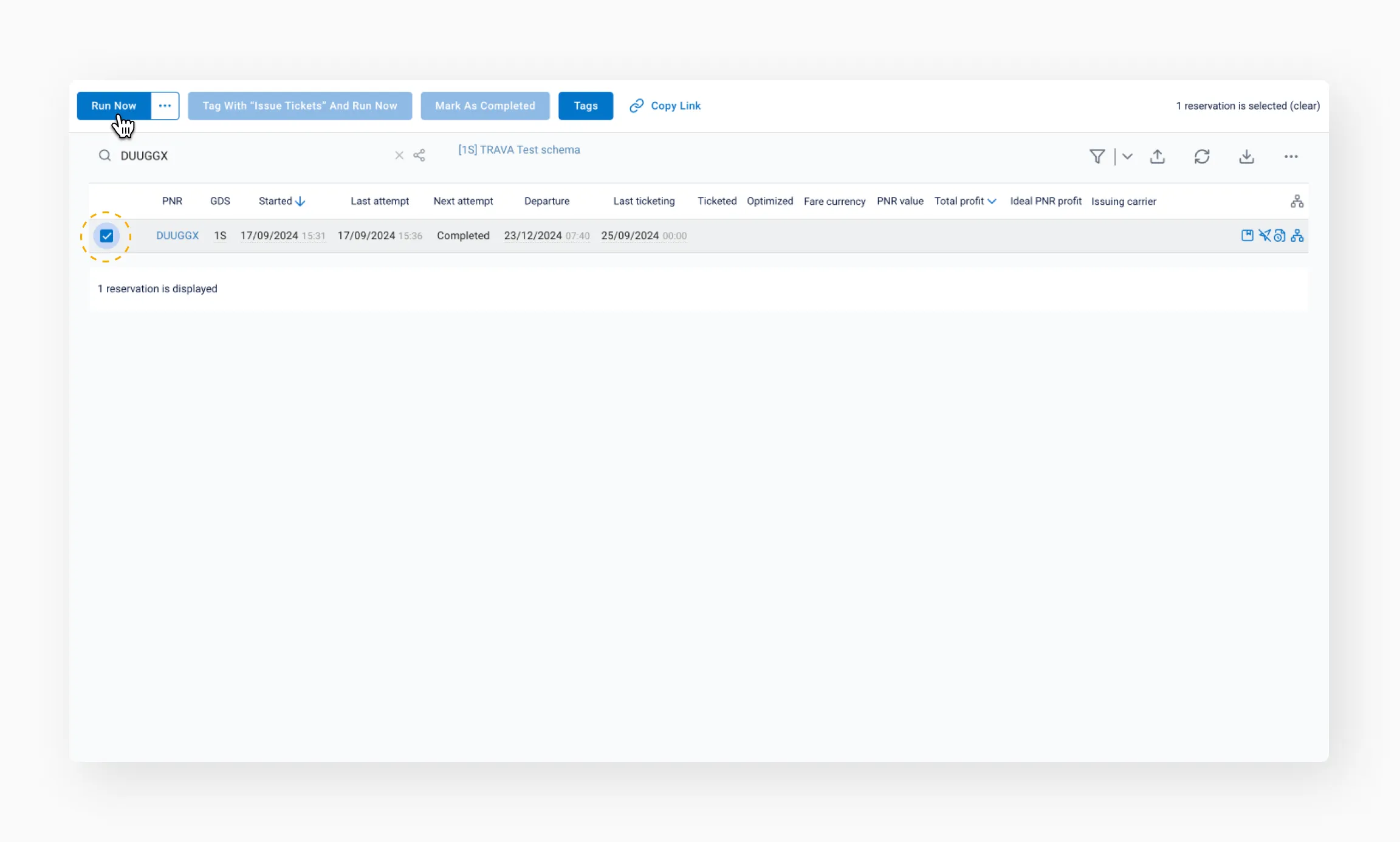
Click History on the right – you'll now see two sessions.
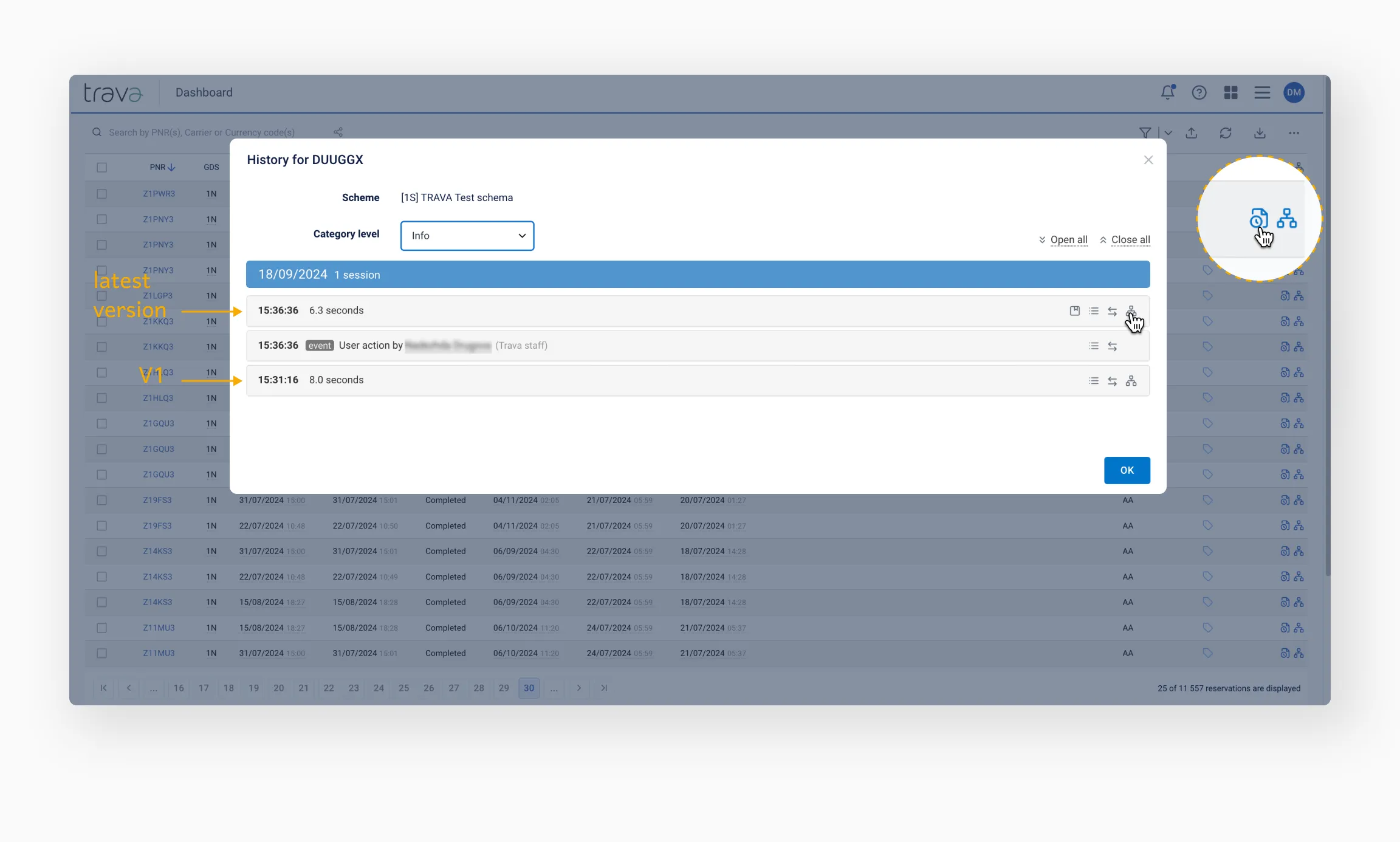
To view how the PNR was processed with the new version, click the Scheme icon at the end of the row for the latest session.

Set the real PNR source
Once you're confident that the scheme is fully assembled and correctly configured, connect it to the real PNR source. Update the Start element settings with the appropriate source, then activate the scheme. Bookings will be processed automatically at the interval you've configured.