
Electronic Ticket Record
The Electronic Ticket Record modal displays detailed information about the electronic ticket record.
General information
Open the Electronic Ticket Record by clicking the ticket number in the Document Processing table.
The modal window displays the same information as the Ticket icon on the Reservation Processing page.
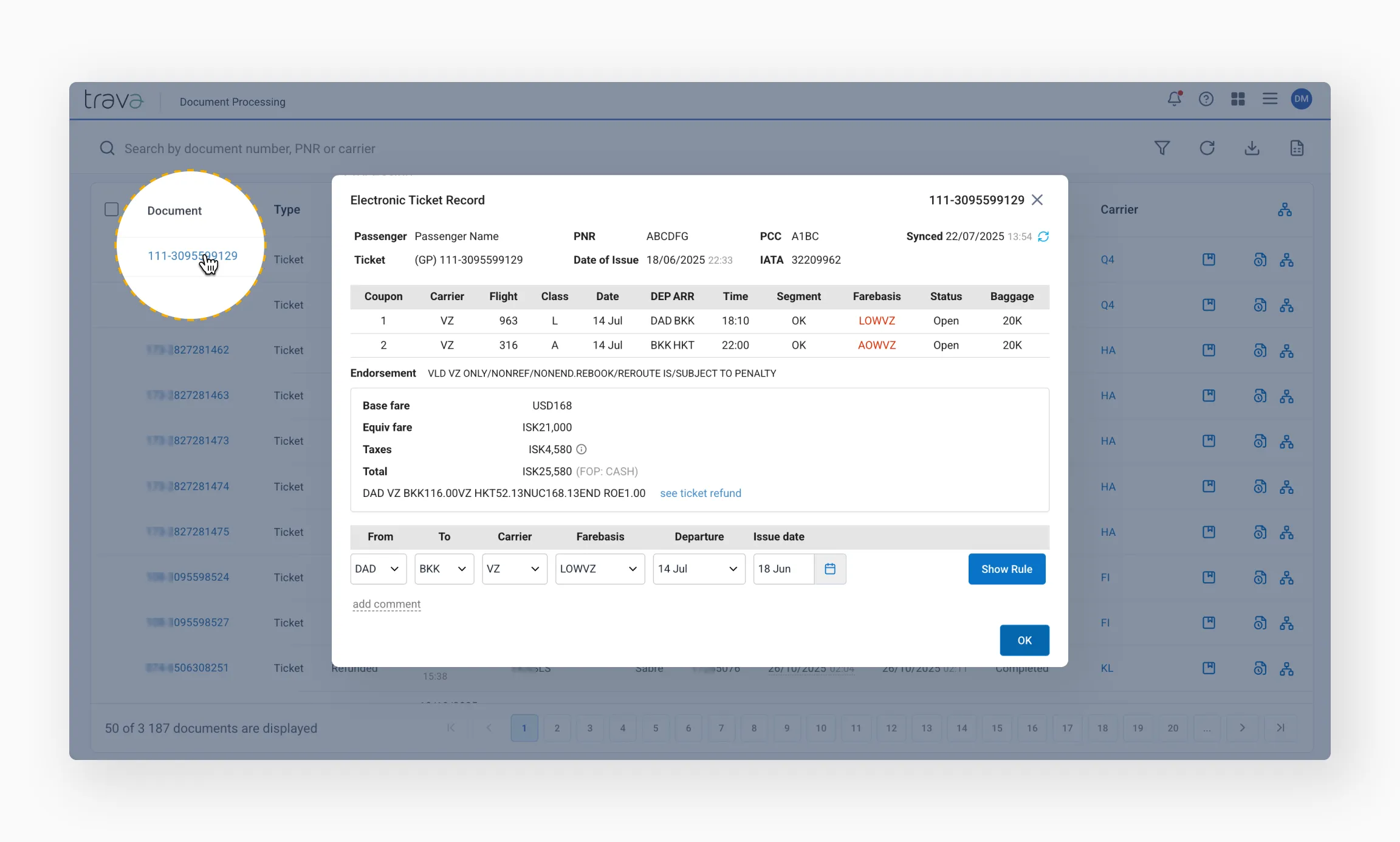
Header
The top section of the modal window contains a summary of key ticket details:
- Passenger's full name
- Ticket number
- PNR the ticket is linked to
- Date of Issue – when the ticket was issued
- PCC / OID – office where the ticket was issued
- IATA code
- Synced – date of last synchronization
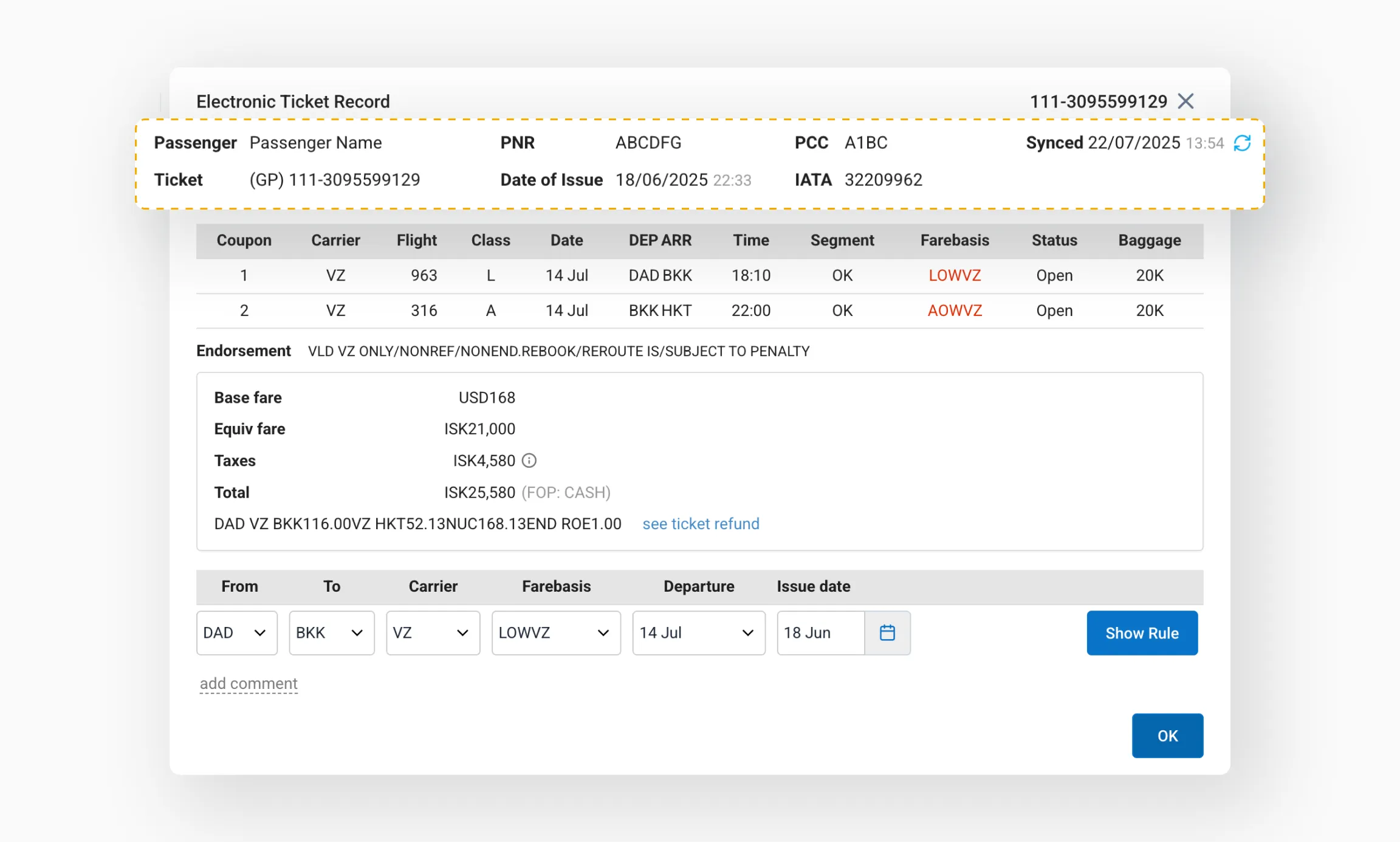
You can click Refresh at any time to update the coupon status and other details.
Tip
If synchronization fails, the date will be highlighted in red – hover over it to view the reason.Coupons and endorsement
This section lists all coupons included in the ticket and their current statuses (as of the last synchronization), as well as the Endorsement line from the ticket.

Tip
If a fare basis appears in red, it means the fare was built from multiple fare components. In such cases, fare rules must be checked separately for each component.You can click a fare basis to view the correct route publication below. The system will display the fare construction path for the selected component to ensure accurate rule retrieval.
Viewing fare rules per component
Example: the fare consists of two separate one-way (OW) components.
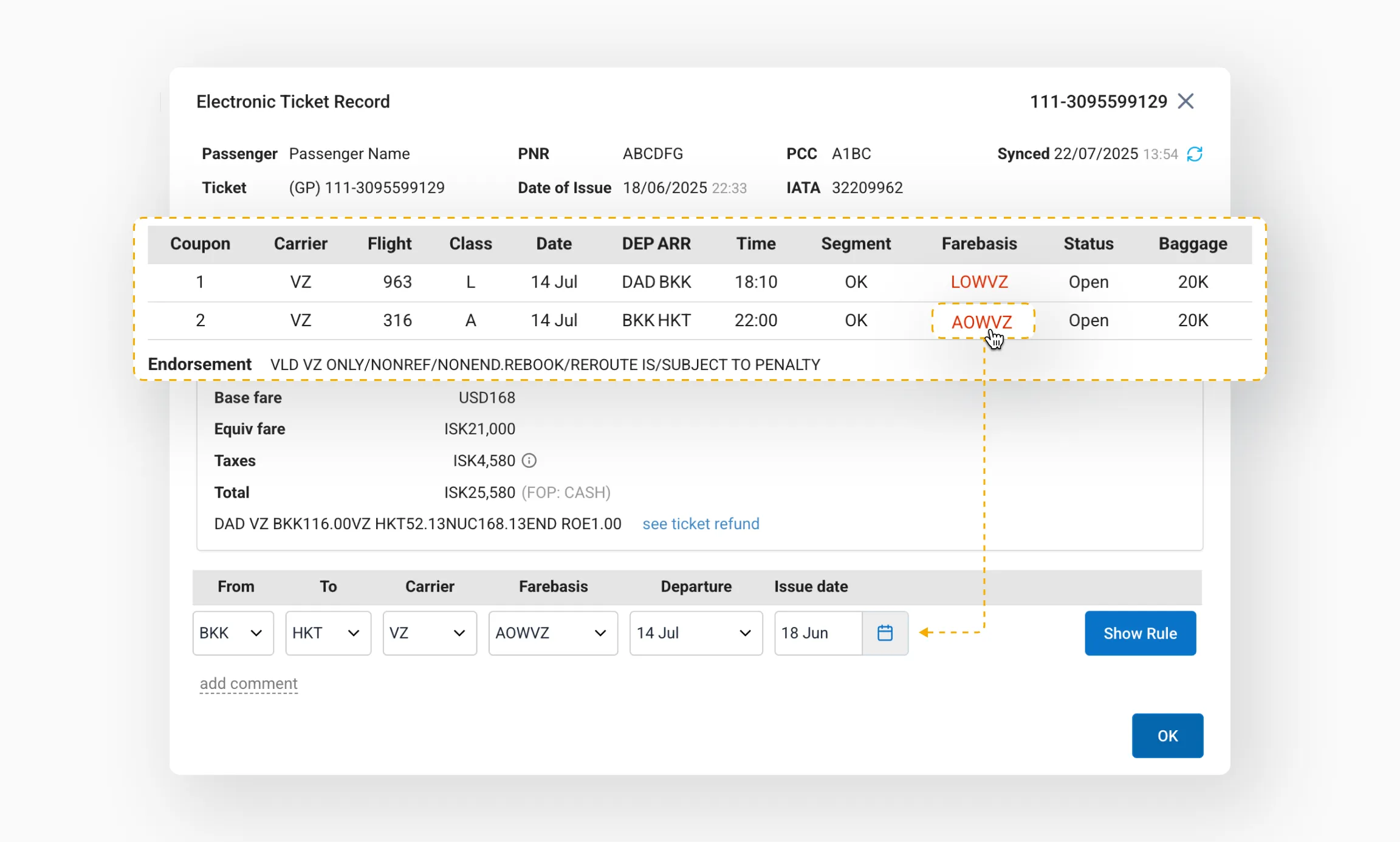
By default, the lower part of the modal window shows the fare rules for the first coupon/fare component.
To view rules for another coupon, click the corresponding row with that fare basis.
This updates the displayed rules according to the direction of the selected fare component.
Fare calculation details
The Fare Information section displays the following data extracted from the ticket:
- Base fare
- Equivalent fare
- Taxes
- Total
- Fare calculation line with a link to refund rules

Tip
Click the (i) icon next to taxes to view a breakdown of individual tax amounts.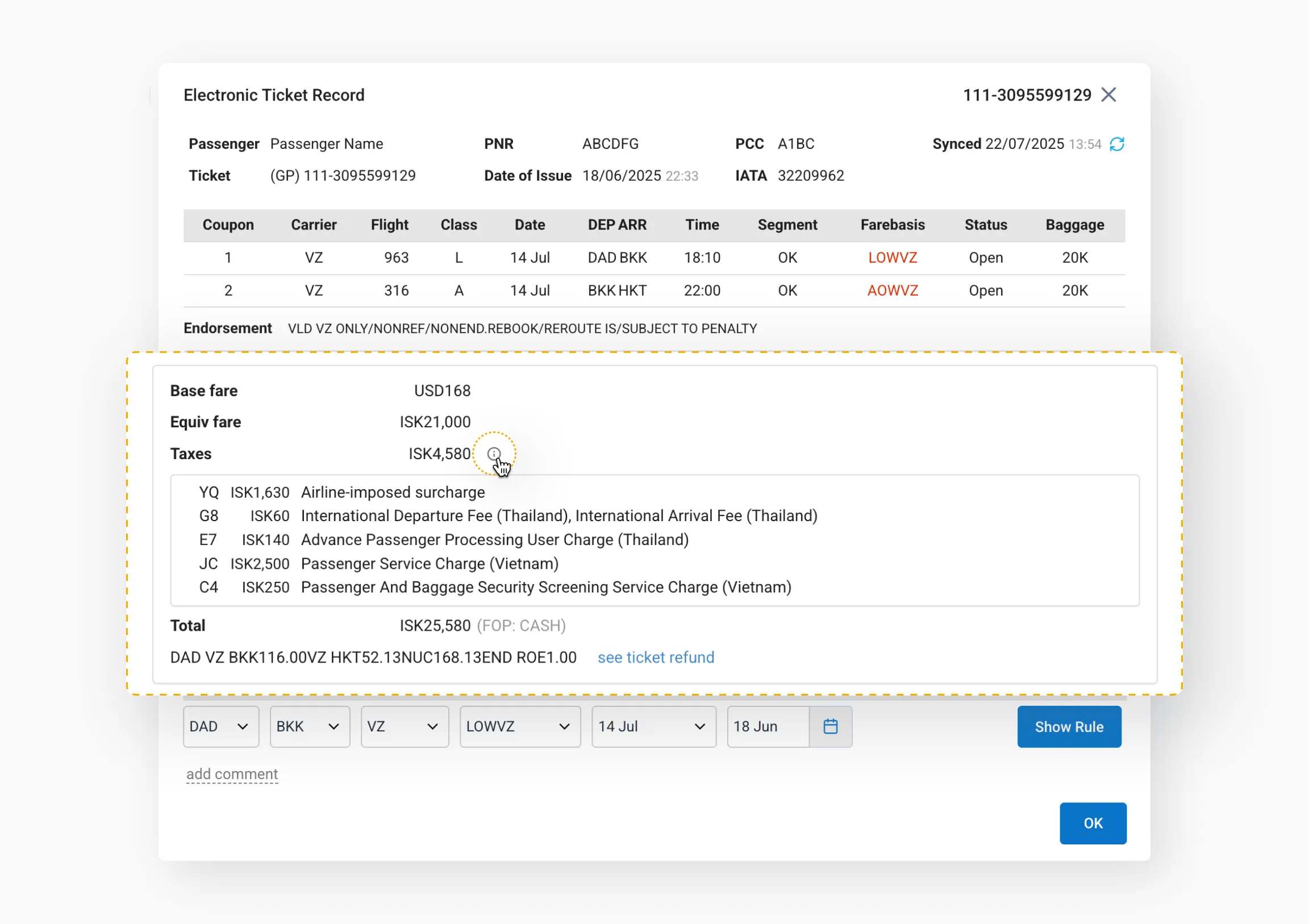
Ticket refund rules
When you open refund rules, the following tabs will be available:
- Ticket - Displays flight coupons and ticket price details.
- Refund rules - Displays a breakdown of fare and tax calculations, with the total potential refund amount shown in the lower-right corner.
- Cat16 (Structured) - Displays an extract from the fare application rules regarding the possibility of ticket exchange and refund. Click a component row to check its specific exchange/refund terms.
- Cat16 (RAW) - Displays full exchange and refund rules for each fare component as retrieved from the GDS.
Ticket
This tab displays flight coupons and ticket price details.

Refund rules
This tab displays a breakdown of fare and tax calculations, with the total potential refund amount shown in the lower-right corner.

Cat16 (Structured)
This tab displays an extract from the fare application rules regarding the possibility of ticket exchange and refund.

Click a component row to check its specific exchange/refund terms.
Cat16 (RAW)
This tab displays full exchange and refund rules for each fare component as retrieved from the GDS.

Viewing full fare rules
You can also view the complete fare application rules across all categories using the tool located at the bottom of the Electronic Ticket Record modal window.
These fields are prefilled. By default, the fare rules are displayed for the first fare component.

Click Show rule to open the full fare rules for the selected component.

Adding comments
Use the Add comment field to add a note to the ticket. You can edit or delete your comment at any time.

The comment is displayed only within this modal window but remains available when viewing the ticket record from any section of the system.