
PNR details
Modal overview
The PNR details modal opens when you click on a PNR number from the Reservation Processing page. It provides a structured summary of key booking information across several tabs.
All data is refreshed during each new processing run to reflect the most current state of the PNR.
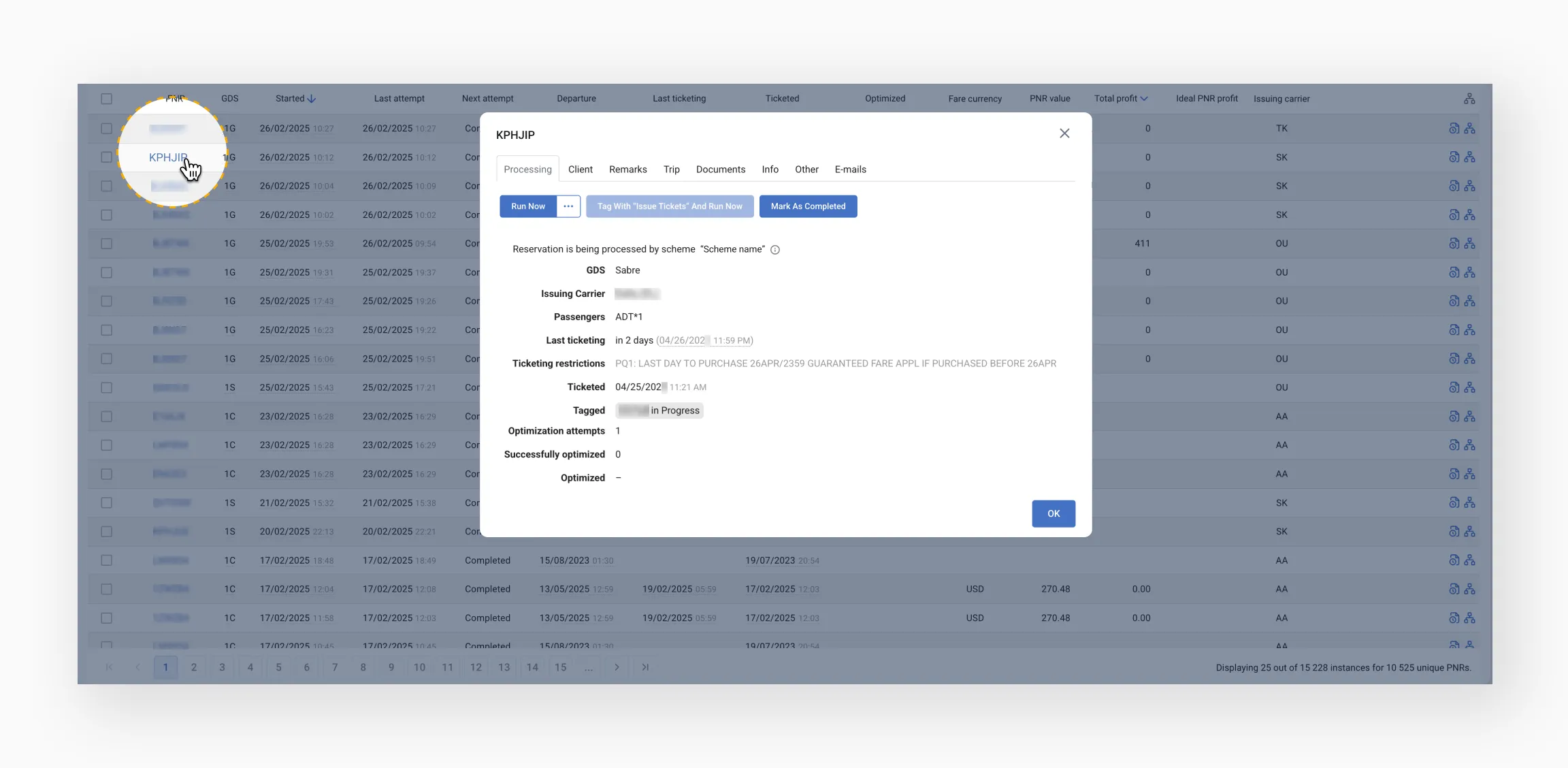
Tabs
Processing
Displays essential PNR data and offers quick access to actions (e.g., run, stop, tagging) via buttons at the top.

Dates or events shown in gray have already passed.
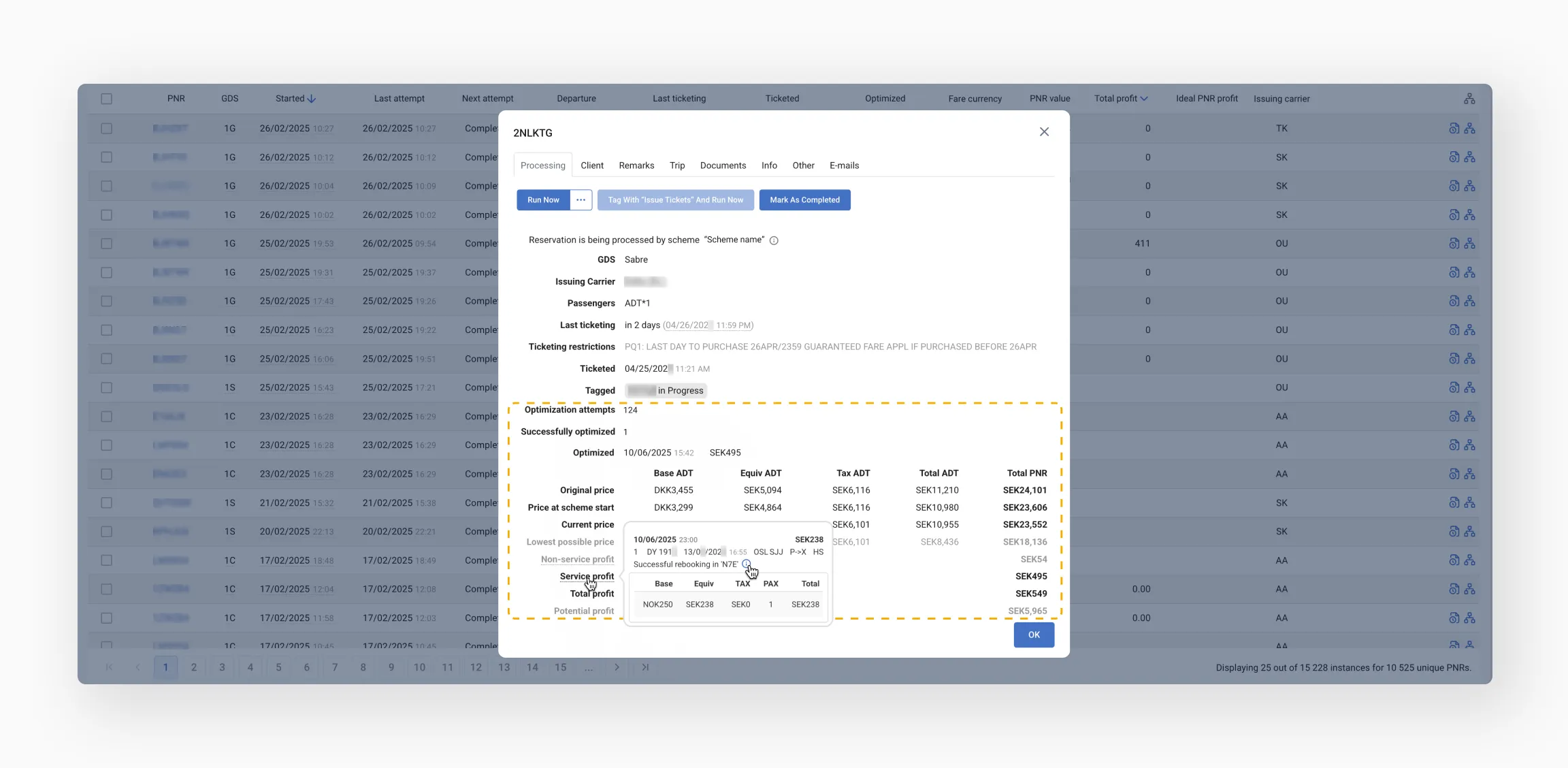
When an instance comes from a PNR pricing scheme, the modal shows extra details: fare, profit, and optimization info – if optimization was performed.

Breakdown includes base fare, tax, and total fare per adult, total for all passengers, and the lowest possible fare (regardless of availability).
Optimization types:
- Non-service profit – changes in the PNR price that Trava recorded and identified as not caused by system operations. May be caused by manual interventions or fare fluctuations.

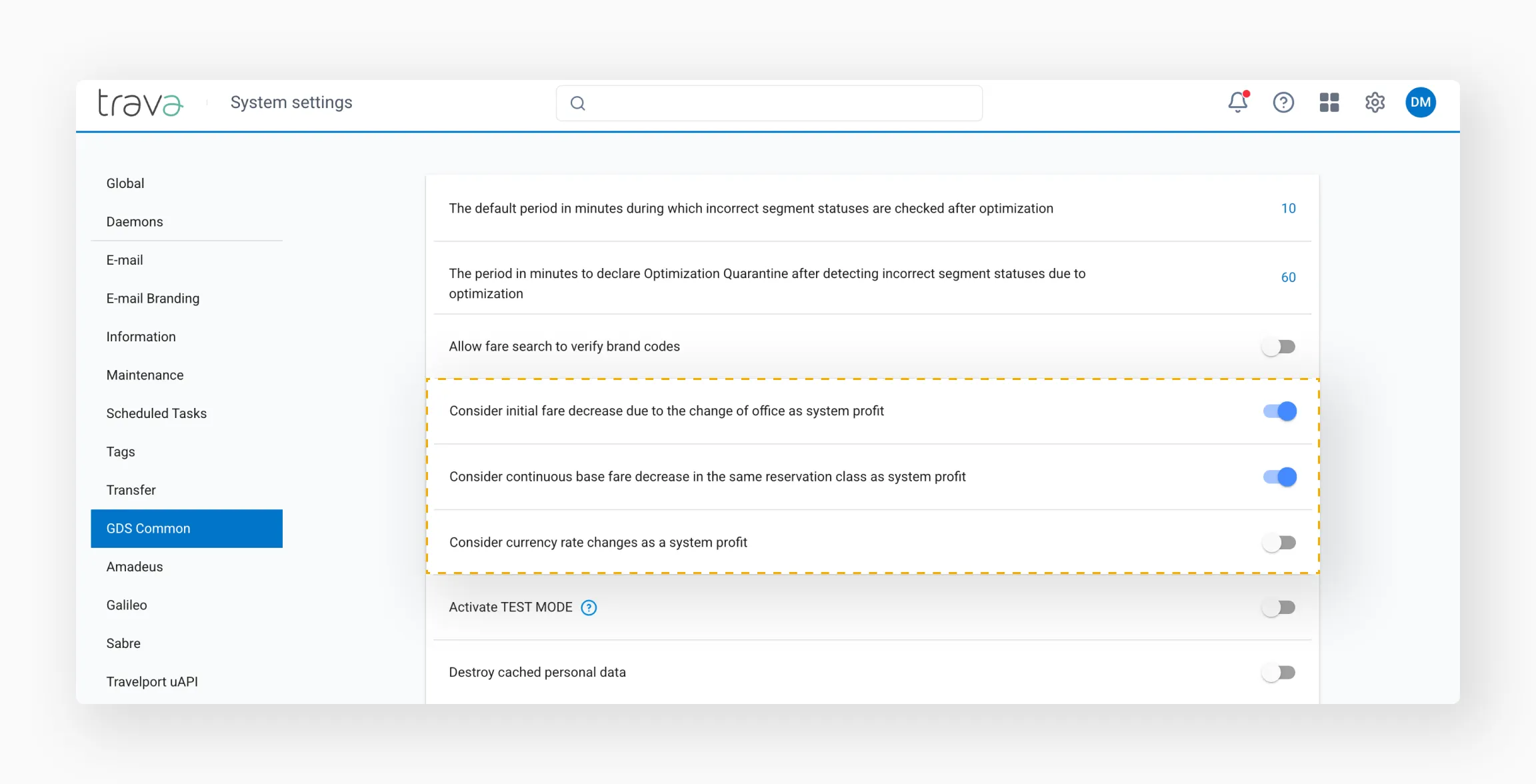
Service profit – profit from changes made by the system (e.g. lower booking class, office change). Optimization details are shown in an info window with a breakdown of the calculated amount.
The calculation of system profit is managed in System settings → GDS Common:
If optimization occurred, its date and amount will appear in the Optimized field.
Client
Displays contact info (phone/email) found in the PNR.
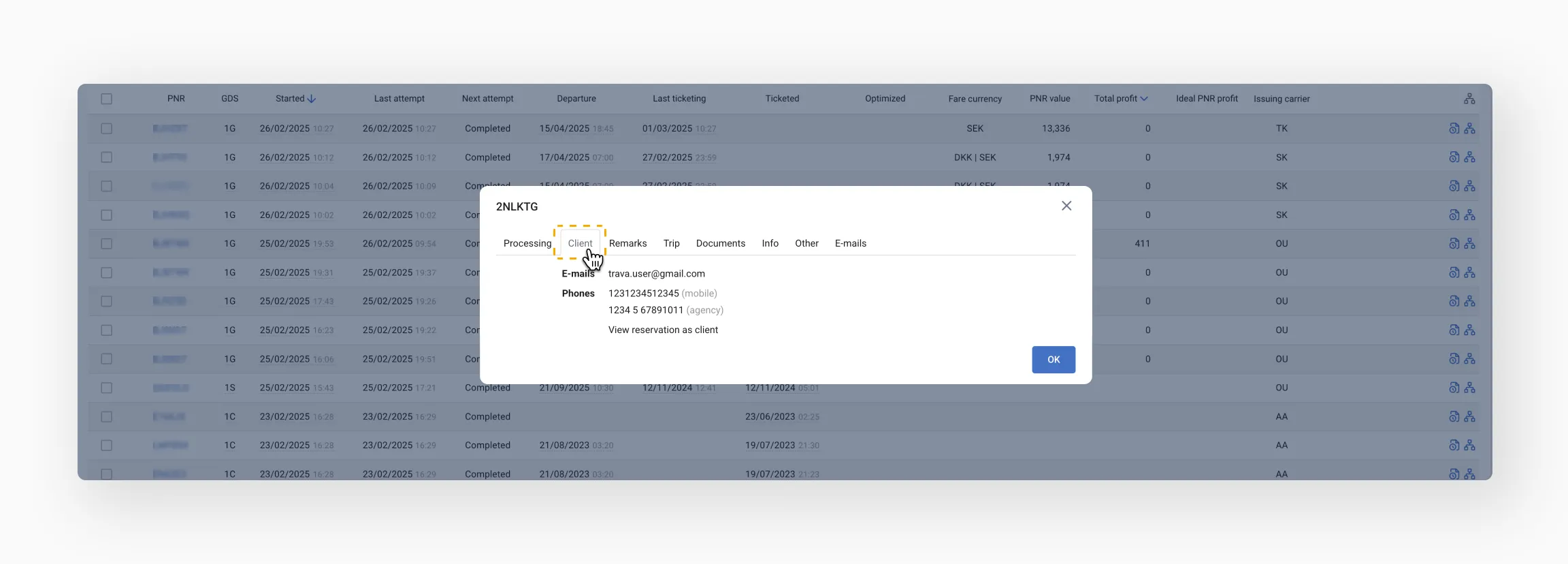
If Mid-office is connected, the View reservation as client button lets you open the PNR in a company web resource.
Remarks
Shows all remarks, SSR, and OSI elements present at the time of the last processing.
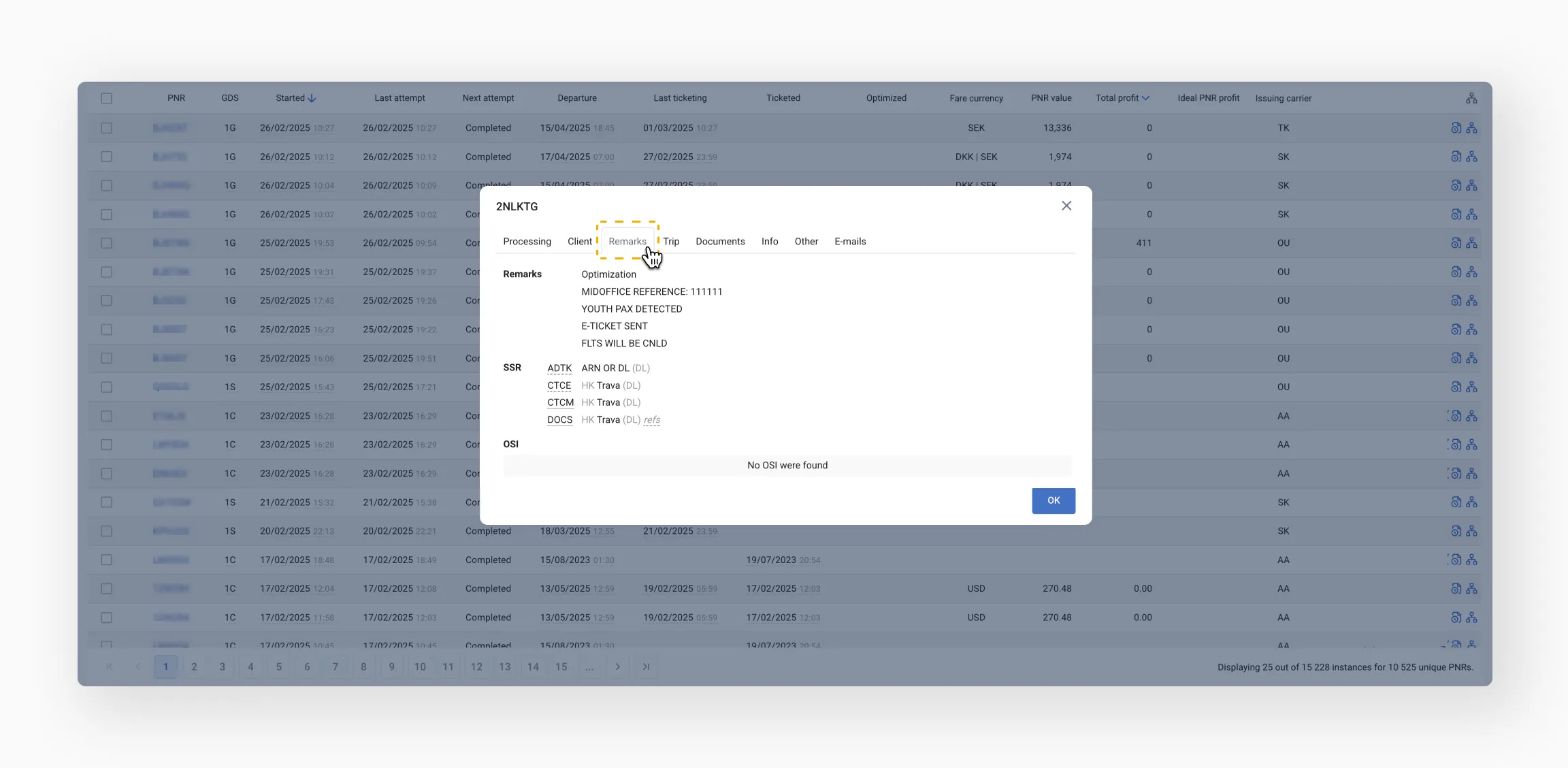
If a remark is linked to a specific passenger, hover over the refs value to view passenger details.
Trip
Lists passengers with types (e.g. adult/child), birthdates, and itinerary details as of the last sync.
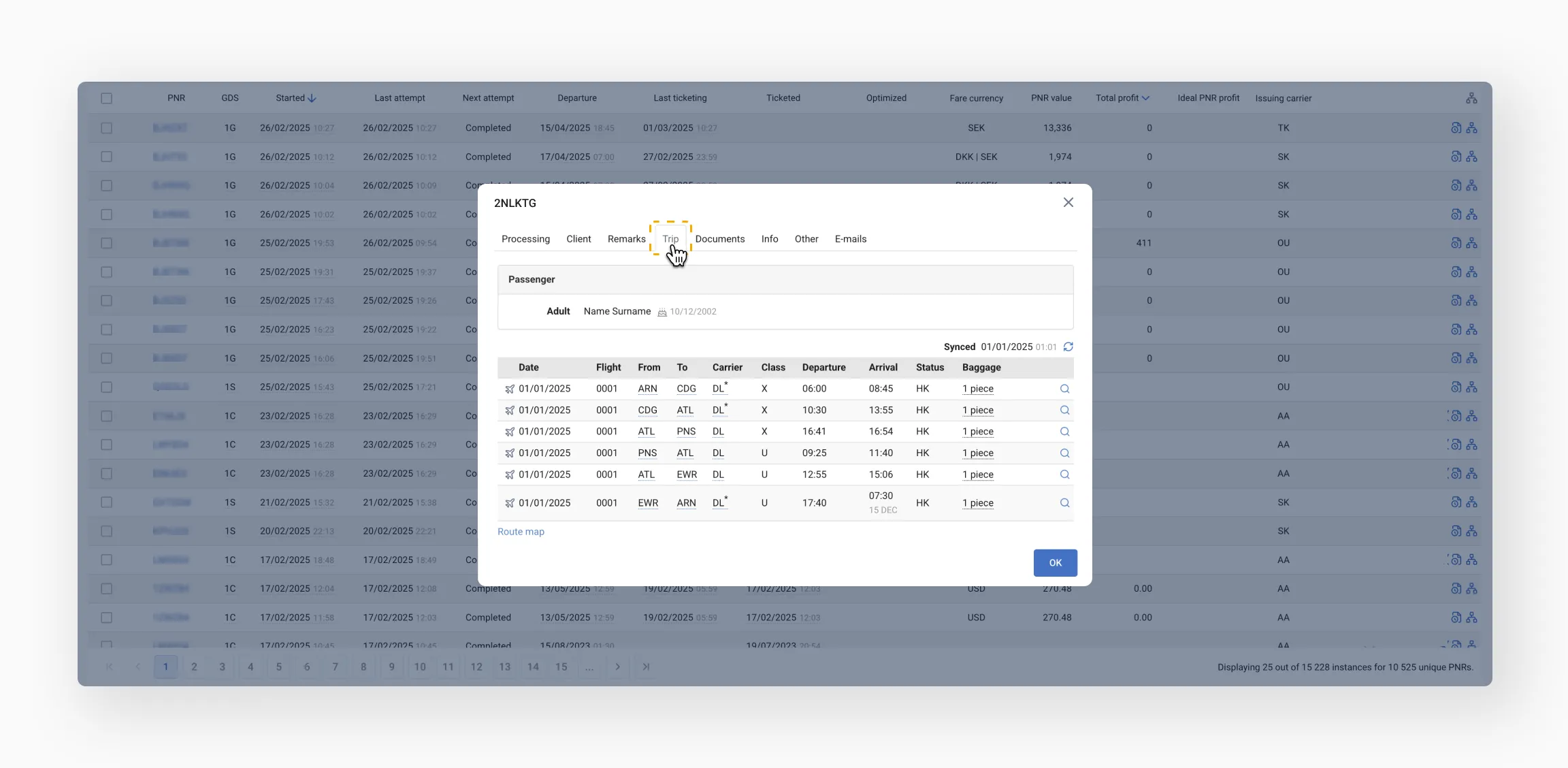
Click the Sync icon to update flight segment data.
Also displays issued EMDs (e.g. extra baggage, seat selection, pet transport).
Documents
Shows all tickets and EMDs issued, exchanged, or voided for all passengers.
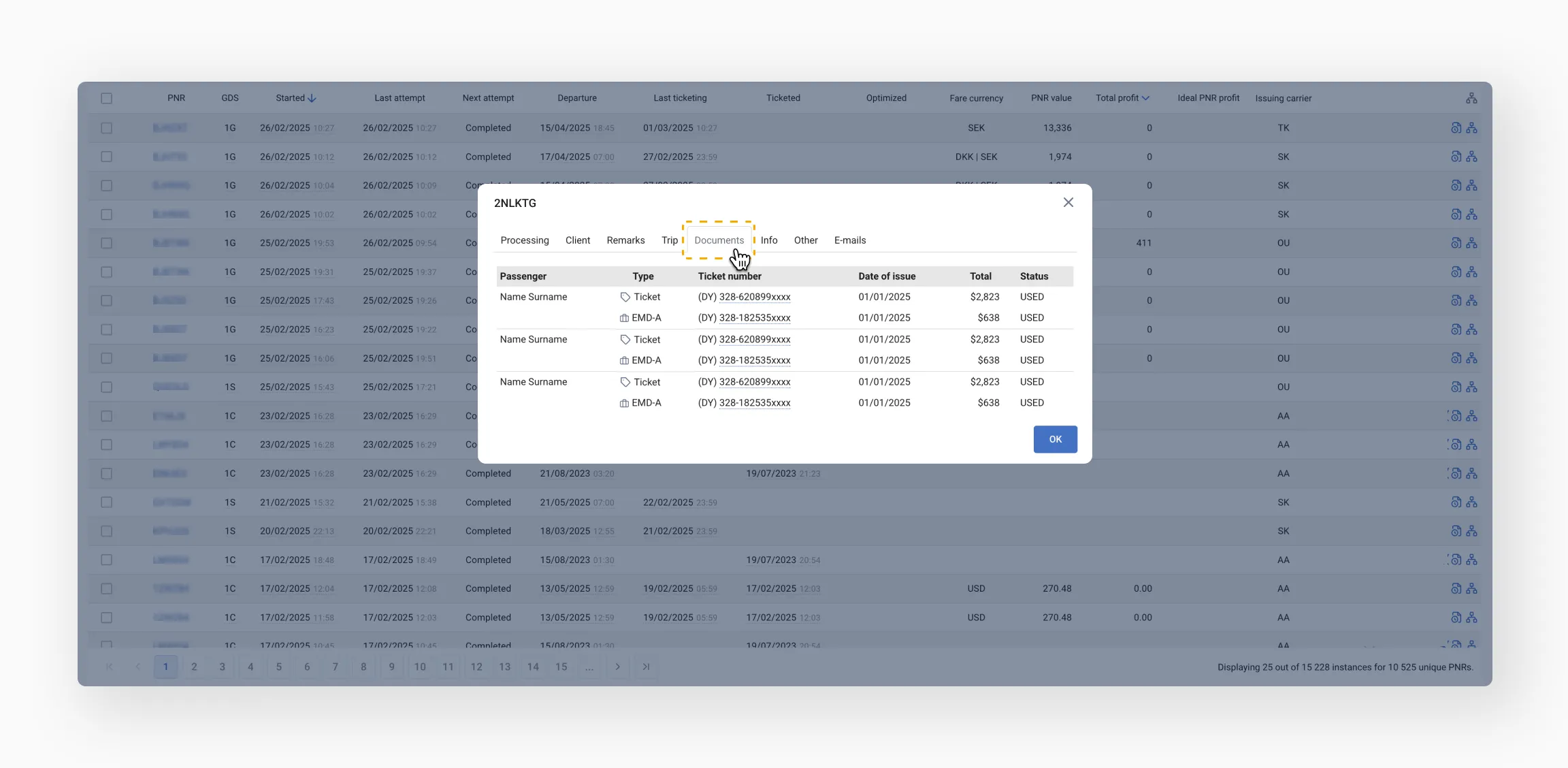
Click a document number to open and refresh its status.
Info
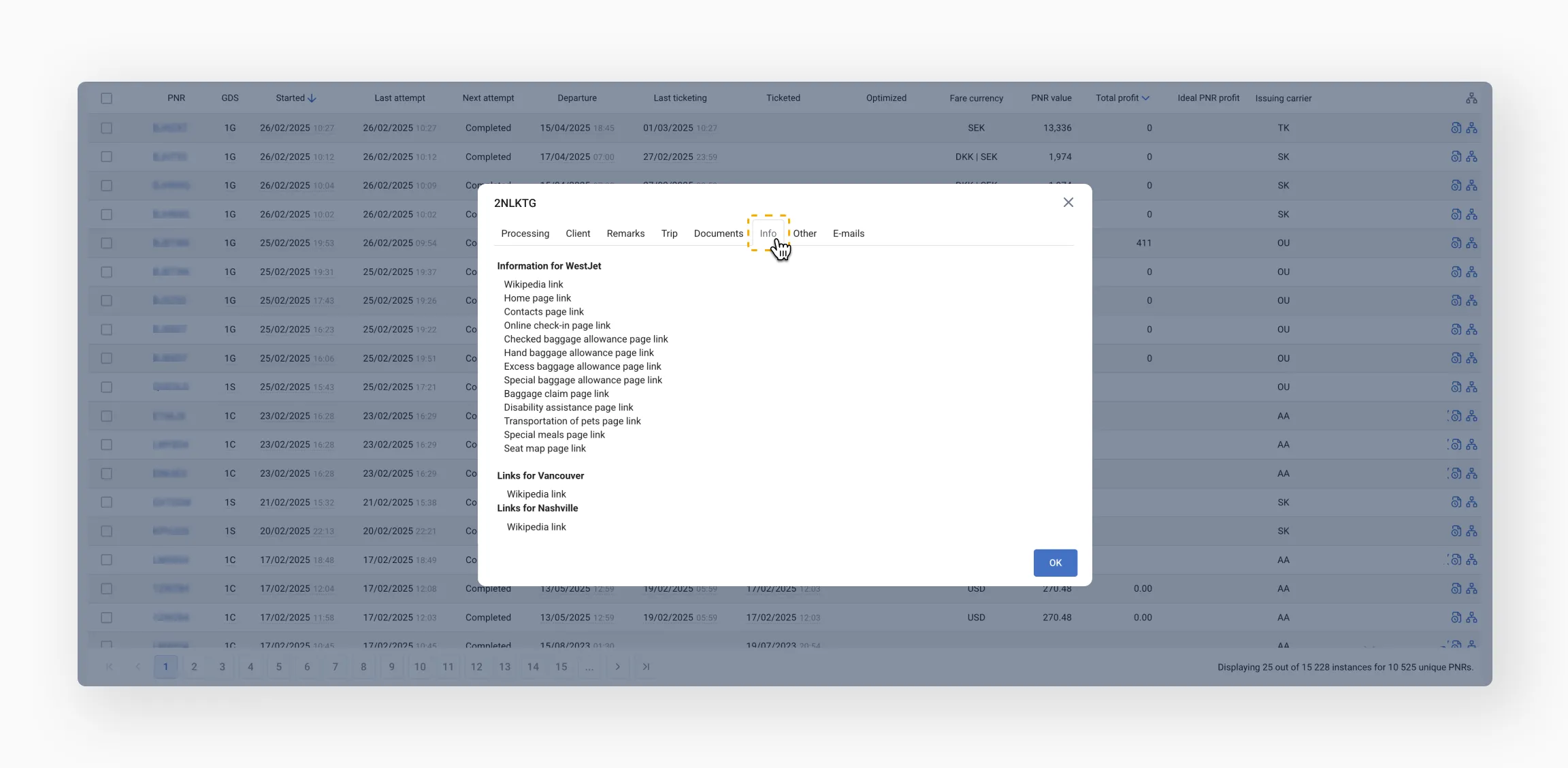
Provides useful airline links pulled from the Carriers section, depending on carriers present in the itinerary.
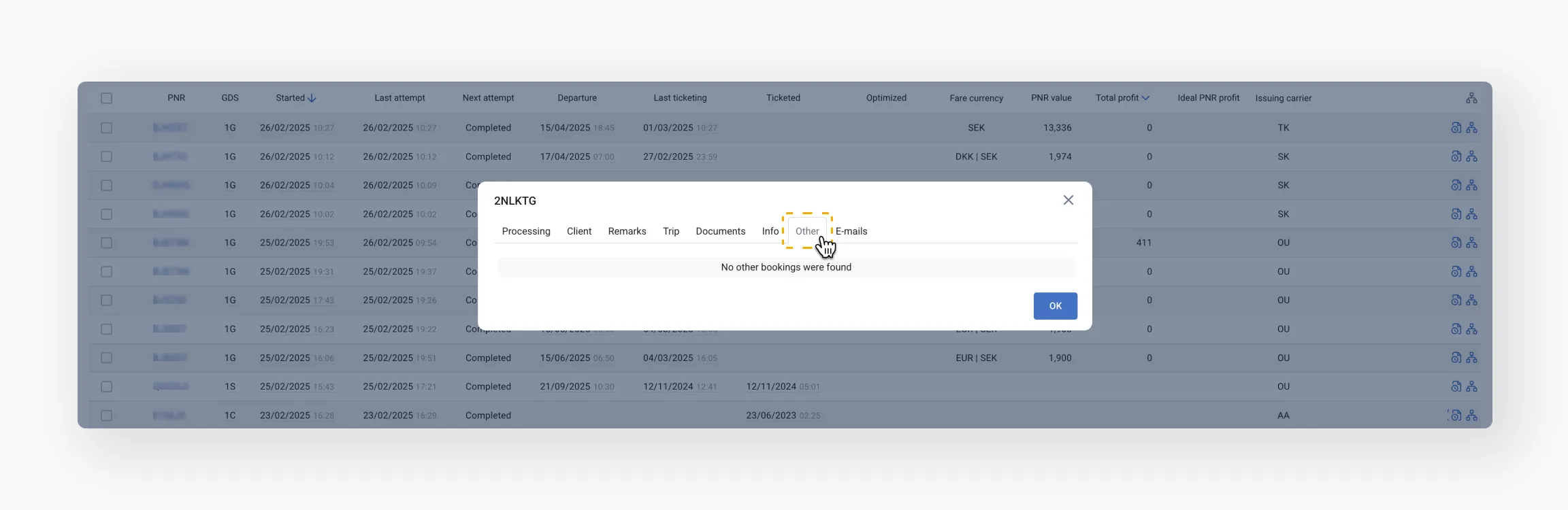
Other
Indicates whether the passenger has any other bookings.
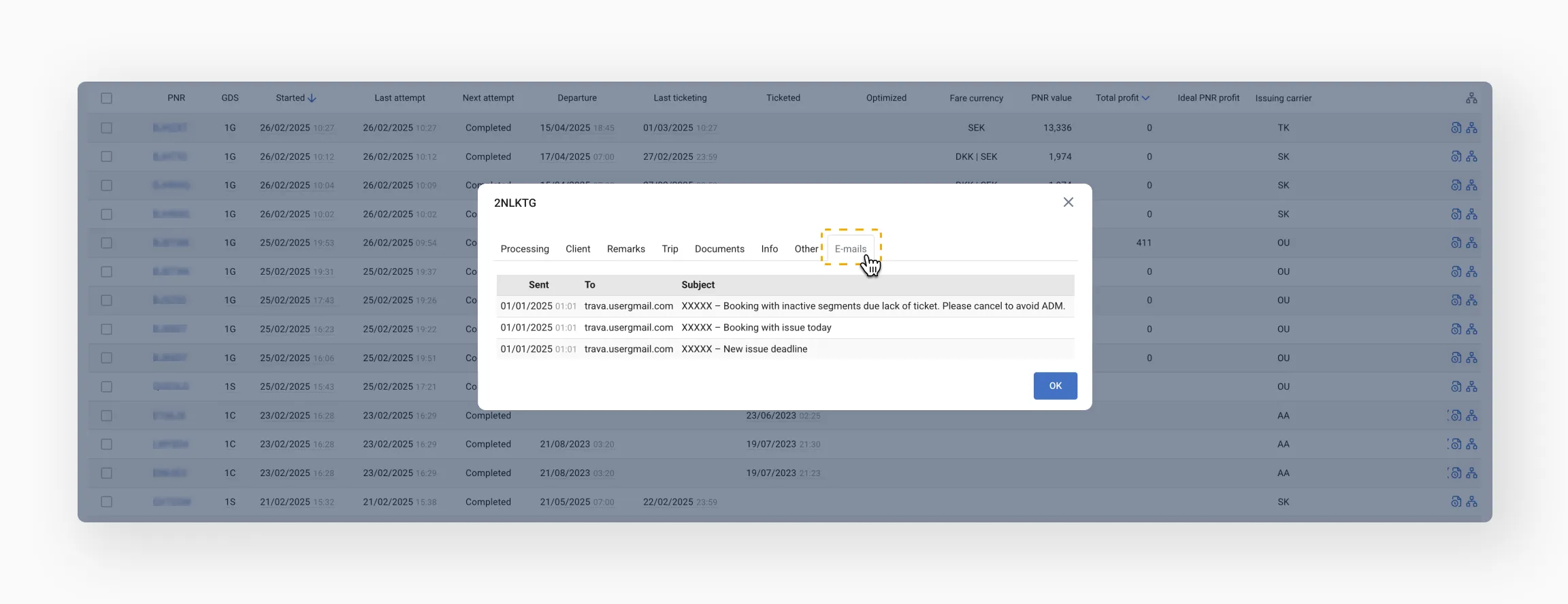
E-mails
Displays all emails sent across all instances related to the PNR.
Final tips
- Use the PNR details modal to quickly access essential booking info without switching systems
- Hover over fields like TTL, passenger references, or fare data to view additional context
- Click on tickets or EMD numbers to check their current status and trigger a refresh
- Look for gray text to identify past events at a glance
- Exploring these tabs regularly will help you resolve issues faster and stay on top of key processing details