
Search & filters
Explore how to track specific PNRs using search and filters – and how to save time with advanced options and bulk actions.
Quick search
Use the search bar at the top of the page.

Search parameters:
- PNR number
- Carrier
- Currency code (only applies to instances from optimization schemes)
To search for multiple values (e.g., multiple PNRs or airlines), separate them with spaces.
Filters
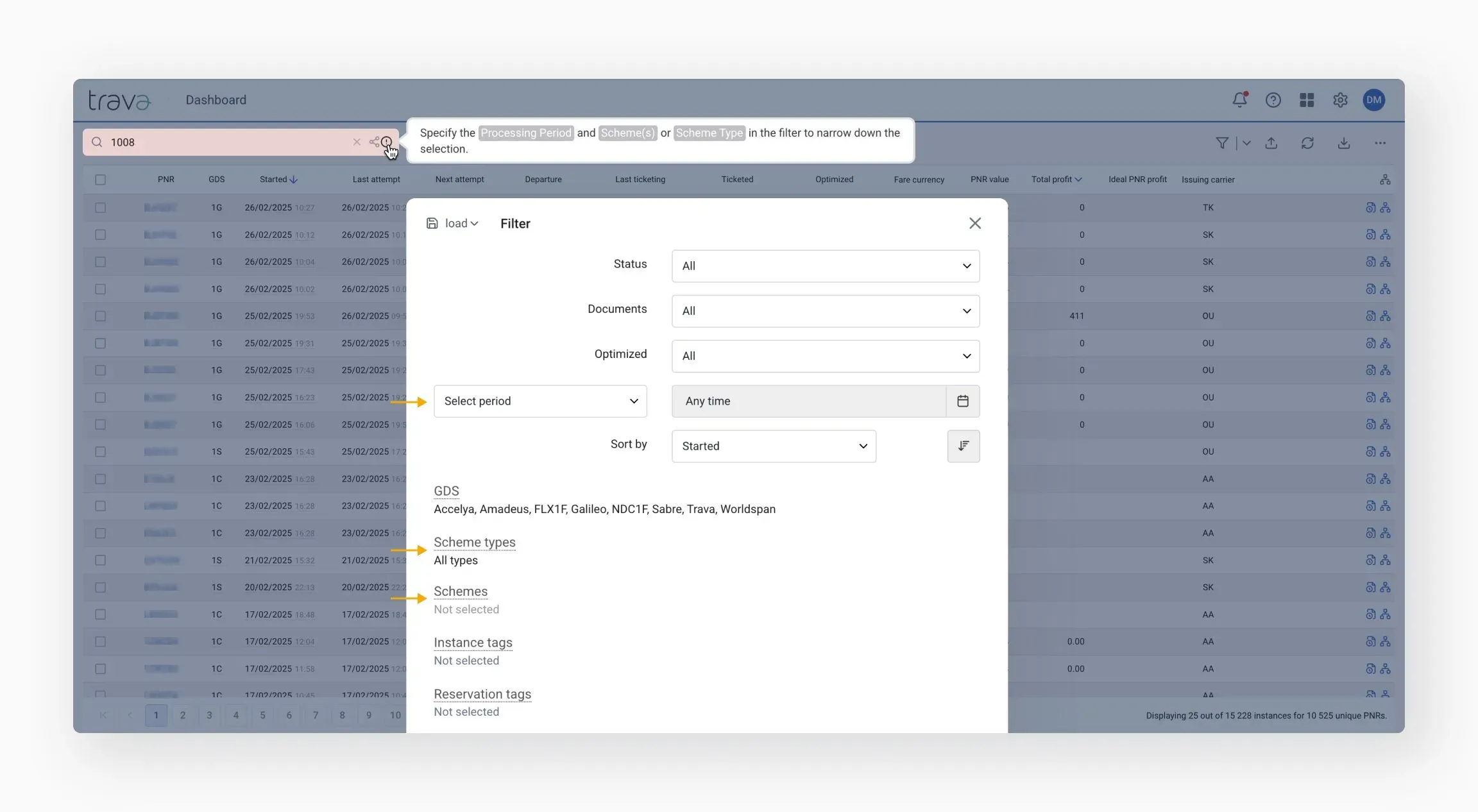
The filter can be used together with the search bar or separately. Click the Filter icon to open a modal where you can filter by multiple attributes:
- Status
- Documents
- Optimized
- Period
- Scheme types
- Tags
- and more

Tip
Scheme types lets you select the types of schemes intended for PNR processing. If you're looking for a scheme that processes tickets, search for those instances on the Document Processing page.Find instance issues
Advanced search options help you pinpoint problems by a specific error message or unresolved critical issues.
Search by error text
Use this option to track critical errors or verify whether a known issue has been resolved.

- Critical errors – you can search by both the title and description of the issue. Setting a time period is optional.
- Errors and warnings – select a time period to keep results relevant. Title and description are optional.

Search by event number
Use this option to find all instances of a specific event in the processing history – especially when investigating issues or verifying system behavior.
You can find the event number in the processing history by hovering over the end of the instance line – the hash icon will appear, showing the event number in a tooltip.

When searching by event number, follow the instructions in the tooltip that appears.
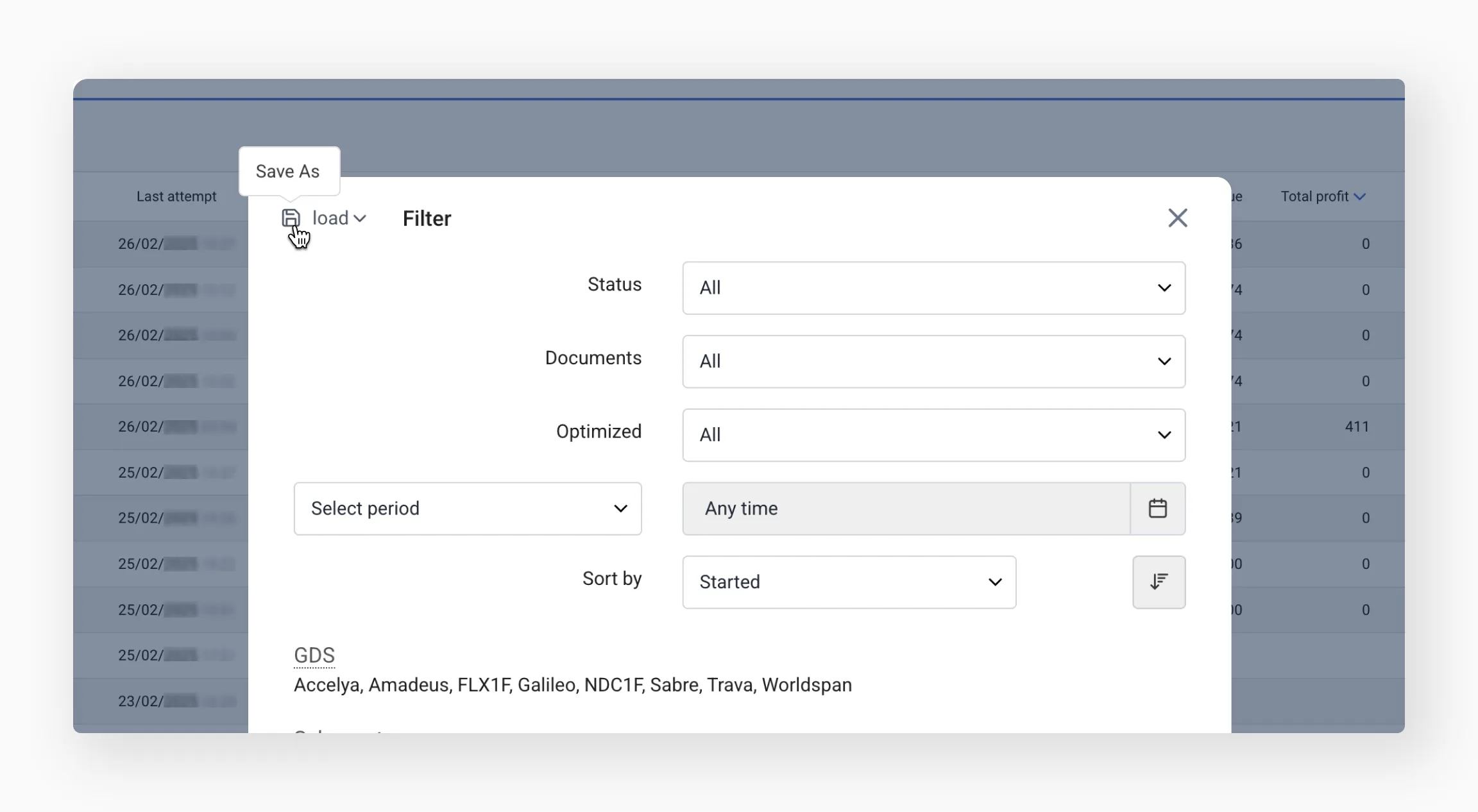
Saving and managing filters
You can save your filter settings for future use.
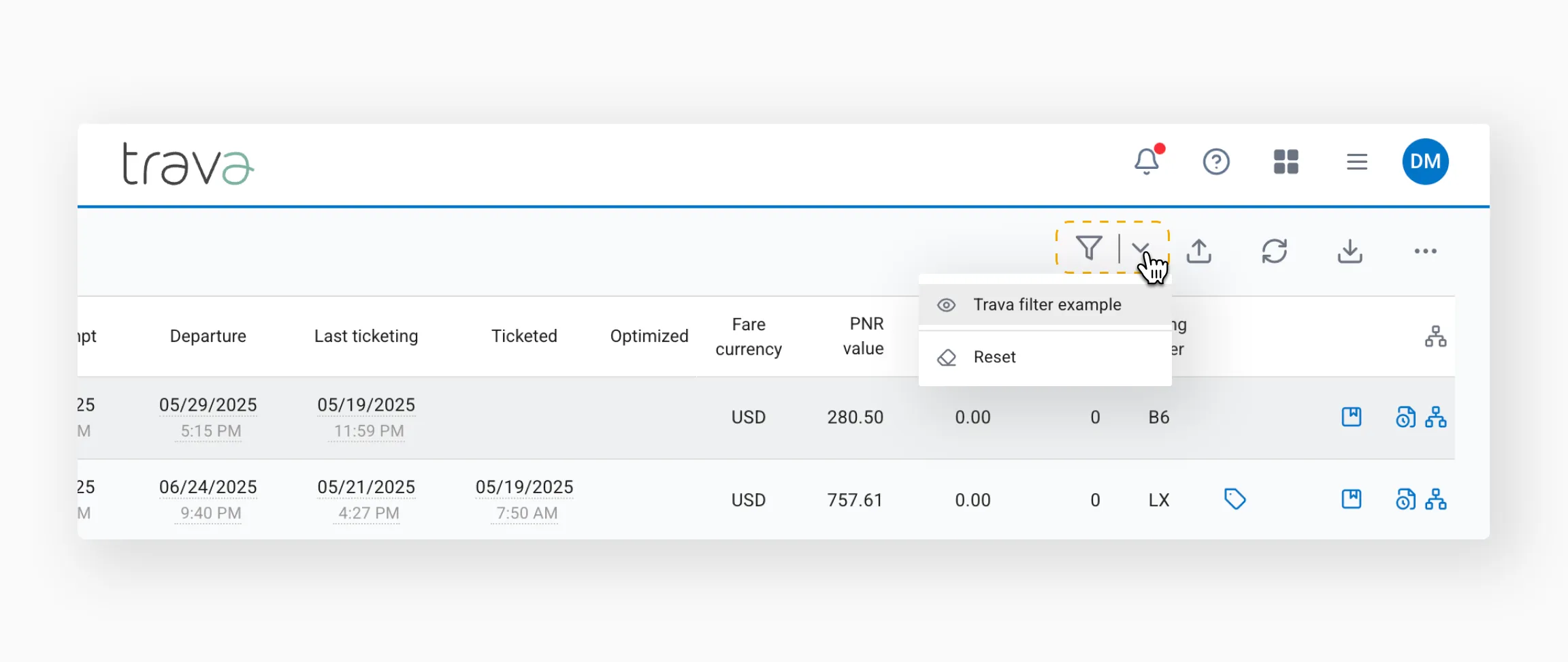
To access saved filters, click Load in the filters modal or the arrow in the search bar.
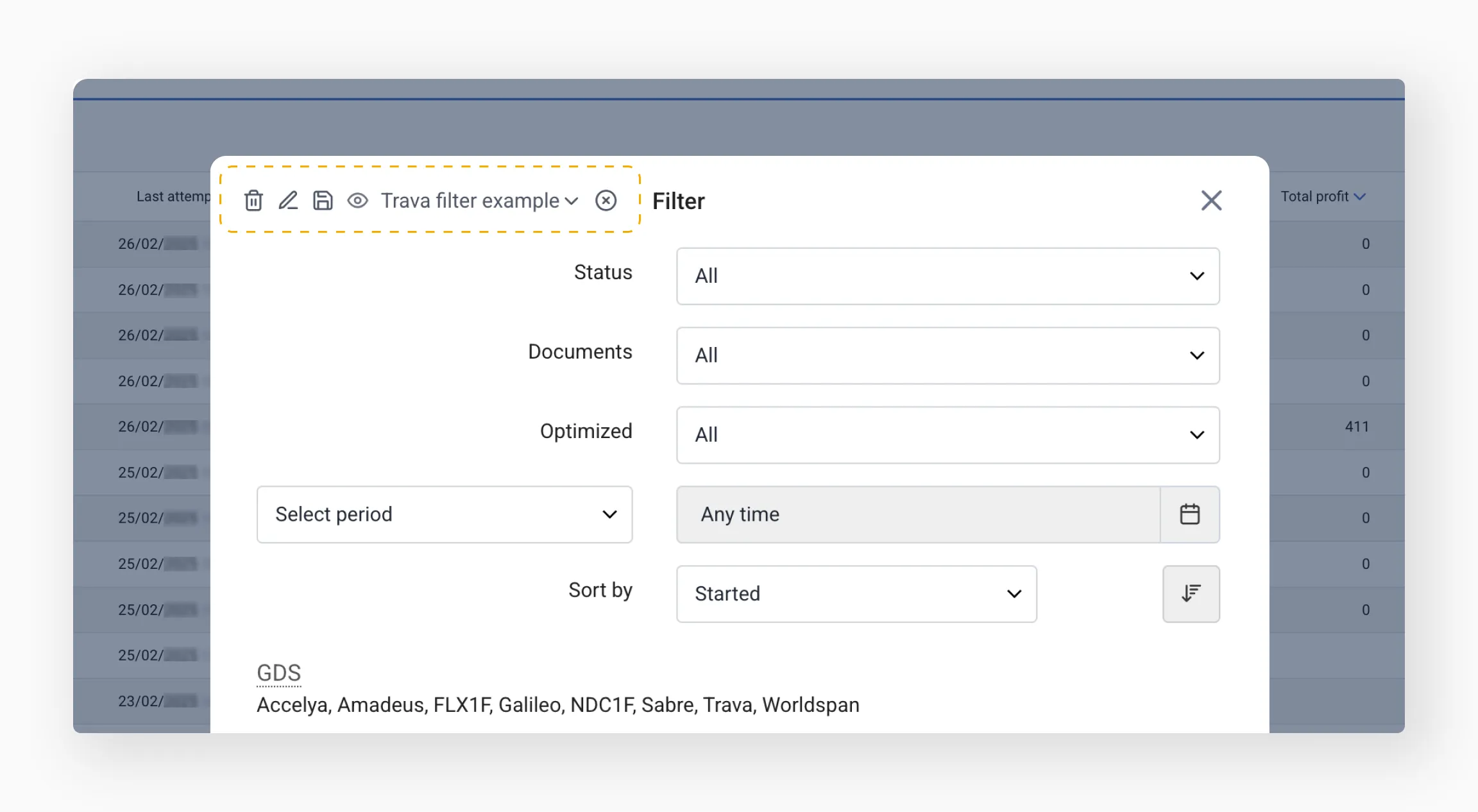
Filter actions
Saved filters support the following actions:
- Delete
- Rename
- Save as private (visible only to you) or global (visible to all)
Clearing filters
Filters are persistent – they remain active even if the page is reloaded or reopened, until manually cleared.

To clear filters:
- Clear all (in the search bar) – resets all filters
- Reset (in the filter modal) – resets only advanced filters
Final tips
- Use the search and filter tools to focus on specific PNRs, schemes, or statuses
- Export data for reporting, issue tracking, or profitability analysis