
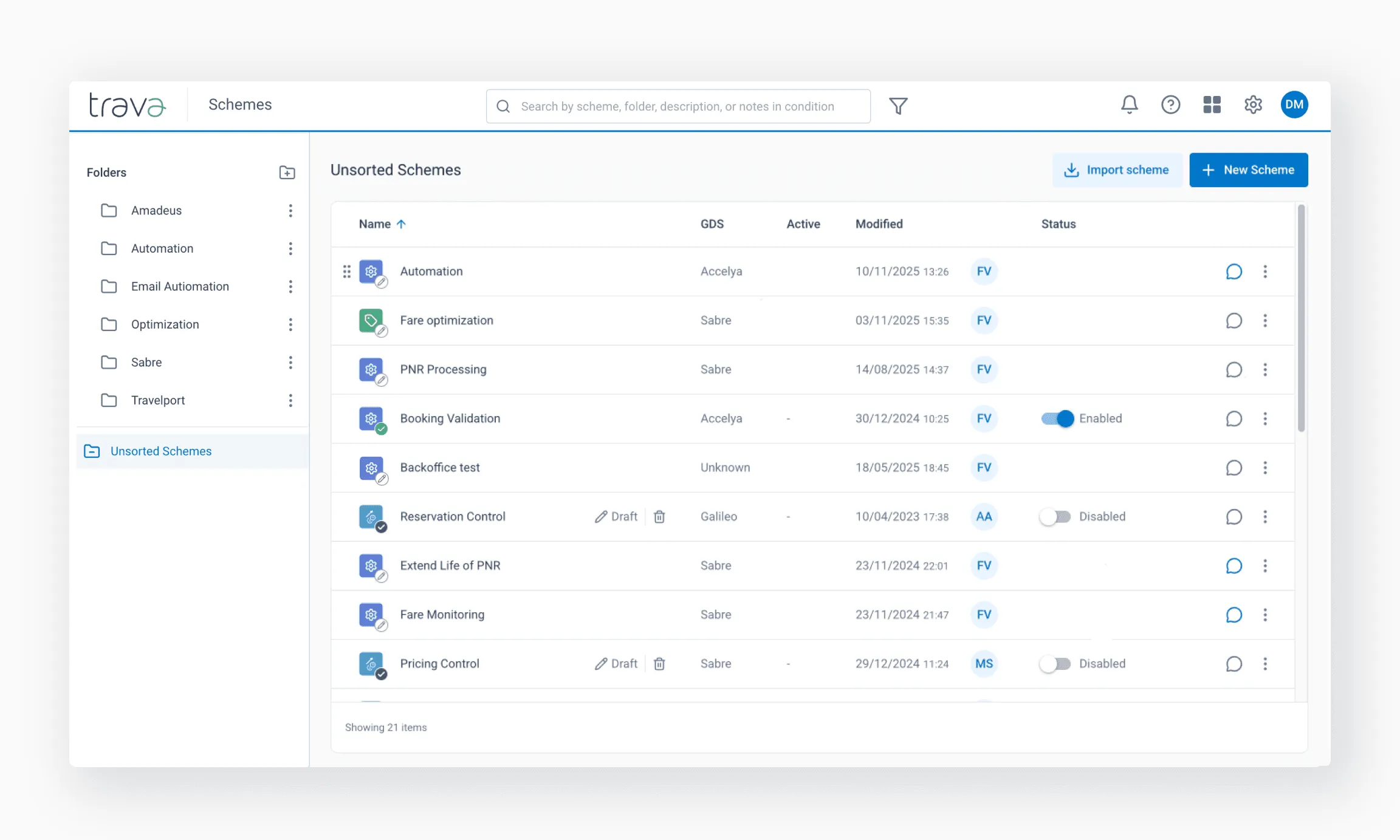
The Scheme directory is the main workspace for viewing, organizing, and accessing all schemes available in the system.
The Scheme directory is the central place where you manage all your schemes – active workflows, drafts, and archived versions. It helps you organize automation logic, quickly find what you need, and maintain clarity as the number of schemes grows.
If you’re new to schemes or want to better understand how they power Trava’s automation engine, start with How schemes drive automation – it explains the role schemes play in processing reservations and triggering automated actions.
This page focuses on the practical side: navigation, organization, search, and day-to-day management of schemes.
Page structure
When you open the Schemes section from the main menu, you’ll see four core elements:
- Sidebar – folder-based navigation
- Scheme list – contents of the selected folder
- Search and filters – tools to locate schemes
- Actions – create, import, and manage schemes
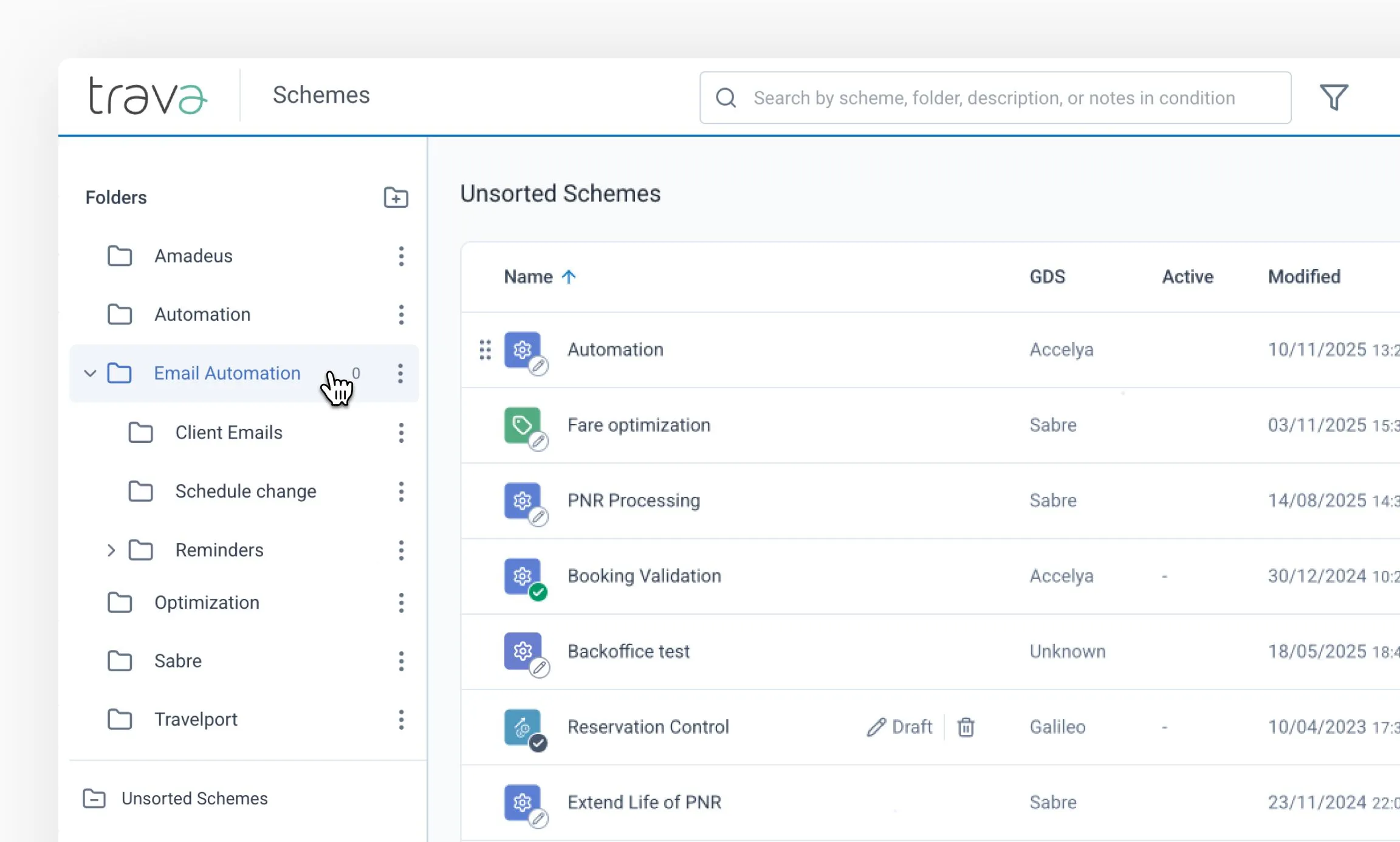
The sidebar displays folders where schemes are stored and grouped.
System folders
By default, Trava provides two system folders:
- Unsorted Schemes Contains all schemes that haven’t been assigned to a folder. This is the default view when you open the Schemes page.
- Archived Schemes Stores schemes that were manually archived. This folder appears once at least one scheme is archived.
Folder behavior
- Clicking a folder shows all schemes inside it and its subfolders
- The system also displays the number of active reservations across those schemes, helping you quickly see where processing is happening
Folder actions
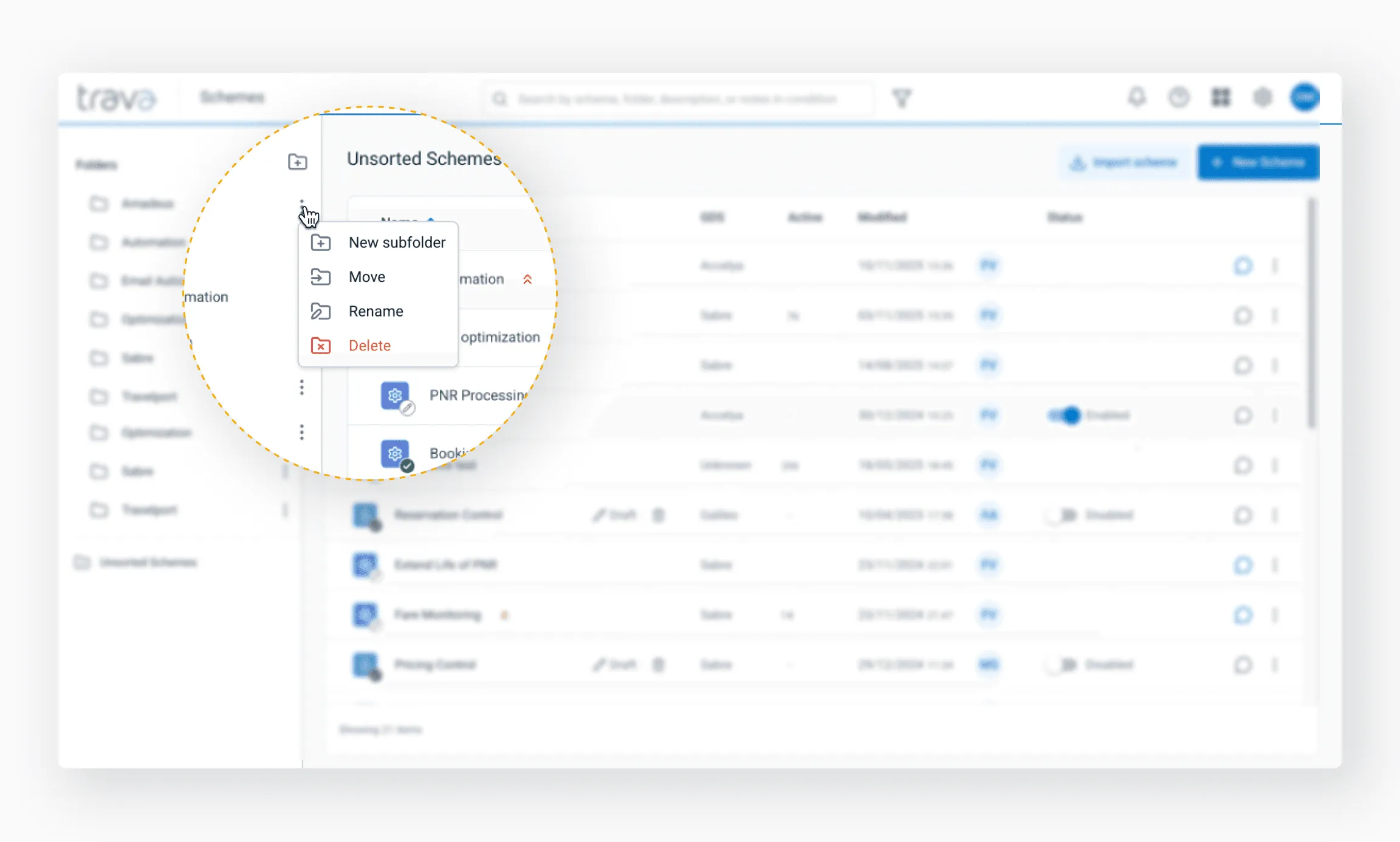
Using the three-dot menu (⋮) next to a folder, you can:
- Create subfolders
- Move folders
- Rename folders
- Delete folders
When a folder is deleted, all schemes inside it are automatically moved to Unsorted Schemes – no data is lost.
Best practices
- Group schemes by client, office, or business purpose
- Archive outdated workflows instead of deleting them
- Avoid deep folder nesting unless it adds clarity
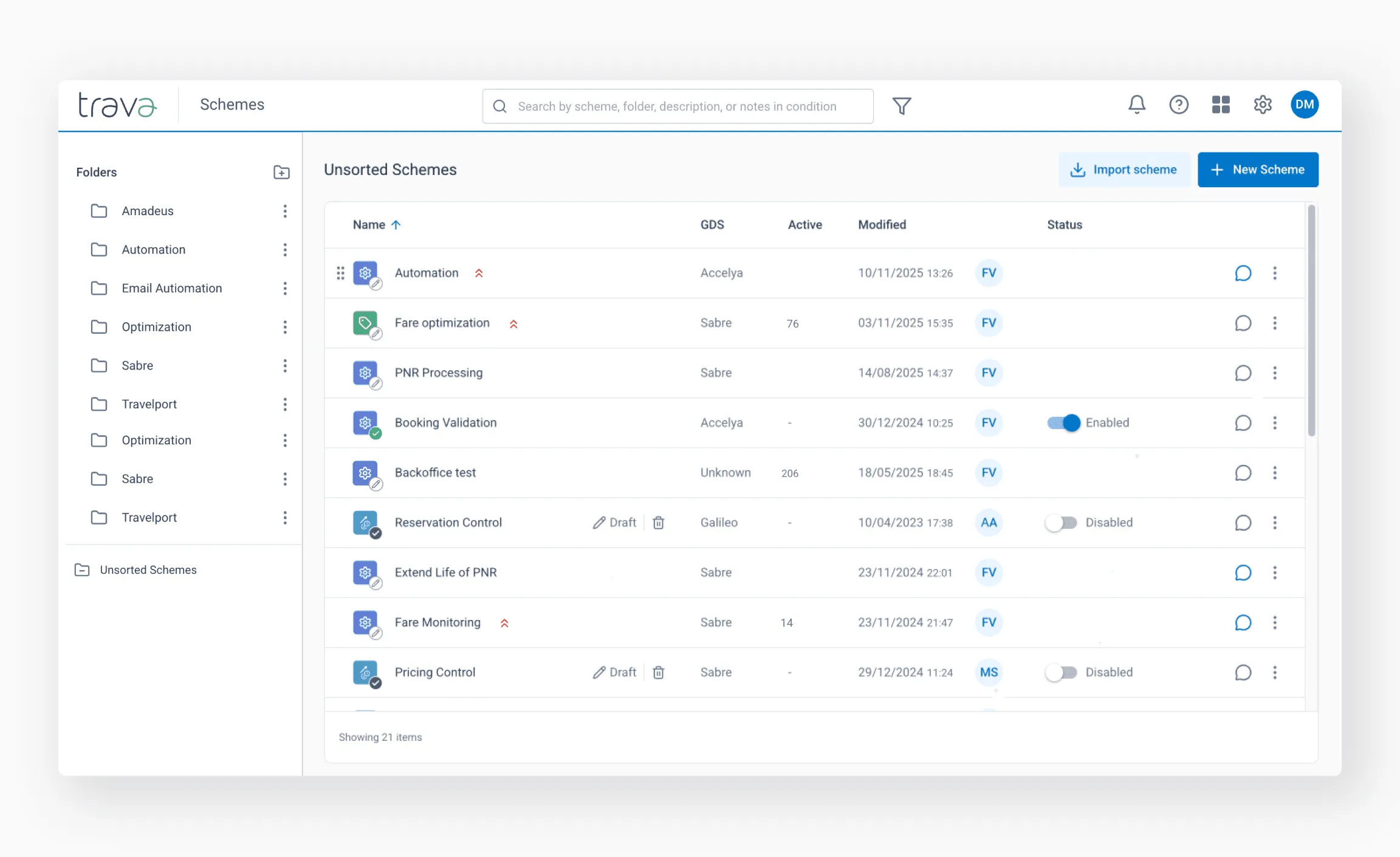
The scheme list shows all schemes inside the selected folder.
Scheme icons and statuses
Each scheme icon displays the scheme type and its current status:
- Pencil – Draft (not activated)
- Gray circle – Disabled
- Green circle – Active
A red arrow marks a high-priority scheme – instances linked to it are processed first.
Columns explained
- GDS – Reservation system the scheme works with
- Active – Number of items currently being processed
- Modified – Date, time, and author of the latest change (hover to see creation details)
- Status – Active or Disabled (can be toggled directly)
Before disabling a scheme, always check the Active column. If processing is still ongoing, manual intervention may be required.
Additional actions
The actions menu (⋮) at the end of each scheme row allows you to:
- View scheme history – see previous edits
- Clone – create an identical copy
- Move to folder – relocate the scheme
- Download – export the scheme as JSON
- Archive – move the scheme to Archived Schemes
- Delete – permanently remove the scheme or draft
Archiving is recommended when a scheme may be needed again.
As your directory grows, search tools help you quickly locate the right scheme.
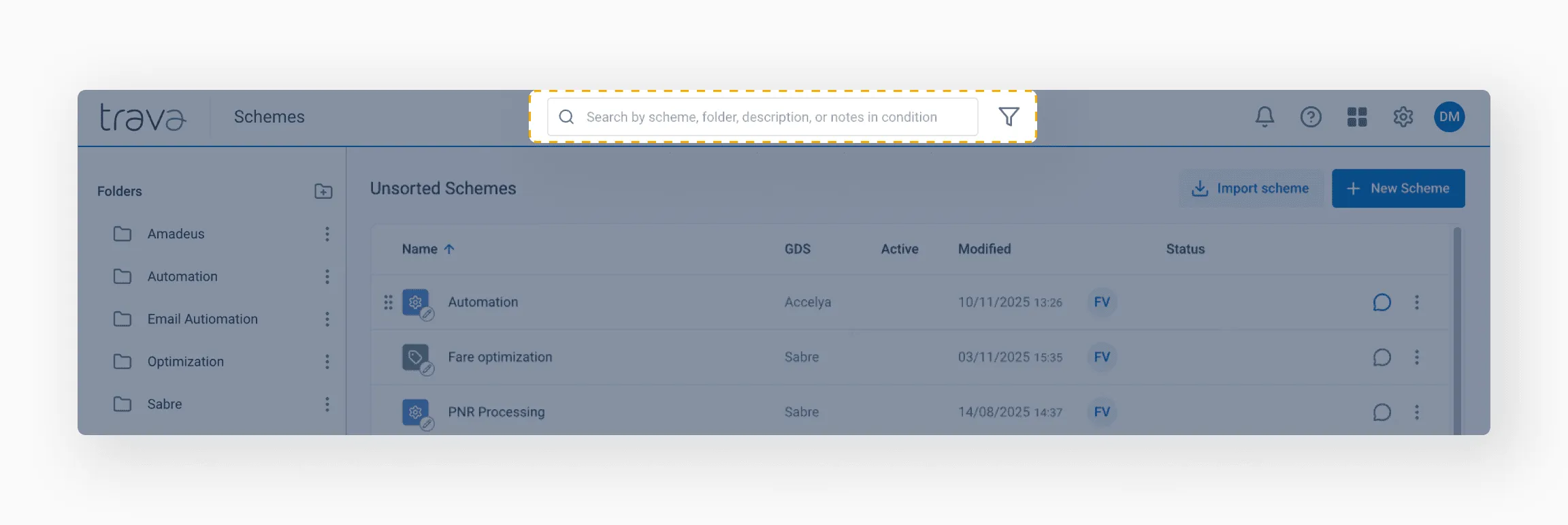
Keyword search
You can search by:
- Folder name
- Scheme name
- Scheme description
- Notes added to conditions or elements
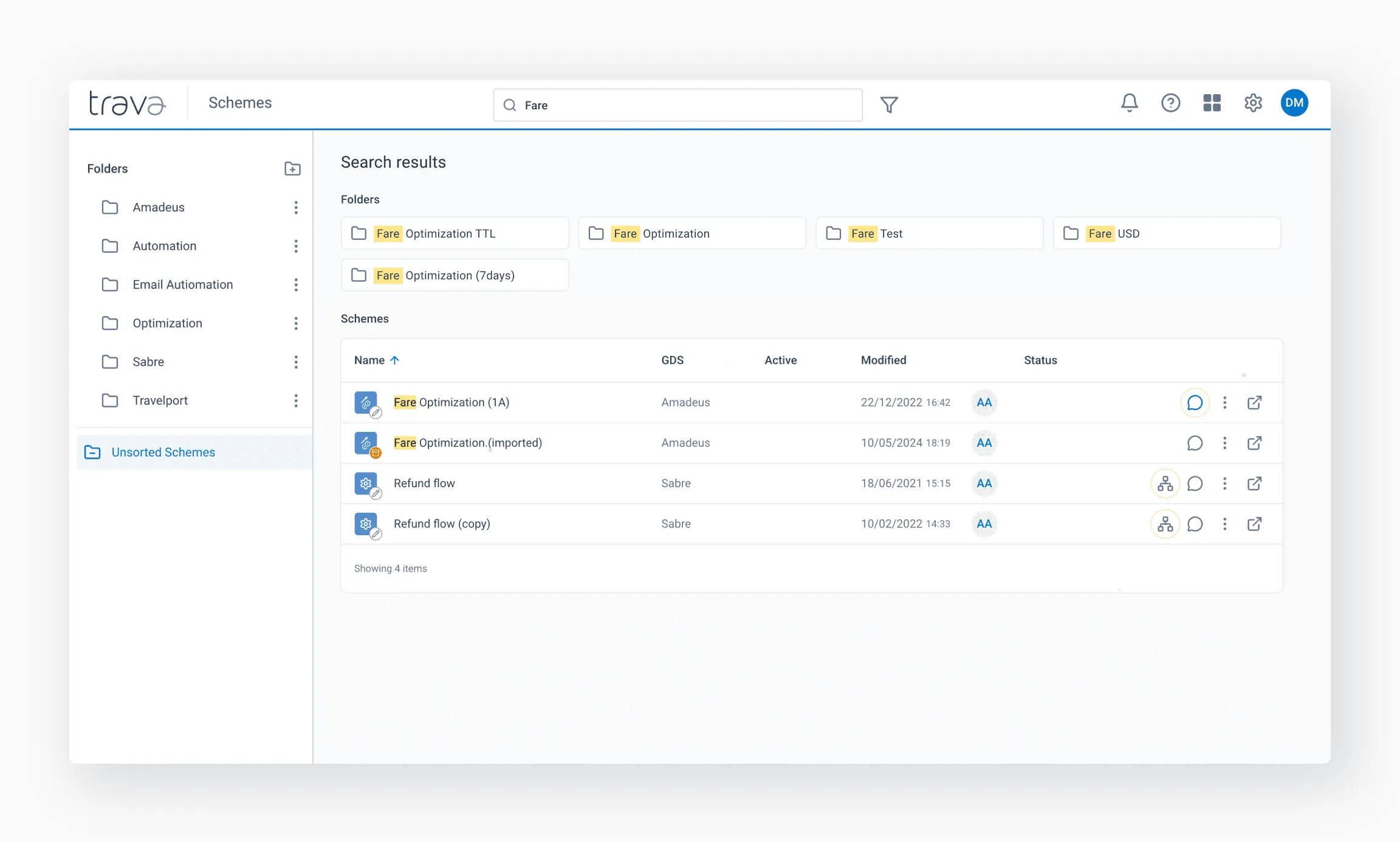
Search results highlight matching text and allow quick navigation to the exact scheme element where the match occurs.
Filters
Use Filter to search by properties such as:
- Status – All schemes or Enabled schemes only
- Priority – Urgent, Normal, Low
- Period – creation or modification period
- GDS – reservation source
- Scheme type – PNR processing, PNR pricing, Ticket processing, EMD processing, etc.
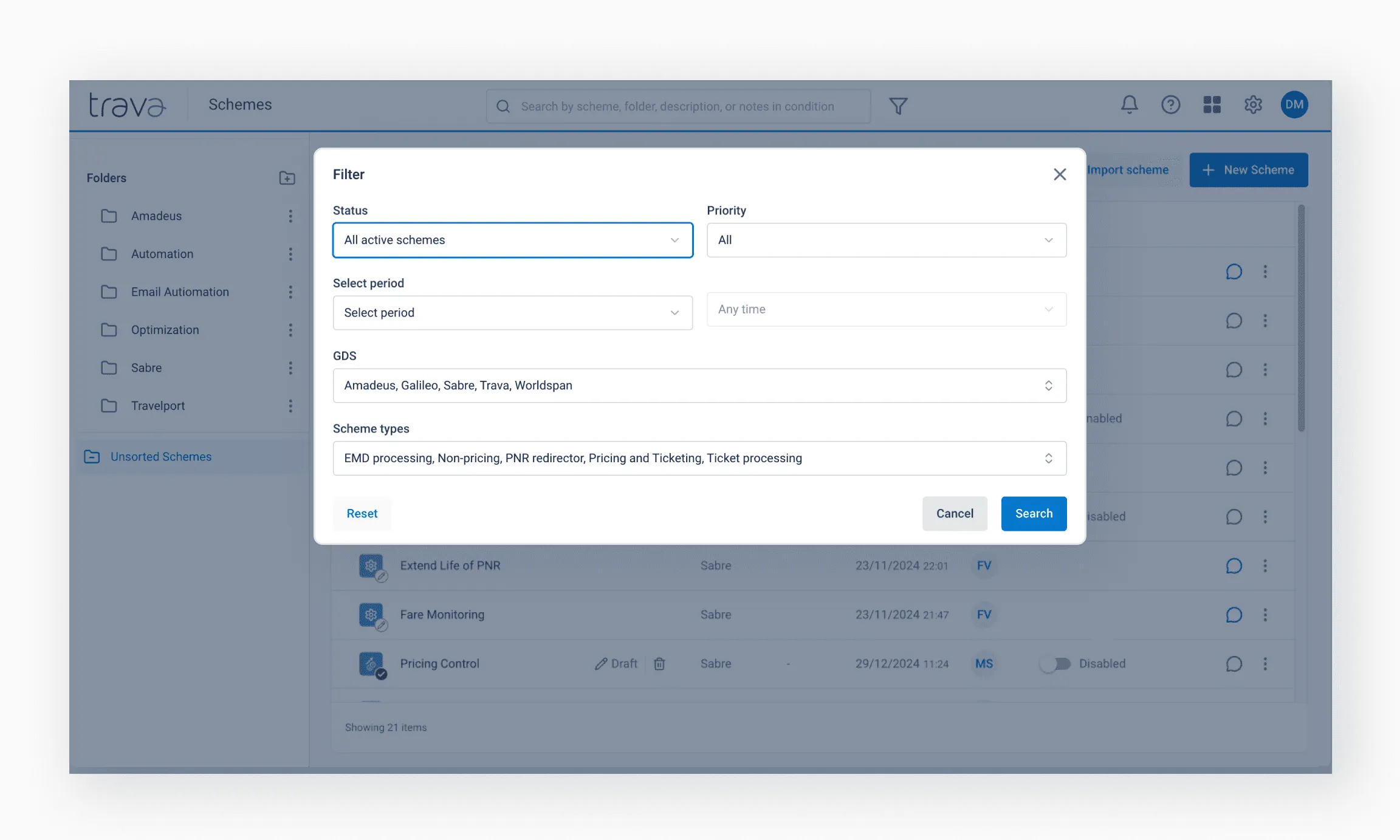
If filters are active, the Filter button is marked. Use Reset or Clear filters to return to the full view.
Combine search tools for efficiency
The most accurate results come from combining a keyword search with filters.
Editing
- Click a draft name to open it in the editor
- Click the pencil icon to edit an active scheme
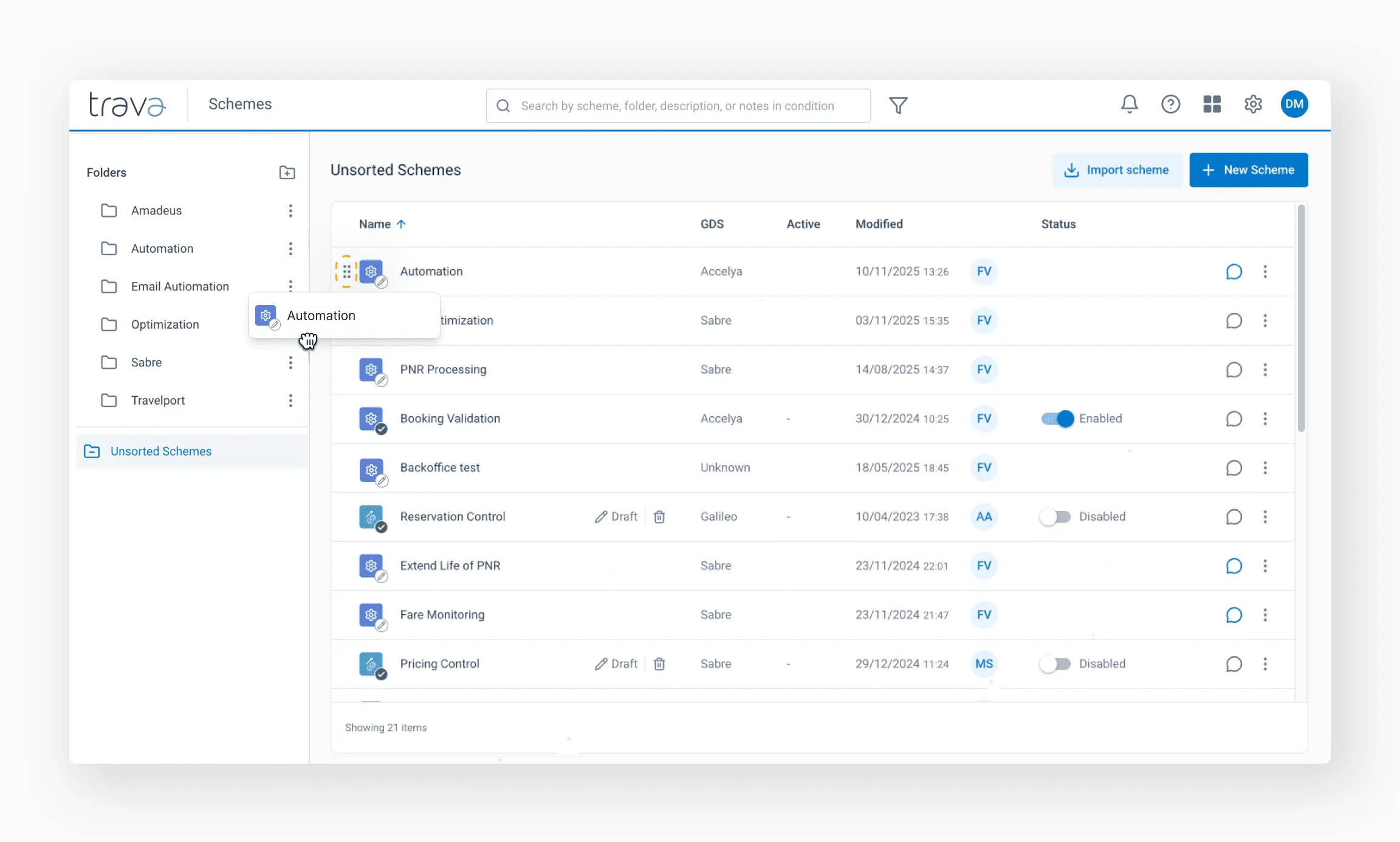
Moving schemes
To move a scheme into a folder:
- Click Drag to move next to the scheme
- Drag and move it into the desired folder
Comments
Each scheme row includes an Add comment option.
Comments are useful for explaining logic, intent, or context – especially in shared environments.
You can insert a timestamp to automatically add date, time, and author information.
From the top-level actions:
- New Scheme – create a scheme from scratch
- Import Scheme – upload a previously saved scheme
- Use clear and consistent naming conventions
- Add comments as lightweight internal documentation
- Archive unused schemes instead of deleting them
- Monitor active processing before disabling workflows
- Keep the directory clean – clarity improves reliability