
Now that you've created your first schemes, here's how to organize, edit, and maintain them properly.
The Control panel provides tools for editing, configuring, validating, and managing schemes throughout their lifecycle.
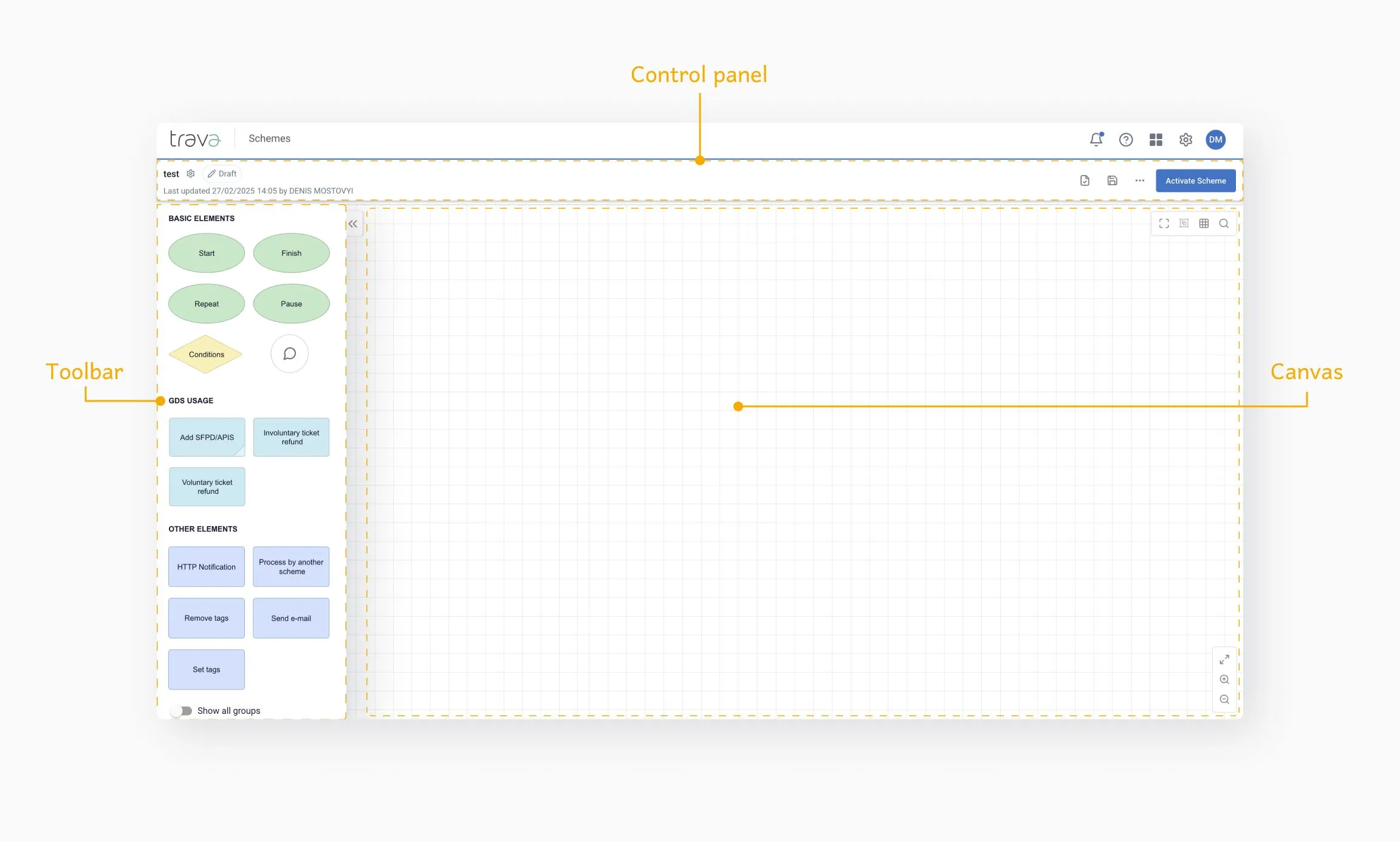
The Control panel is the main management area for a scheme. It is always visible when a scheme is opened and provides access to:
- Scheme properties
- Status and versioning
- Editing and validation actions
- Activation and deletion
Its behavior depends on the scheme state.
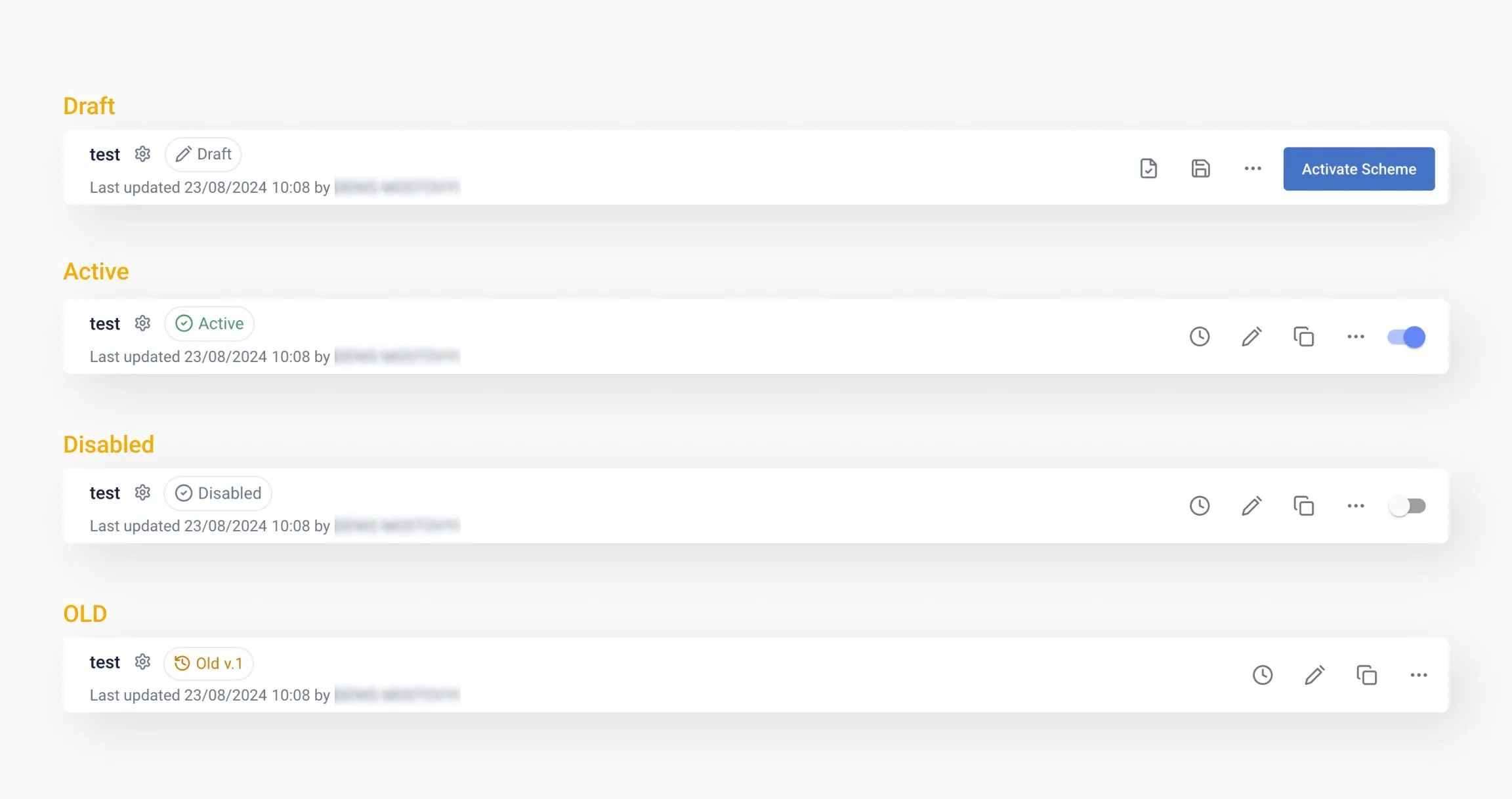
This status is indicated by a gray circle.
[ADD IMAGE]
Available actions:
- Edit scheme properties
- View version history (for existing schemes)
- Validate the scheme without saving
- Save changes at any time
- Export draft to JSON
- Activate schem
[ADD IMAGE]
Used for monitoring and review:
- View scheme properties
- Access version history
- Edit or create a new draft
- Clone the scheme
- Export scheme to JSON
- Delete the scheme
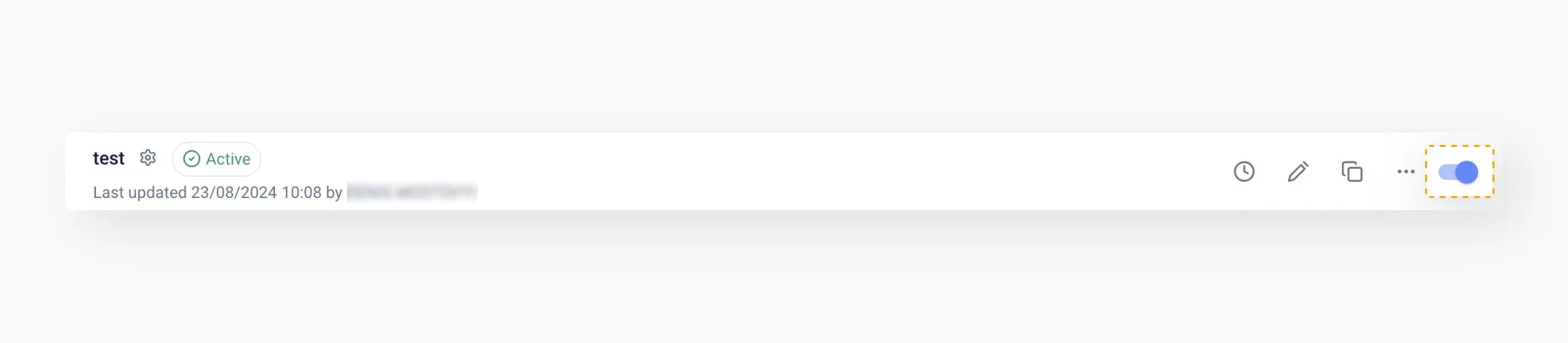
- Quick access to disabling a scheme (toggle switch)
The scheme is inactive and can be re-enabled using the toggle switch.
[ADD IMAGE]
Upon its first activation, the scheme is assigned a version number (e.g., v.1). Each time a draft is activated thereafter, a new record is created, and a new version number is assigned.
[ADD IMAGE]
A historical version of the scheme:
- Available for review
- Can be edited and re-activated if required
Learn more: Scheme history
Click the Gear icon to open the Scheme properties window.
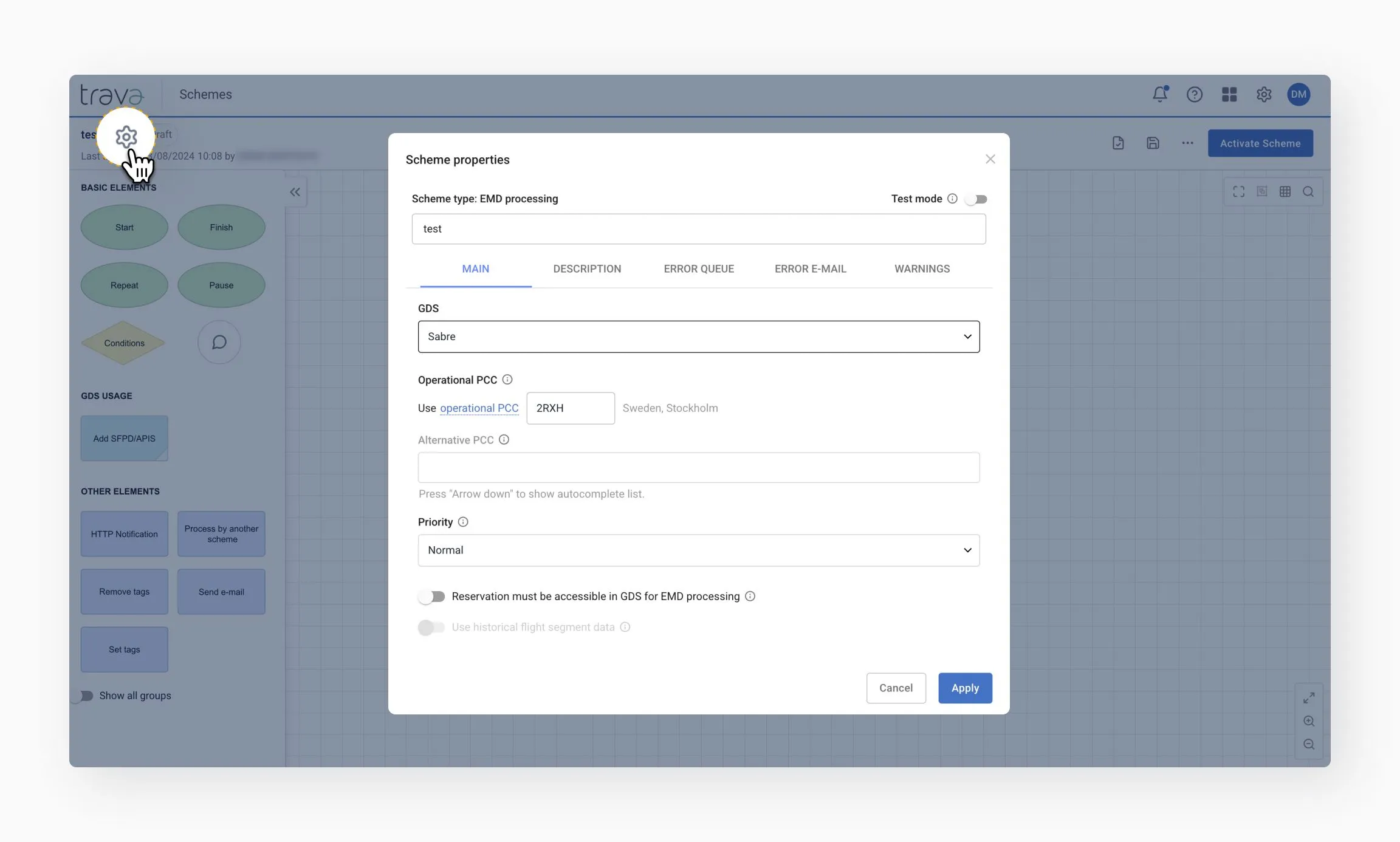
Here you can edit:
- GDS
- Operational PCC / OID
- Scheme priority
- Other execution parameters
Properties are editable in Draft mode and view-only in Active mode.
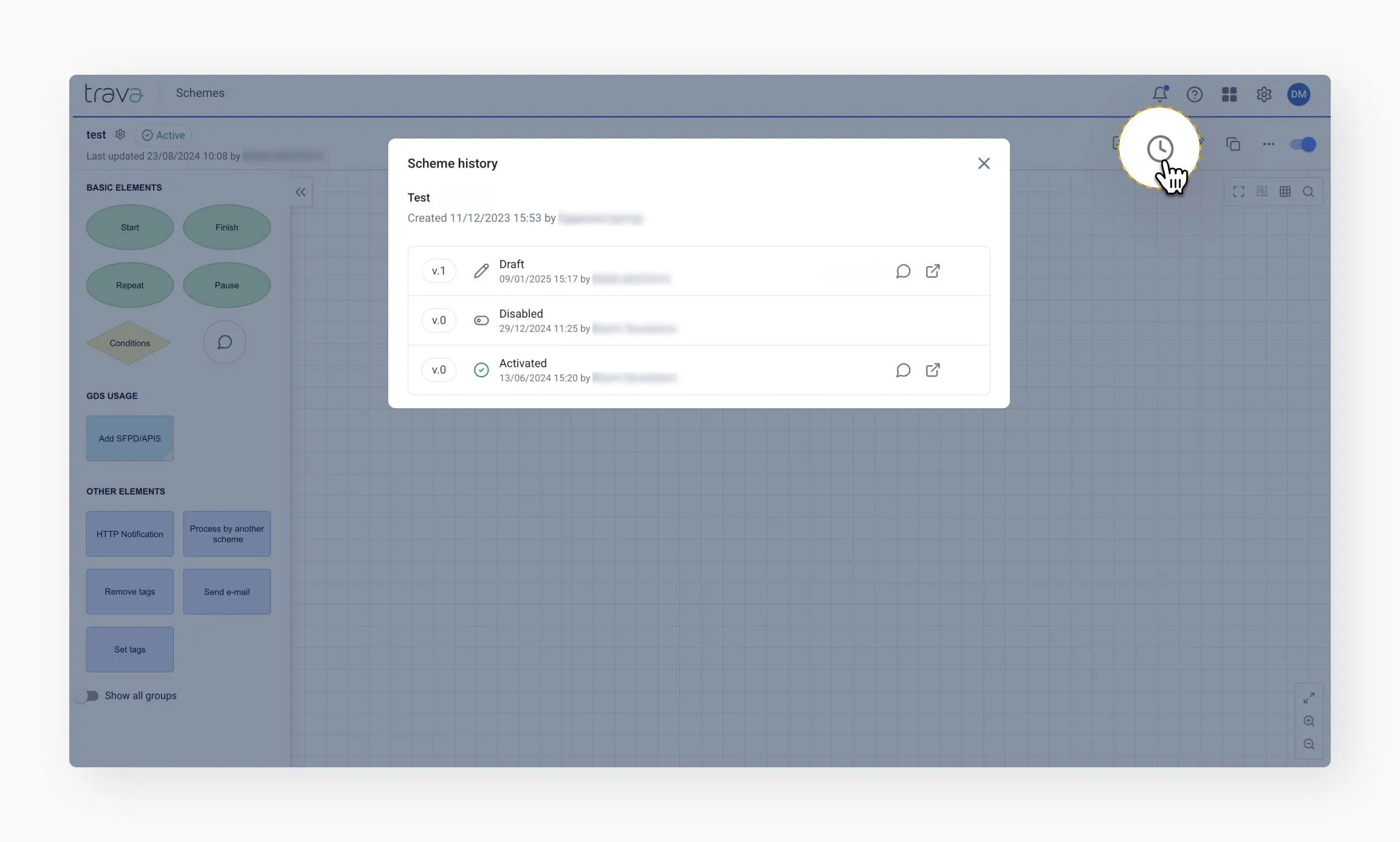
The Show history icon opens a detailed log of all changes:
- Who made the change
- When it was made
- What was modified
This helps track evolution, audit changes, and restore previous logic if needed.
Available in Draft mode. Validates the scheme configuration and highlights errors.
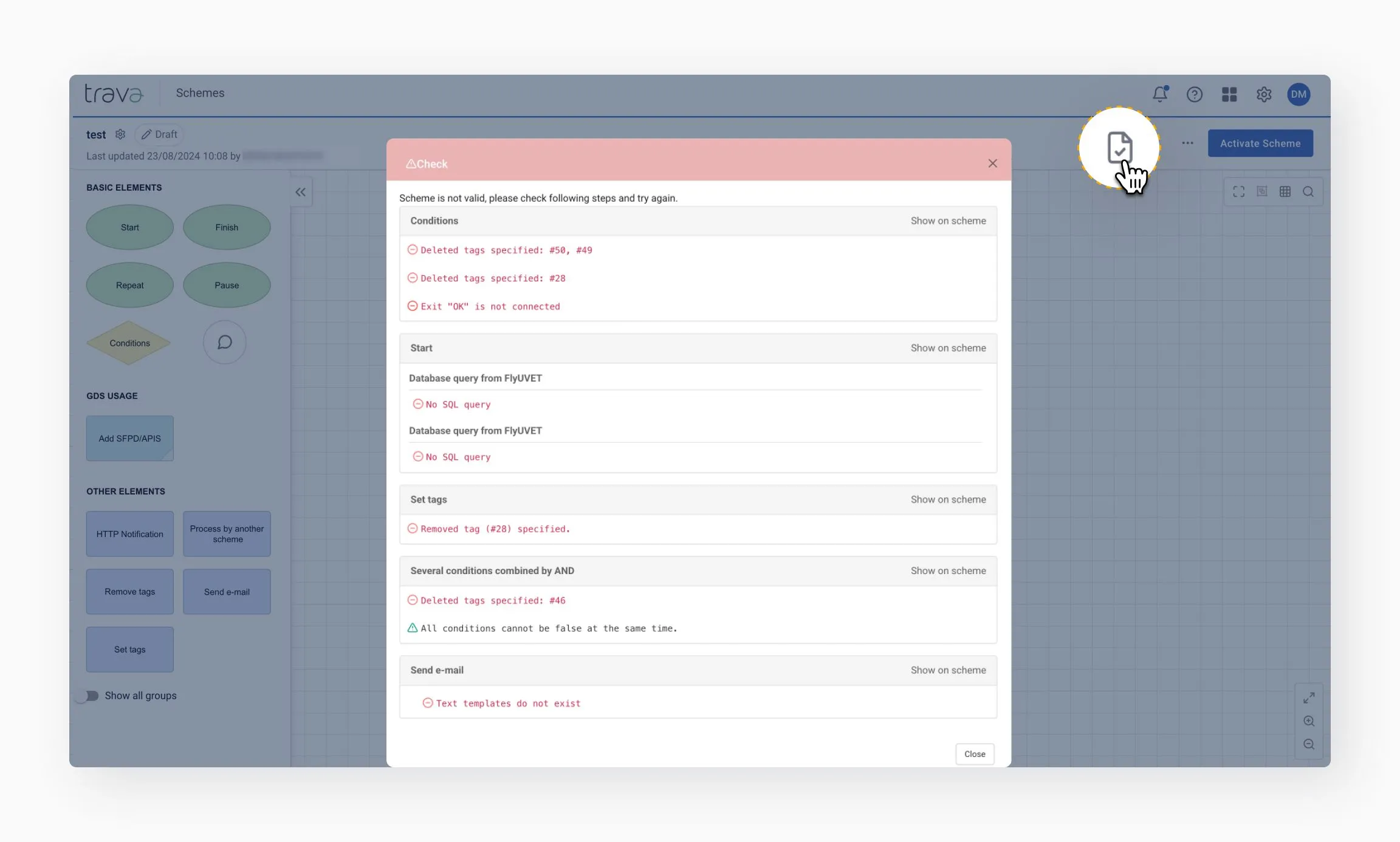
(i) Does not save changes.
Saves the current draft.

(i) If you leave the page or close the tab before saving, all entered data will be lost. Save your changes regularly to prevent accidental data loss.
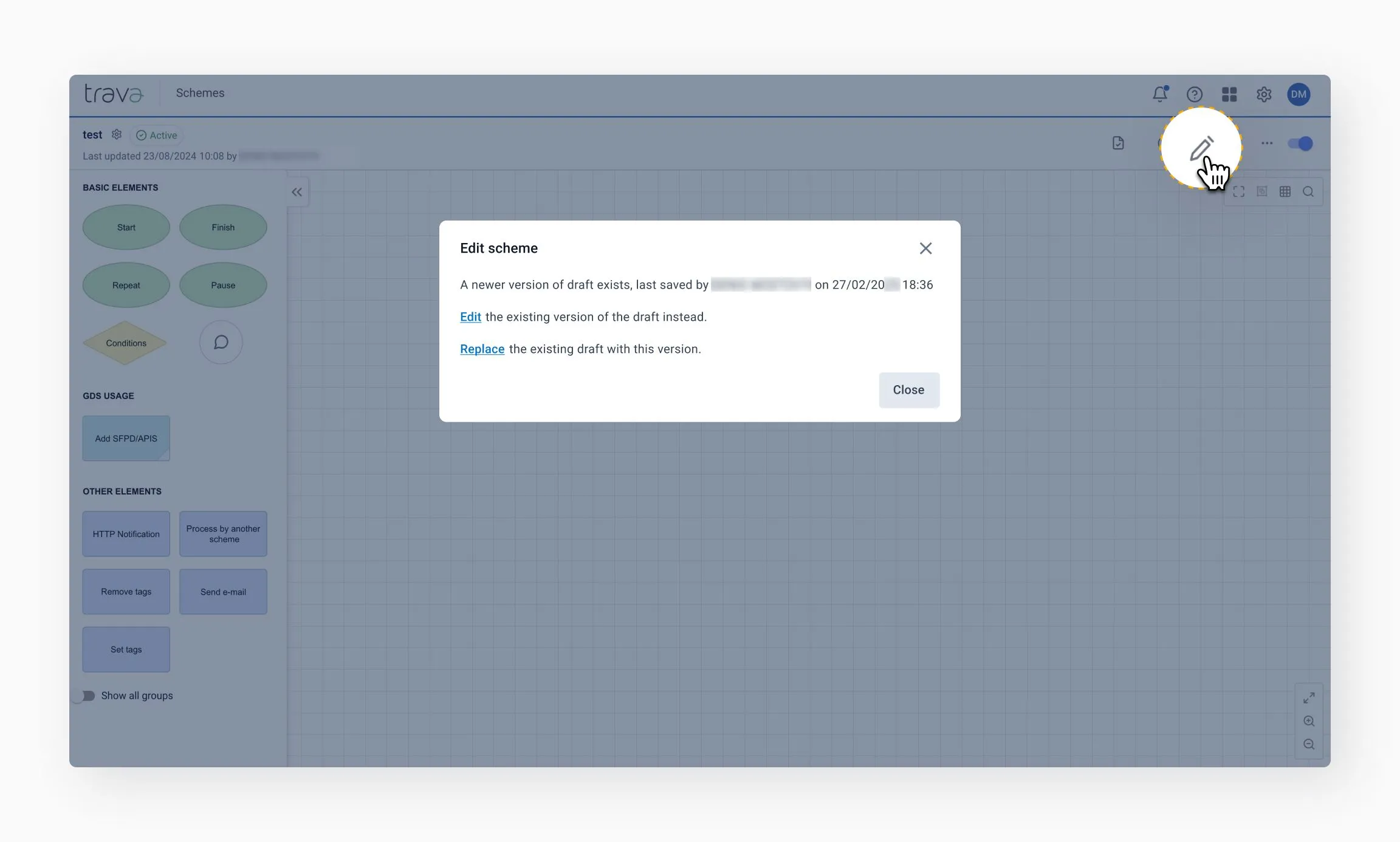
Editing is available in Active mode. Opens the existing draft or creates a new one.
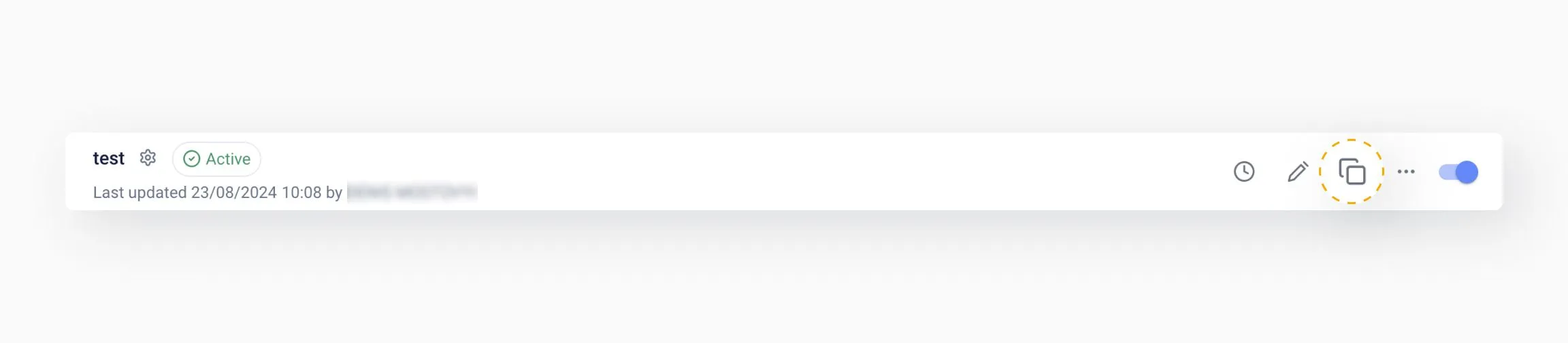
Creates an exact copy of the scheme:
- Adds “Clone” to the scheme name
- Preserves all settings
- Scheme type cannot be changed
If the GDS is changed, incompatible elements are marked as outdated.
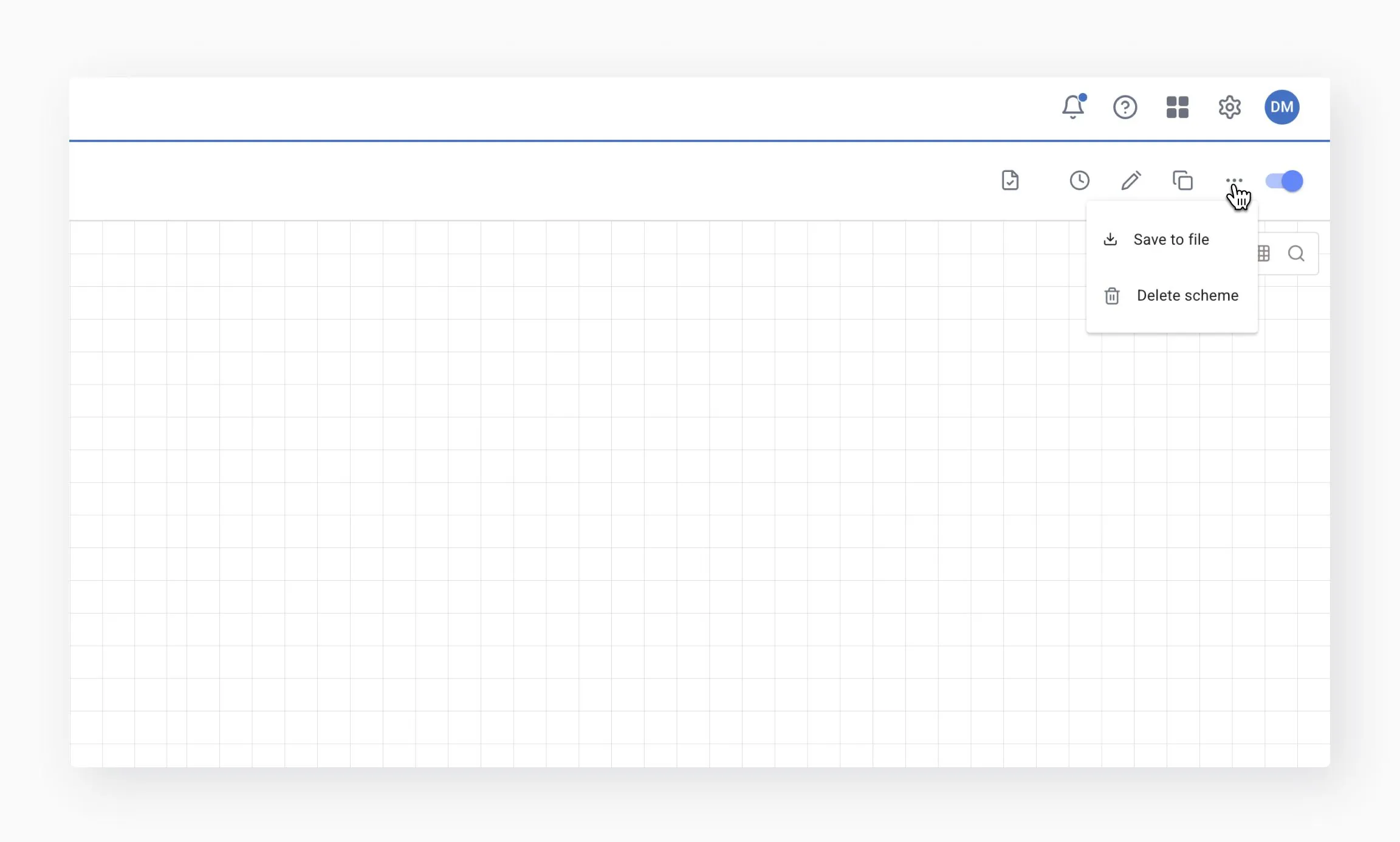
Available via the three-dots menu:
- Save the scheme or draft as a JSON file
- Use it later for import or backup
- Completely removes the scheme
- Deletion is blocked if the scheme is used in other processes
Available in Draft mode only.

Once activated, the scheme starts processing new and ongoing PNRs.
Enables or disables the scheme without deleting it.
The Toolbar menu is available only in Draft mode and contains elements used to build schemes.
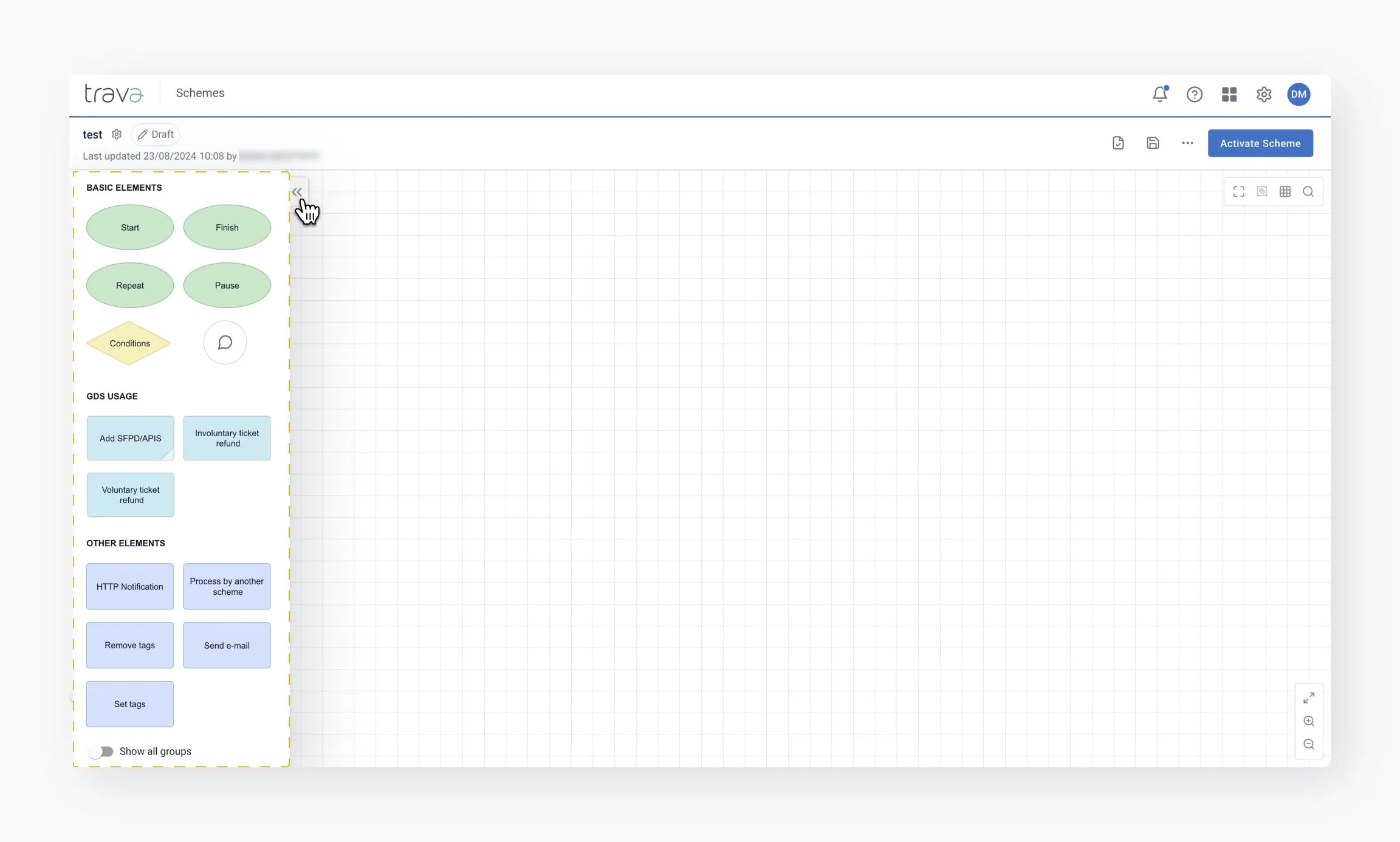
Basic elements
Core building blocks:
- Start and Finish (mandatory)
- Pause and Repeat
- Conditions
- Notes (for documentation and search)
GDS usage
Elements that perform actions in the GDS.
Indicators:
- Blue corner – requires confirmation to save or ignore GDS changes
- White corner – automatically saves changes in GDS
Other elements
Extended functionality that does not interact with the GDS.
- Save drafts frequently
- Always validate before activation
- Activate only after all necessary changes are completed and the workflow is properly set up