
This article covers how to configure scheme elements, use AND/OR logic, apply inversion, and temporarily disable conditions to create flexible and efficient workflows.
Conditions help control how a scheme behaves based on the data it encounters. By defining specific checks, the system verifies key parameters of a PNR, ticket, or EMD and determines the next step in the workflow based on the result of the logical evaluation:
- OK: The condition is met, and the workflow proceeds accordingly
- FAIL: The condition is not met, triggering an alternative path
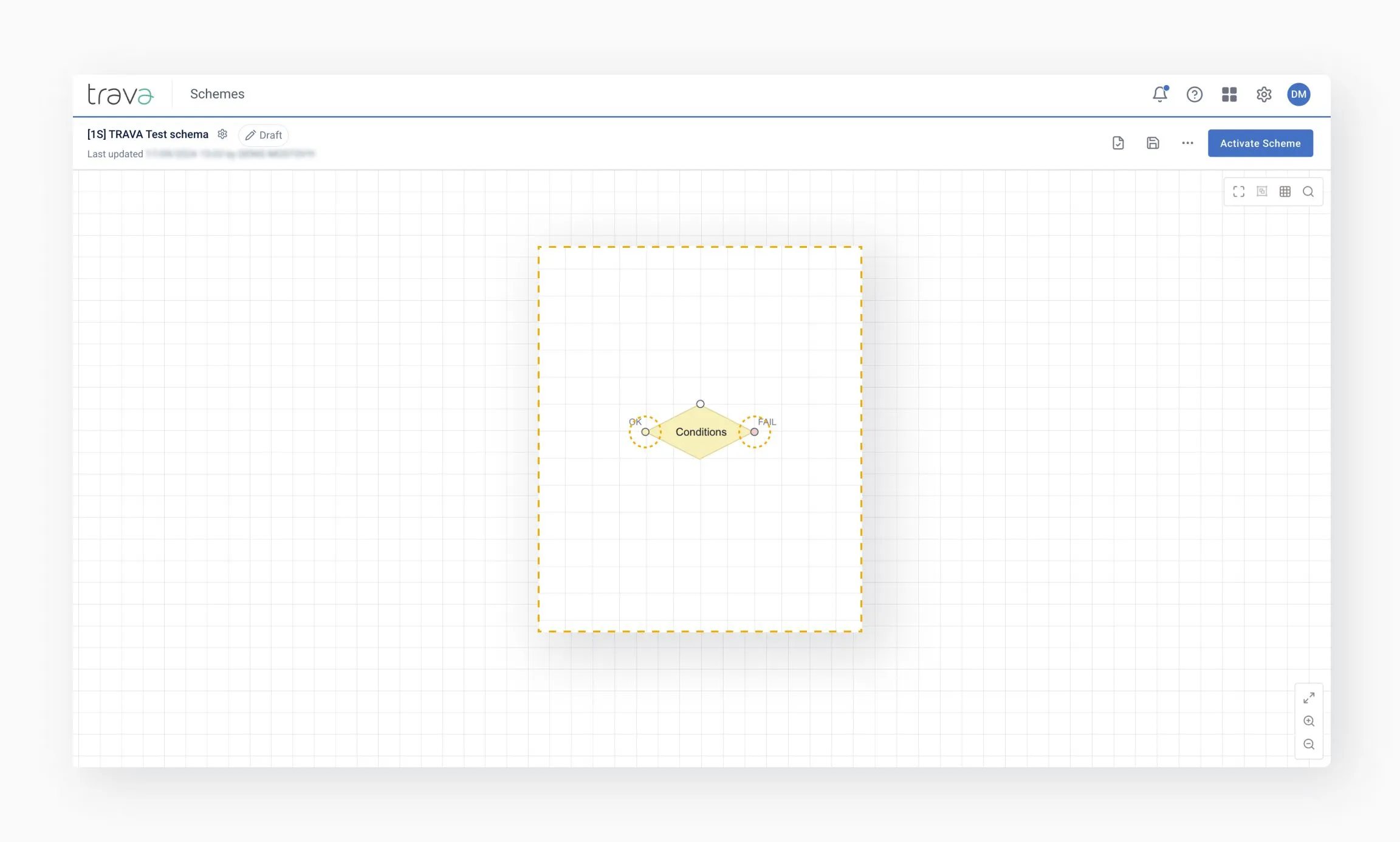
Since the Conditions element varies depending on the scheme type and GDS, its available checks may differ.
To set up a condition, double-click the element to open its settings.
Conditions can include multiple checks, which are executed sequentially. They can also be combined or grouped using AND/OR logic:
- AND: The condition is met only if all checks within the group are met.
- OR: The condition is met if at least one of the checks is met.
Example: The system will check the two condition groups sequentially, combined with OR.
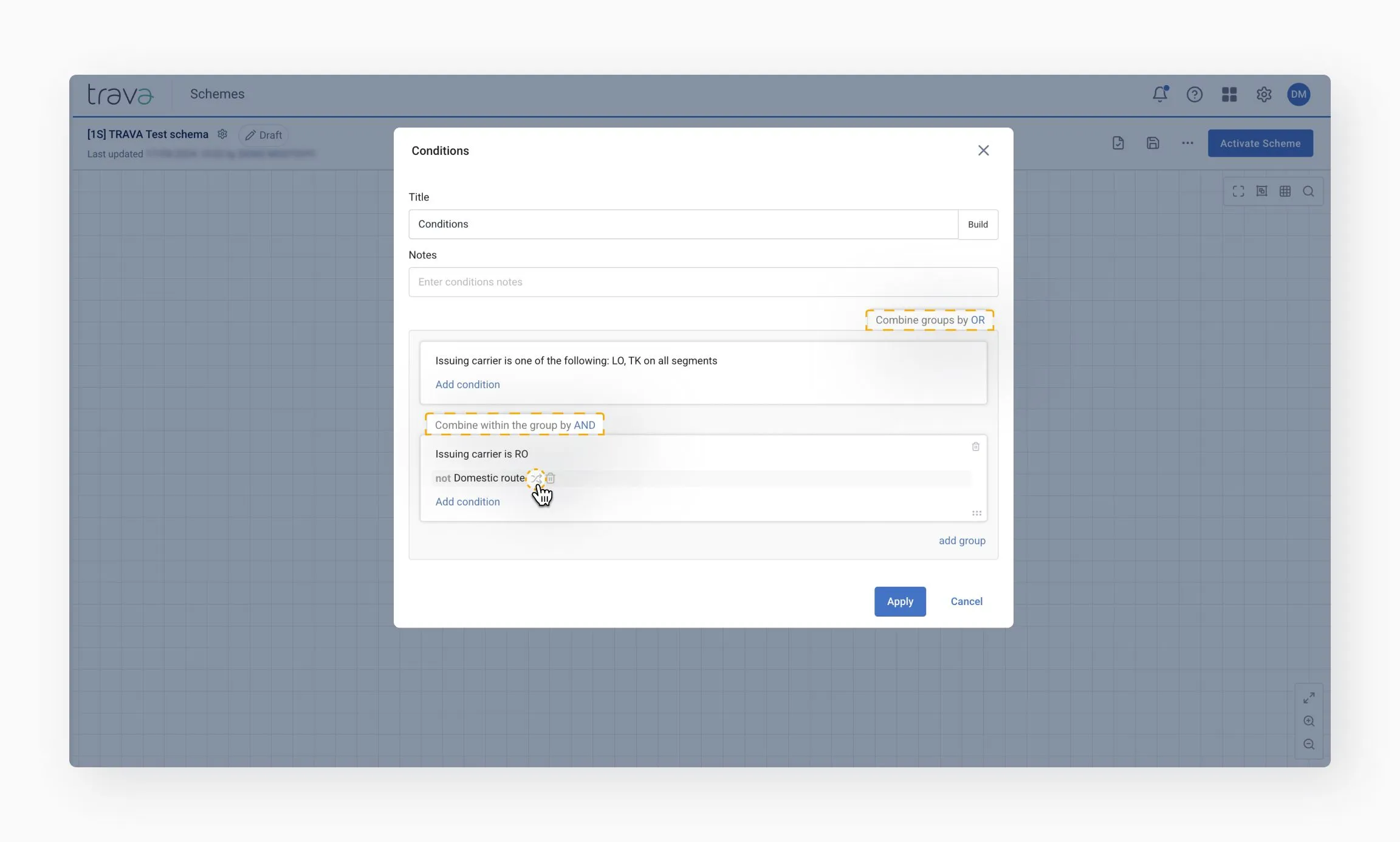
If the issuing airline is LO or TK, the condition will exit with OK without evaluating further rules, since OR logic between condition groups means that only one group needs to be satisfied.
If neither airline matches, the system moves to the next condition group, where all conditions must be met (AND logic) to proceed via OK.
Take note of the not Domestic route setting in the example above. This condition is configured using inversion to achieve the opposite of the expected result.
Inversion reverses the outcome of a condition, allowing you to check for the opposite result. For complex conditions, inversion follows these logical rules:
Rule 1:
Inverted condition: Not (A or B) Evaluation: Not A and Not B
Rule 2:
Inverted condition: Not (A and B) Evaluation: Not A or Not B
Example: A condition checks whether the schedule has changed by more than 15 minutes OR the date has changed.
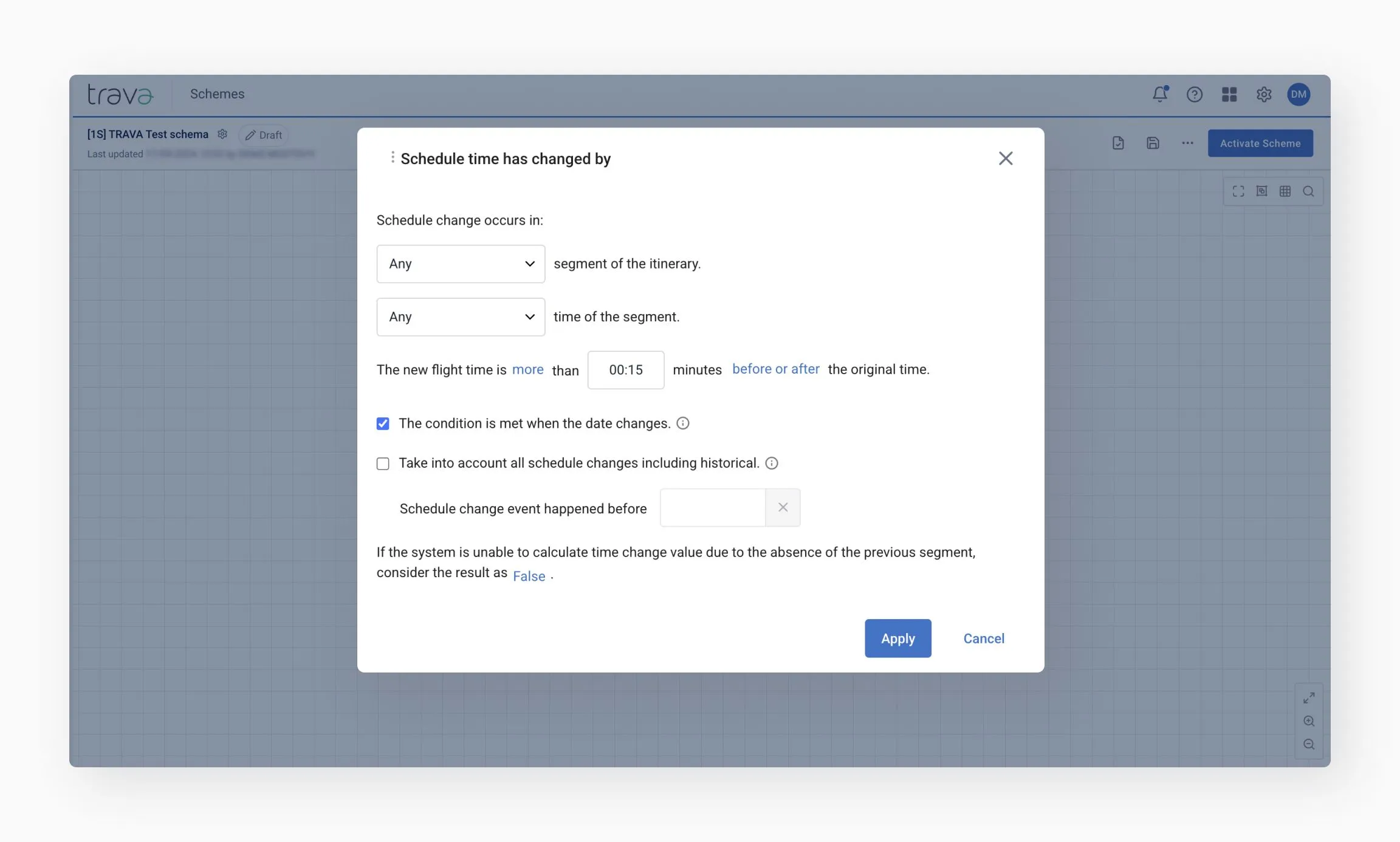
- Without inversion: The condition triggers if either event occurs
- With inversion: The condition triggers only if the schedule change is less than 15 minutes AND the date remains the same
See Conditions to explore compatible scheme types and detailed descriptions.
You can disable a condition without deleting it. Be sure to set how the system will interpret the condition: as true or false.
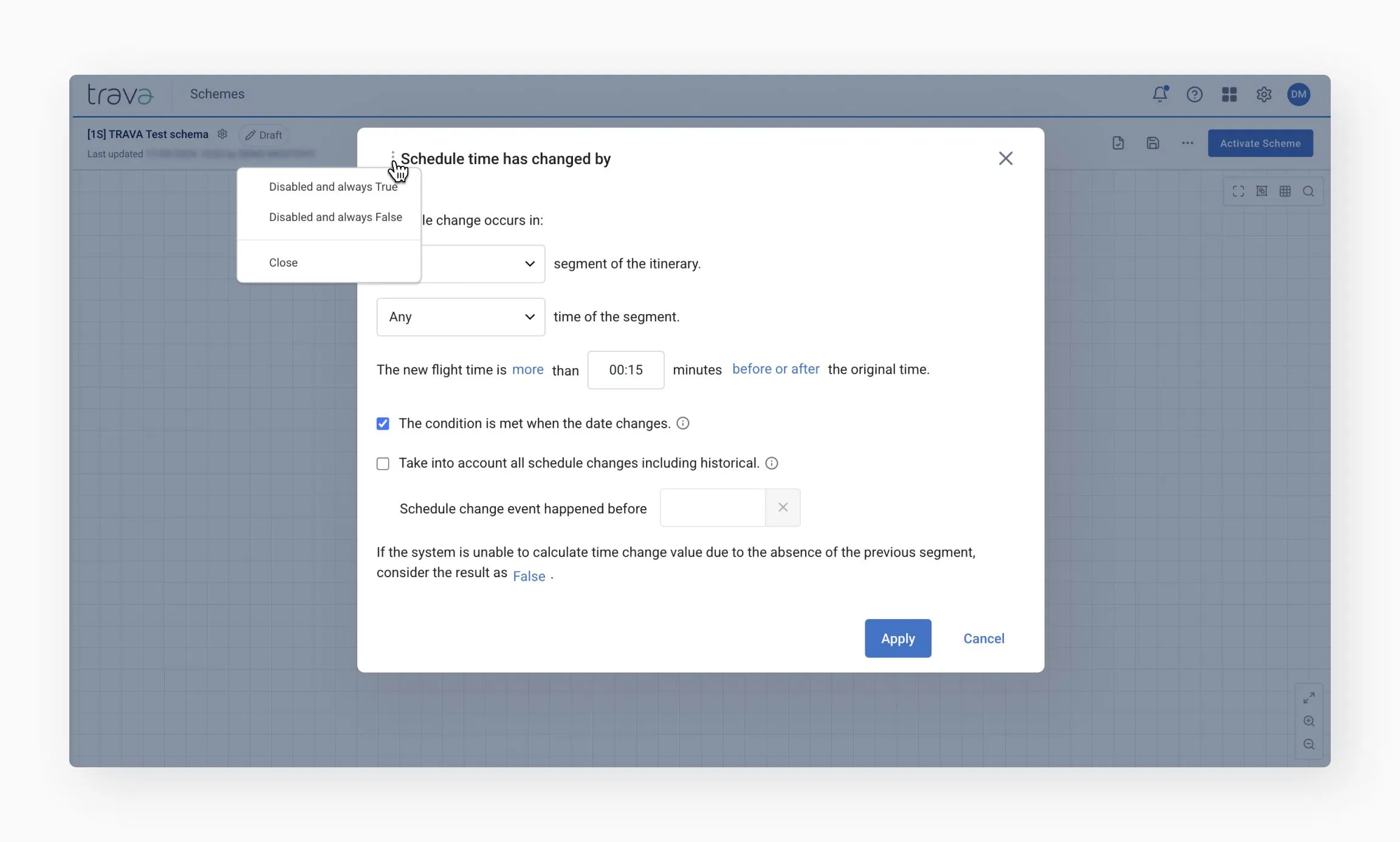
This is useful when you want to keep a condition for future use.
- Use AND/OR logic to build precise checks
- Apply inversion when you need to test the opposite of a condition
- Temporarily disable conditions instead of deleting them for easier future modifications