
See how to operate actions represented by the GDS usage elements [to be continued]
These elements represent actions through which the system interacts with the GDS and makes changes to the PNR.
In the Toolbar menu, they are displayed in blue. Each element performs a specific function and may include both simple and configurable parameters, accessible by clicking on the element.
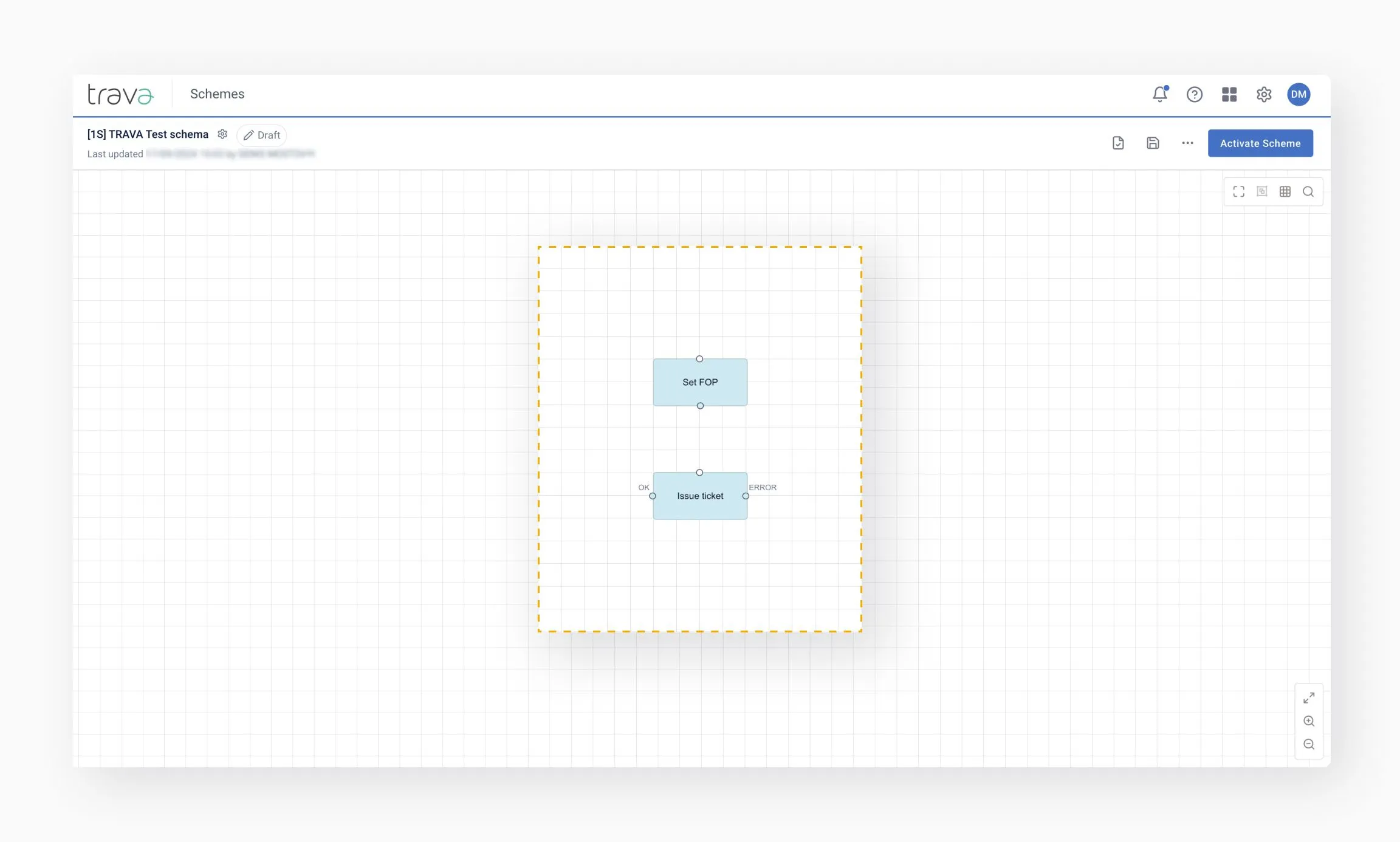
Elements may have one or two outputs, depending on the complexity of the action.
If the system is unable to successfully complete the step when interacting with the GDS, it will exit via Error. In this case, the agent should define appropriate follow-up actions in the scheme, such as placing the PNR in a queue for manual review or sending an email notification.
Use these elements only after all necessary checks have been completed using conditions, so that only validated data is processed at this stage.
Some elements have special indicators:
- Blue corner – This mark means the element requires a choice: save changes in GDS or ignore them;
- White corner – This mark reminds that the element automatically saves changes in GDS.
See GDS usage to explore compatible scheme types and detailed descriptions.
These elements provide additional functionality not related to GDS interaction. They offer the agent extra capabilities within the system, such as redirecting processing to another scheme, sending an email, or assigning a tag.
In the Toolbar menu, they are displayed in light purple.
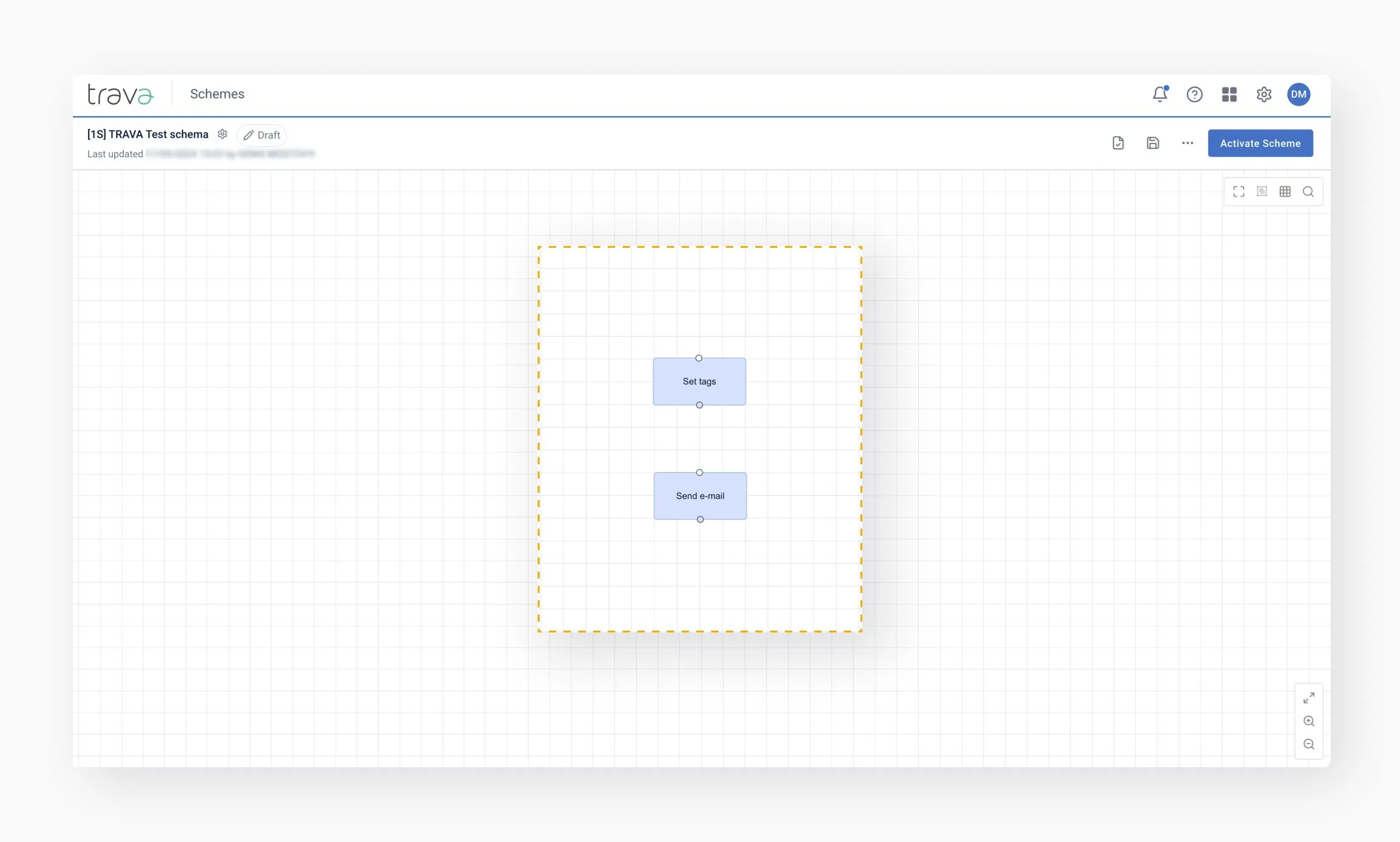
They may contain either simple or advanced settings, but always have only one output. These elements can be placed anywhere when building a scheme.
See Other elements to explore compatible scheme types and detailed descriptions.
GDS usage
- Place only validated data into GDS actions by running all necessary checks beforehand
- Always plan for error exits (e.g., send email, place PNR in queue) in case the GDS step fails
- Remember that some elements have two outputs: OK and Error – handle both in your scheme logic
Other elements
- Use them to enhance automation (e.g., redirect flows, assign tags, send notifications)
- These elements always have a single output, making them easy to integrate
- Can be placed anywhere in the scheme for added flexibility