
This section explains how to monitor system performance and track ongoing processes in real time.
You can track system performance in two main ways:
- Reservation Processing page: View real-time processing activity and monitor how bookings are being handled
- Reports: Analyze key performance indicators for a selected time period
When active schemes are running, they automatically collect eligible PNRs from configured sources and process them. All such PNRs are displayed on the Reservation Processing page.
If the system is functioning normally, bookings will be processed automatically according to the configured interval.
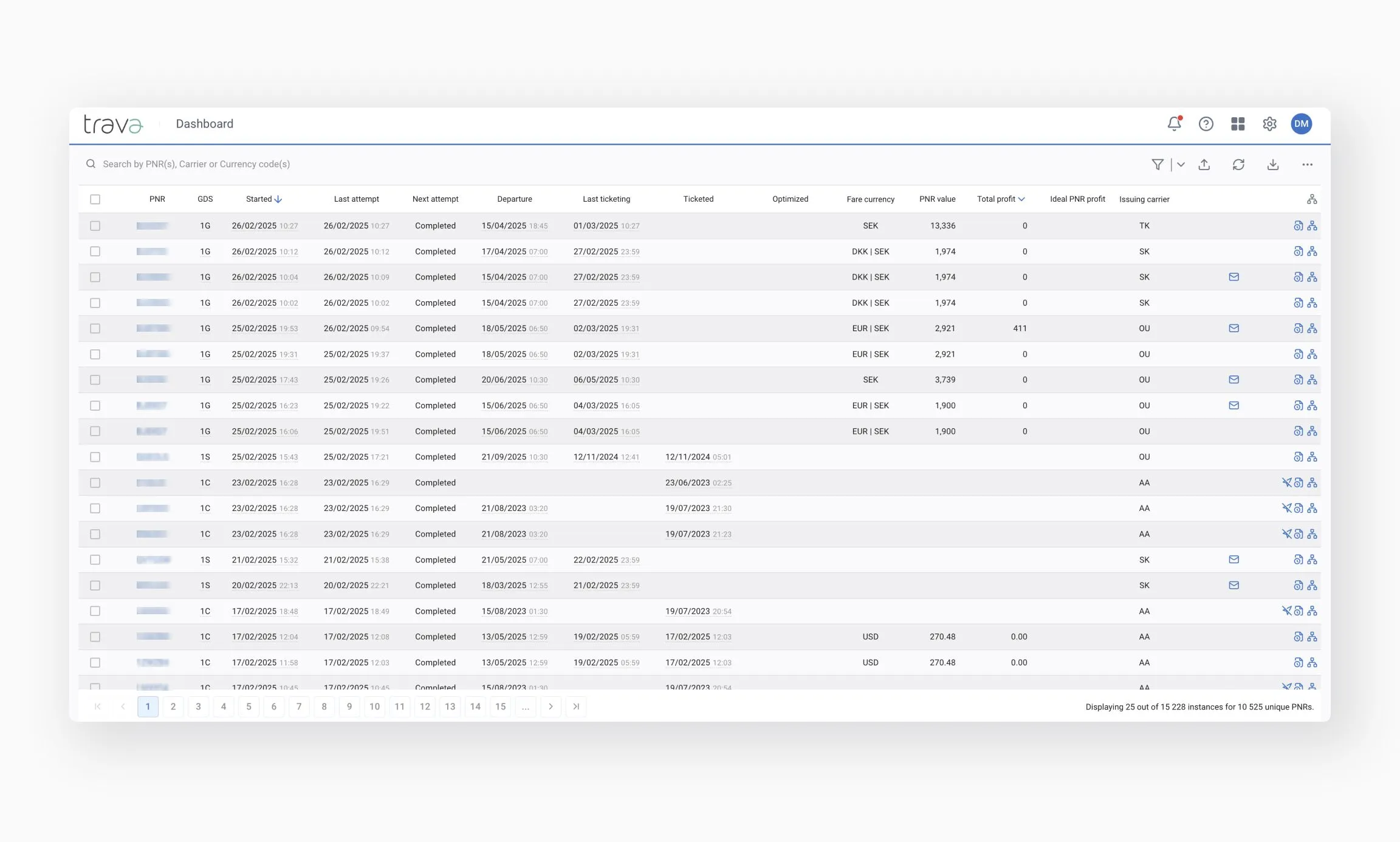
During booking processing, unexpected situations may occur – such as operator intervention, missing data, sudden GDS responses, or communication failures.
The system responds to these situations with three types of messages, displayed at the end of the processed instance line on the Reservation Processing page.
Warning
A message that explains the system's behavior at a specific stage of booking processing.
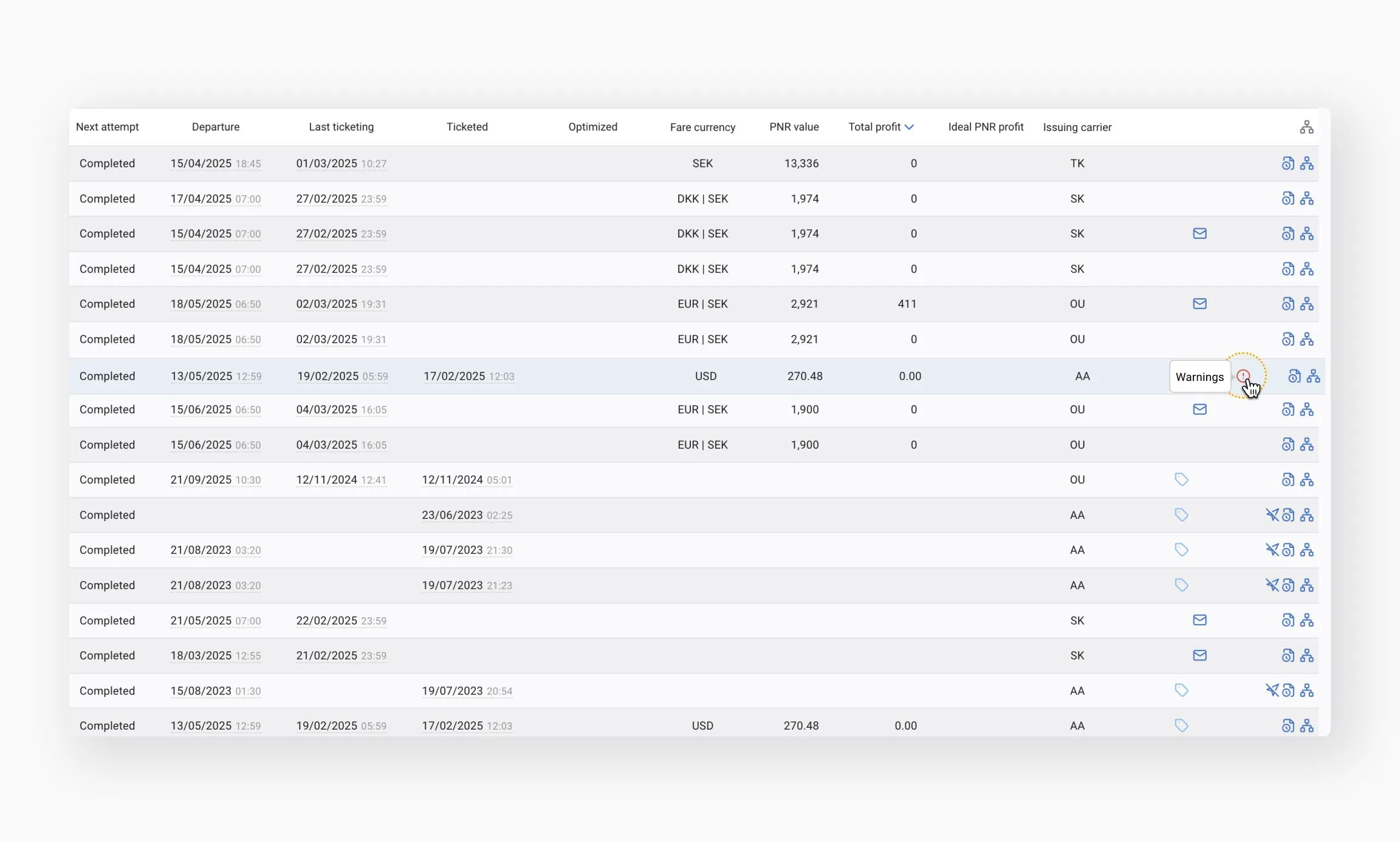
Examples:
- Reservation has optional services associated with the flight segment
- Check thresholds canceled due to offline changes
- Cannot check the ticket: Office ID is forbidden to read this ticket
Error
An error that occurred during a specific stage of processing but does not interrupt the overall workflow. The scheme continues to run.
Examples
- Cannot build fare component to check fare-basis code
- Error on determining the cost of the booking
- An unrecoverable error occurred during ticketing
In some cases, the system may try to resolve the issue by restarting the affected stage automatically.
Example
- An error occurred during ticketing due to a missing commission in the booking. The system will add the commission and restart the ticketing stage.
If the error prevents processing from starting, the system may attempt to reprocess the entire booking after a short pause.
Example
When attempting to open the booking, the system received the message: This BF is currently in use.
Critical error
A fatal error that stops the workflow and requires manual operator intervention.
An email notification will also be sent to the address provided in your settings (see Build your first workflow).
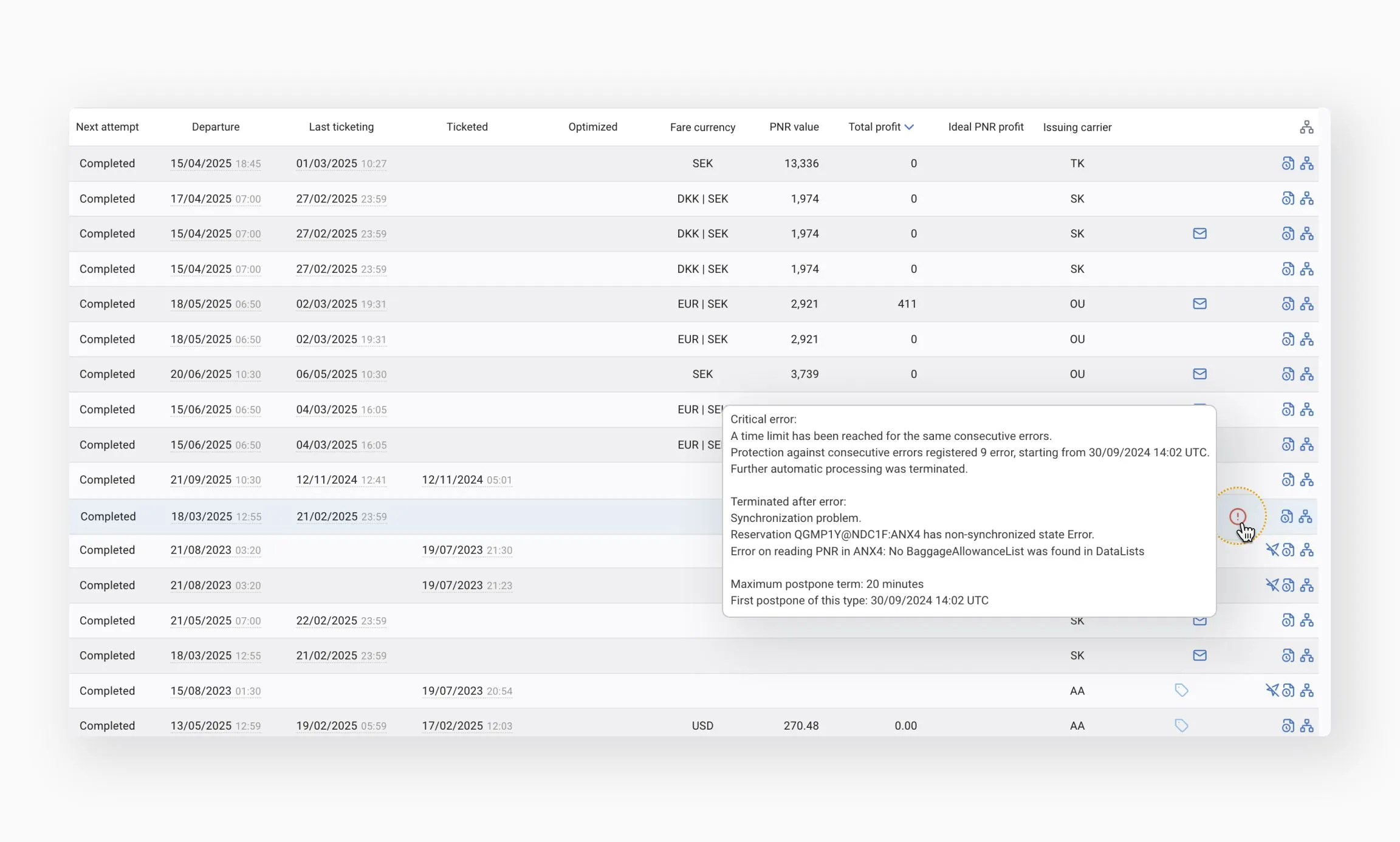
Examples
- PNR does not exist
- Evaluation of this booking has been cancelled due to the unaccepted segment status
- The reservation was created using NDC
You can track all messages on the Reservation Processing page.
If multiple errors appear, review your scheme to identify possible causes and make adjustments accordingly.
In addition to tracking errors, it's important to monitor the processing time for bookings.
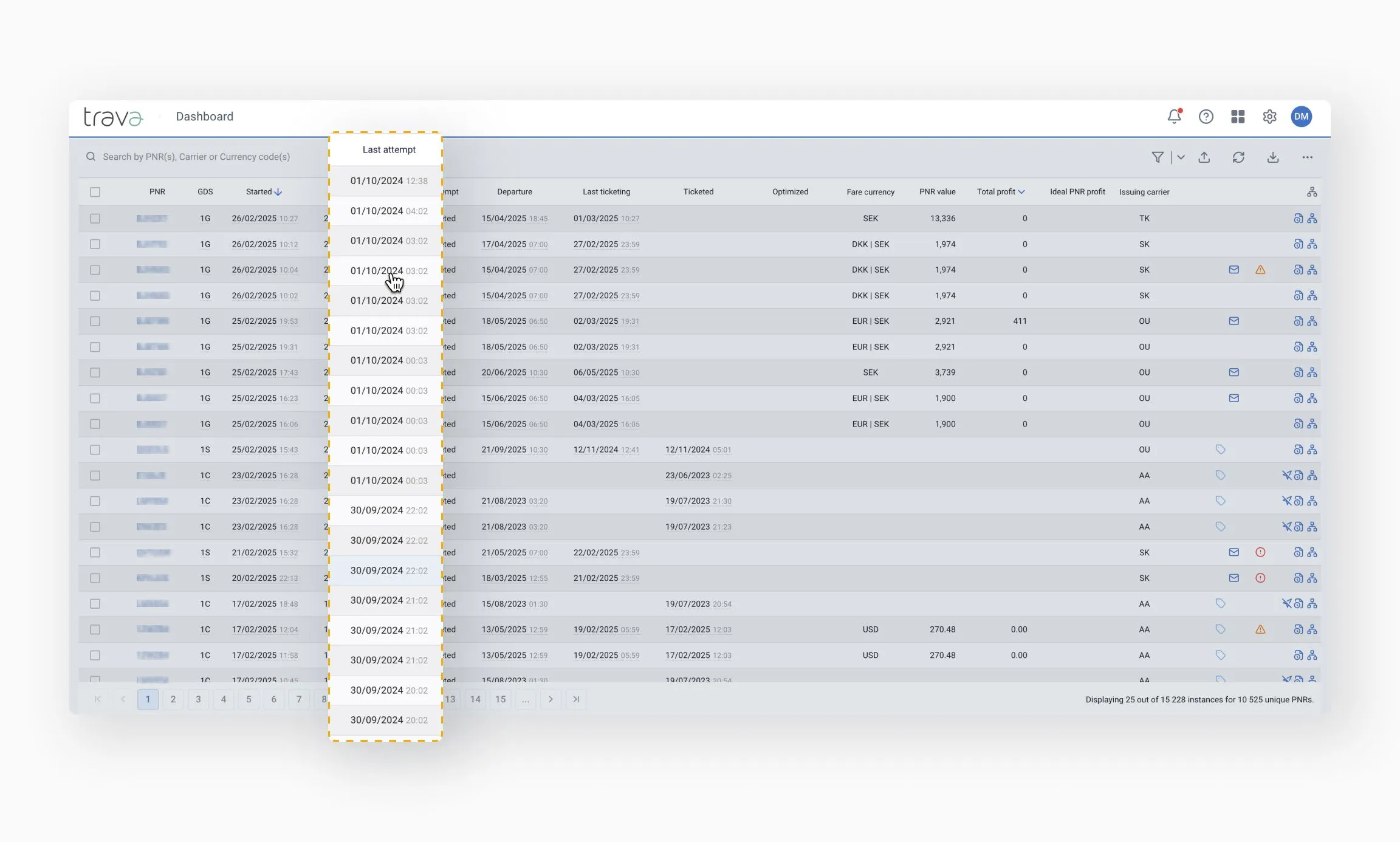
The Started column shows when each booking was first processed by the scheme. Sort by this column to see how frequently new bookings appear on the Reservation Processing page – this frequency should match the Source settings defined in the scheme.
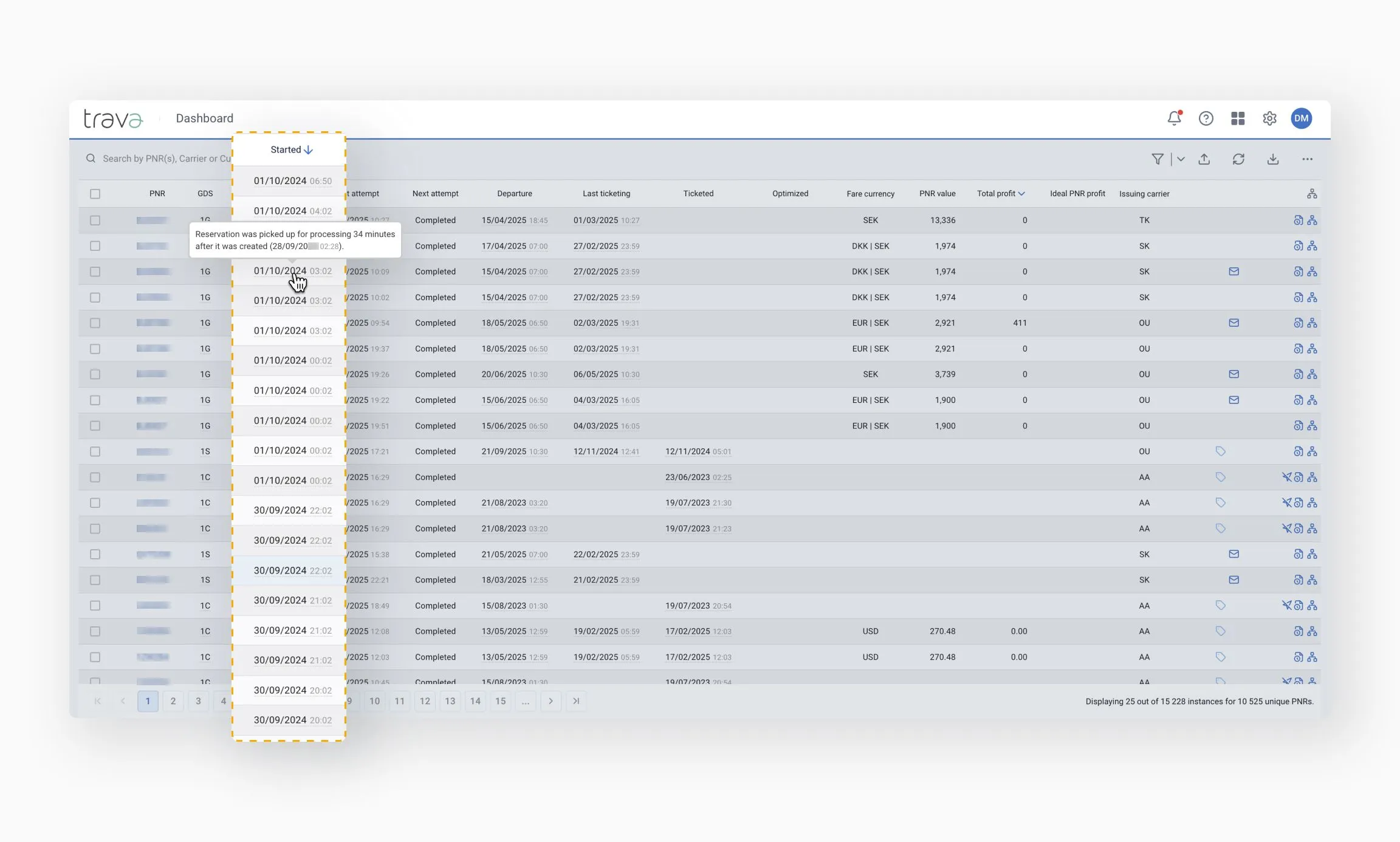
The Last attempt column shows when a booking was most recently processed. Sorting by this column helps you determine how long the scheme has been running or when the last activity occurred.
Signs the system may be stalled
Watch for the following indicators of a potential system delay or failure:
- New bookings are appearing on the Monitor with noticeable delays
- Bookings are not being processed quickly
- You see Waiting to be processed for a large number of bookings on the Reservation Processing page
In such cases, processes may be delayed or interrupted.
Common causes of slowdowns
High PNR volume
- A sudden influx of PNRs – for example, when an operator uploads a large batch via Ingest PNRs
- A mass update from an airline (e.g., schedule changes)
Server capacity limits
- Your processing volume may have exceeded the capacity of the server assigned to your declared booking load
- If your volume has increased, please inform Trava so adjustments can be made
Looping workflows
Occasionally, a workflow may get stuck in a loop, causing a slowdown. These cases require manual review and resolution.
What to do
If the system appears stalled for more than one hour, we recommend contacting Support. Slowdowns caused by looping processes or capacity issues should be addressed individually.
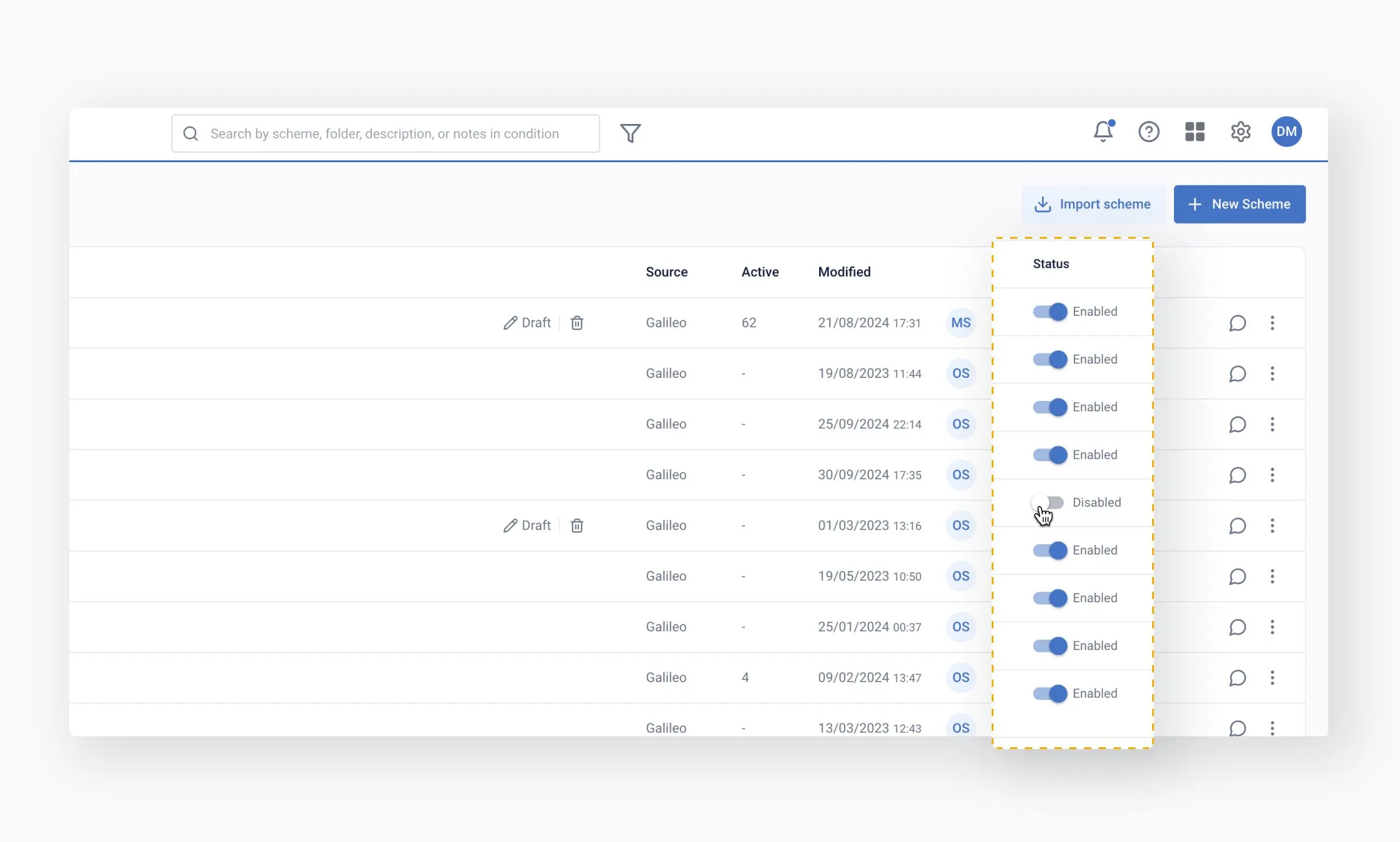
You may need to disable a scheme (see Schemes for details). Once a scheme is disabled, the processing of all incomplete PNRs associated with it will be stopped.
If the scheme is later re-enabled or edited and reactivated, any PNRs that were not fully processed will resume processing under the newly activated version.
Important considerations
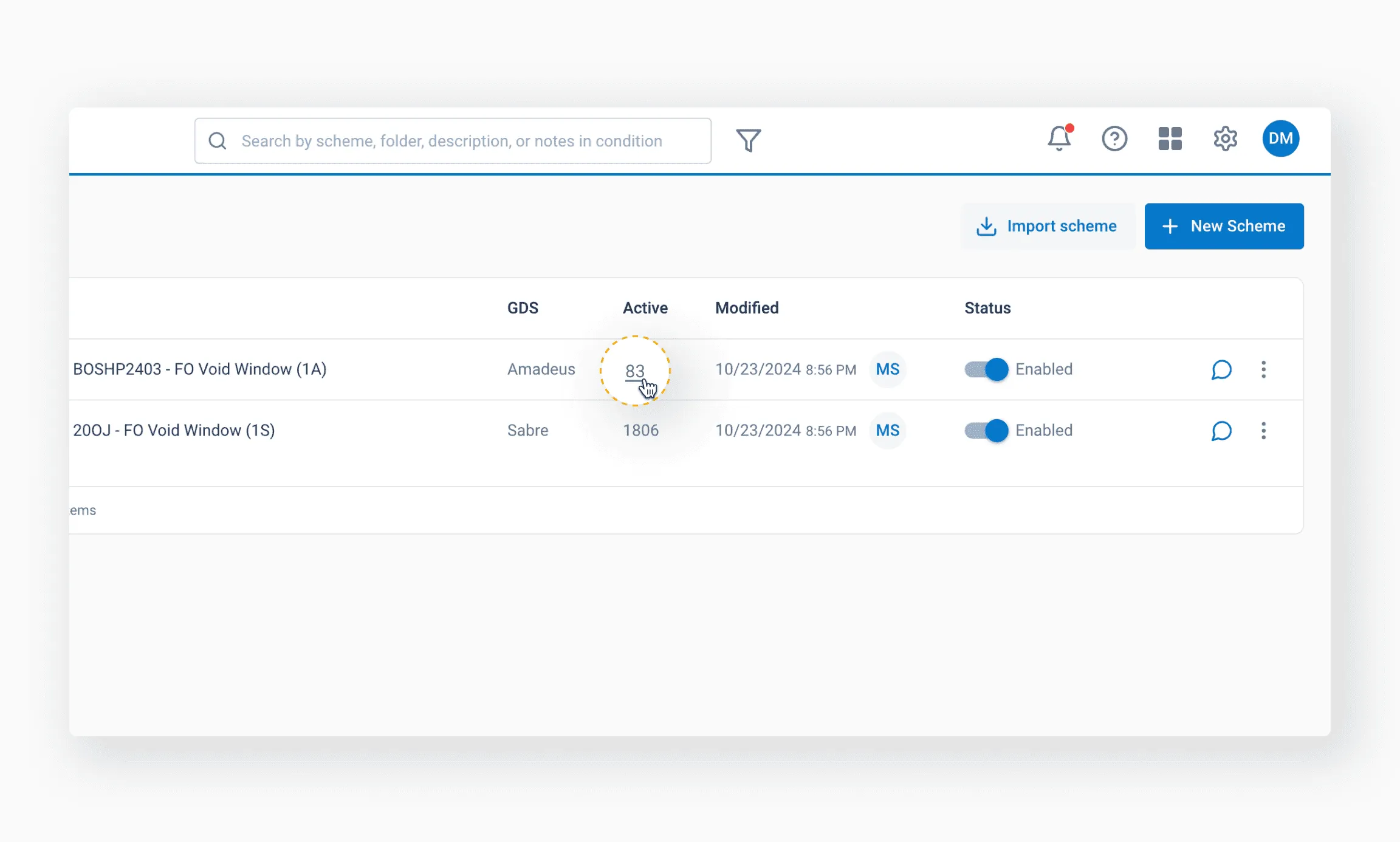
- If you do not plan to re-enable the scheme, incomplete bookings must be processed manually
- To view these bookings, use the Active column filter and mark each relevant PNR as Complete
Handling erroneous PNRs
Sometimes, the PNR source may be incorrectly configured – for example, due to a wrong GDS queue. This can cause incorrect bookings to be ingested into the scheme.
In these cases, disabling the scheme, changing the source, and re-enabling it will not prevent further processing – because the instance has already been created, and the PNR has been routed into the scheme.
To avoid processing erroneous bookings after reactivation, do the following before re-enabling the scheme:
- Locate the affected PNRs
- Click Complete to mark them as finished
- Only then re-enable the scheme
To generate a report, go to the Reports tab and select the appropriate report category based on what you want to analyze. Below is an overview of available report types:
- GDS Functions Call Statistics: Summary of how many GDS function calls were made during the processing of PNRs or documents. Useful for tracking system activity load.
- Lost Profit: An optimistic forecast (in monetary terms) of potential revenue that could have been earned through optimization – for example, when seats were available at lower fares but not utilized
- Mail Bounces: Details of email delivery errors returned by mail servers (e.g. undelivered, rejected, or failed messages)
- Processed Bookings: Shows the number of processed objects, grouped by scheme
- Statistics: Customizable report based on user-selected parameters
- System Optimization: A high-level summary of how many PNRs were processed with completed airline-specific optimizations
- Voluntary Refunds: Shows completed refunds for unused tickets
- Web-link checking result: Verifies the relevance and functionality of external URLs (e.g., links to airline or carrier websites)
If you're just getting started with Trava, we recommend beginning with the GDS Function Call Statistics and Processed Bookings reports. These will give you a clear overview of how the system is operating and which workflows are actively in use.