
Whether you’re just getting started or looking to optimize your setup, this article walks you through the basics: what you’ll see when you log in, what each section does, and how to kick off your first tasks.
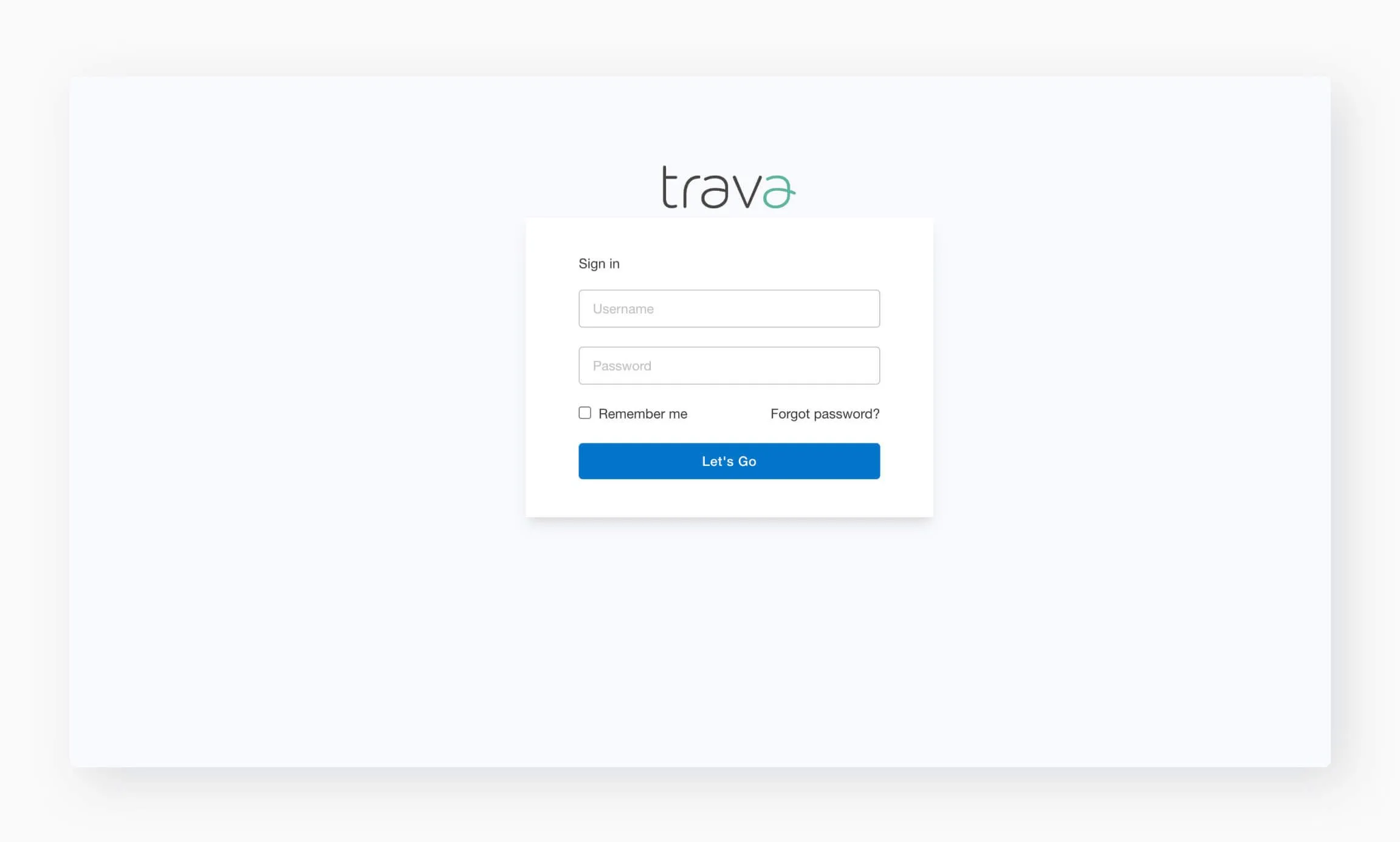
To access the system, follow the login link and enter the username and password provided by Trava. Once you’re logged in, you may change your password.
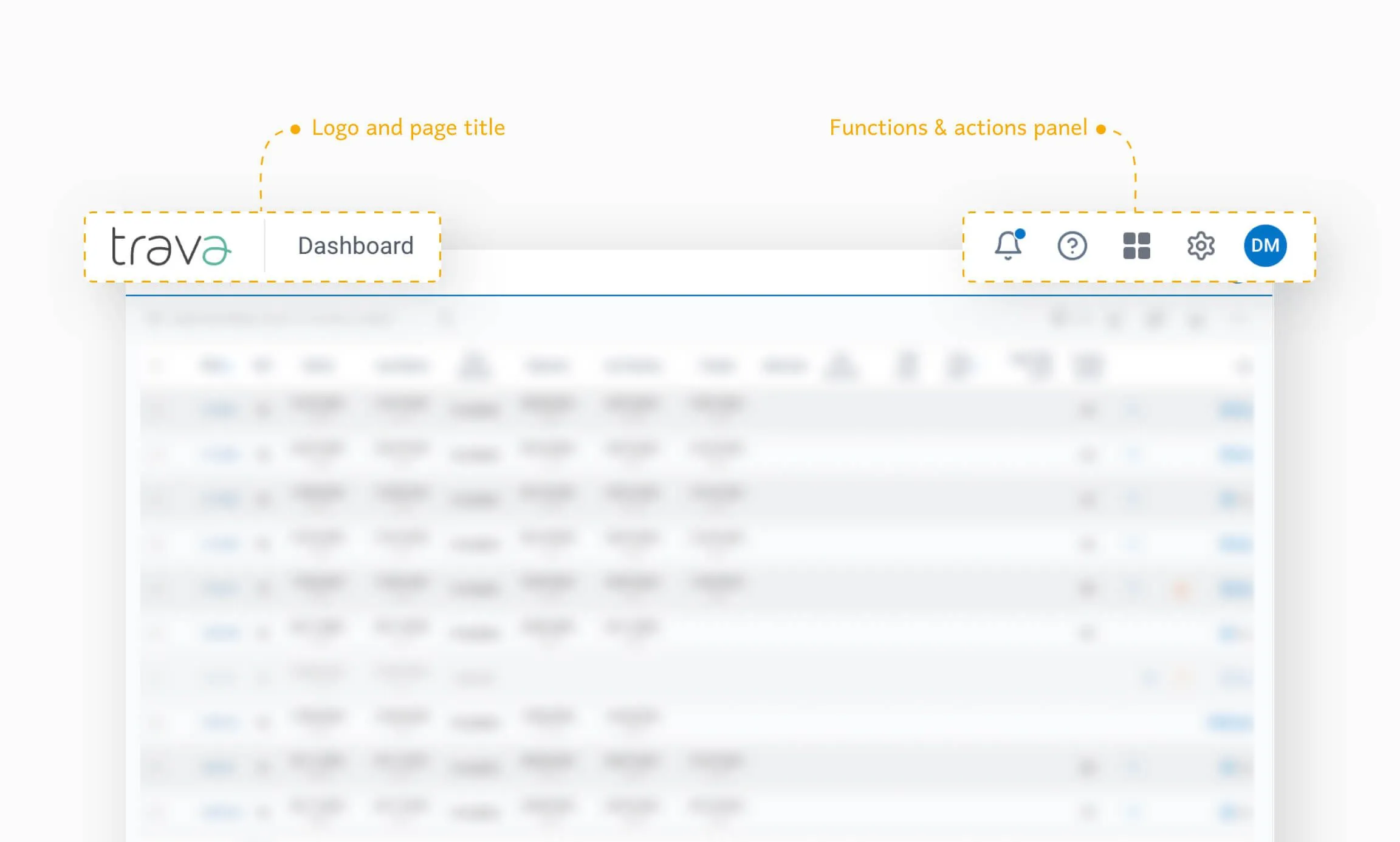
In the top-left corner, you’ll see your company’s logo. Clicking it always brings you back to your designated homepage. Just to the right of the logo is the title of the current page – a helpful reference as you move through the system.
In the top-right corner, you'll find a control panel with two rows of icons. These represent key functions such as notifications, account settings, and support tools.
The Notification tab displays important updates related to GDS access, email delivery services, and system releases. You'll also find announcements about new features and improvements.
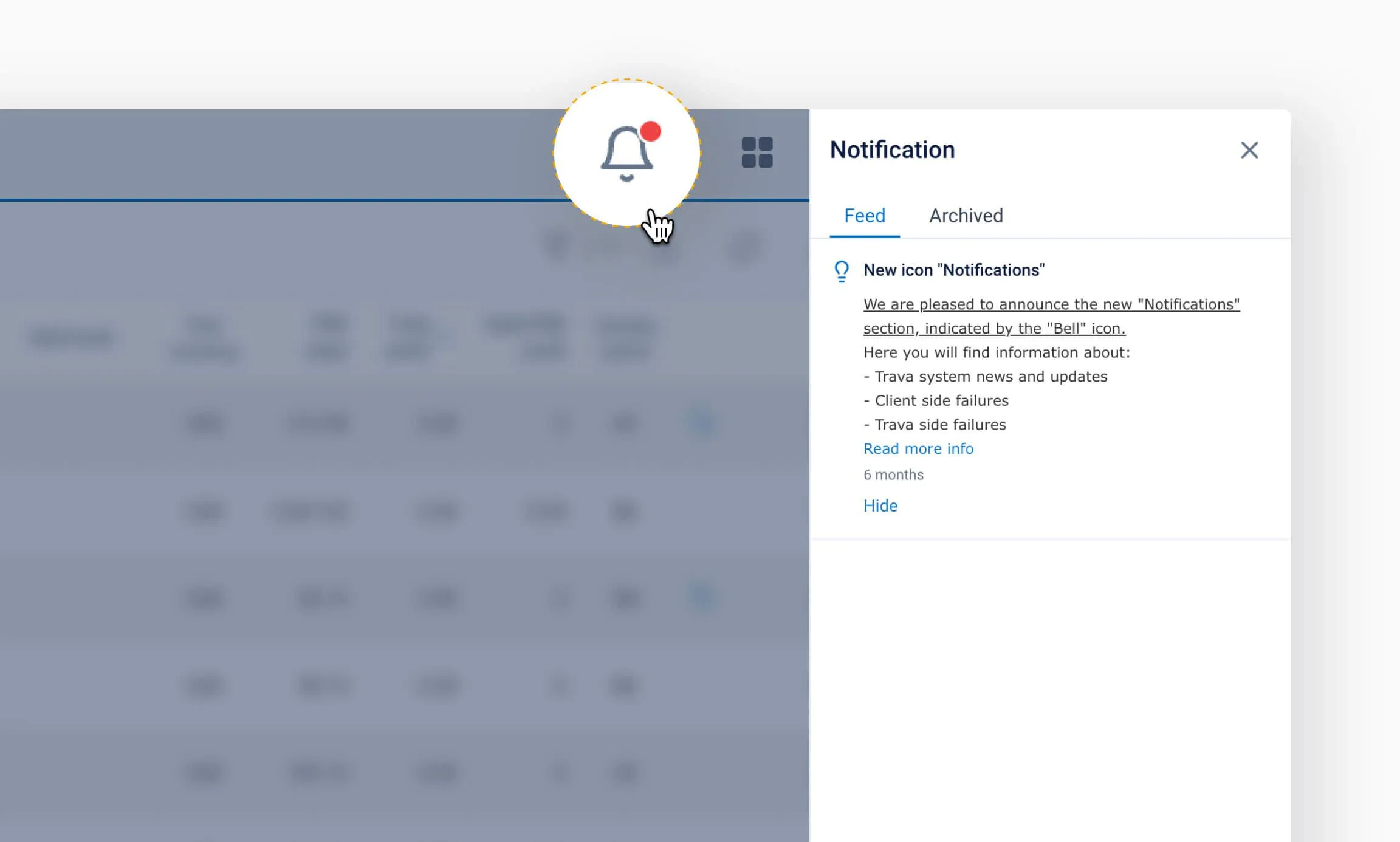
Notification types
🔵 Blue circle: General information or messages that simply require acknowledgment 🔴 Red circle: Errors that require your attention and action
Make it a habit to check this tab regularly to stay up to date on any issues or system changes.
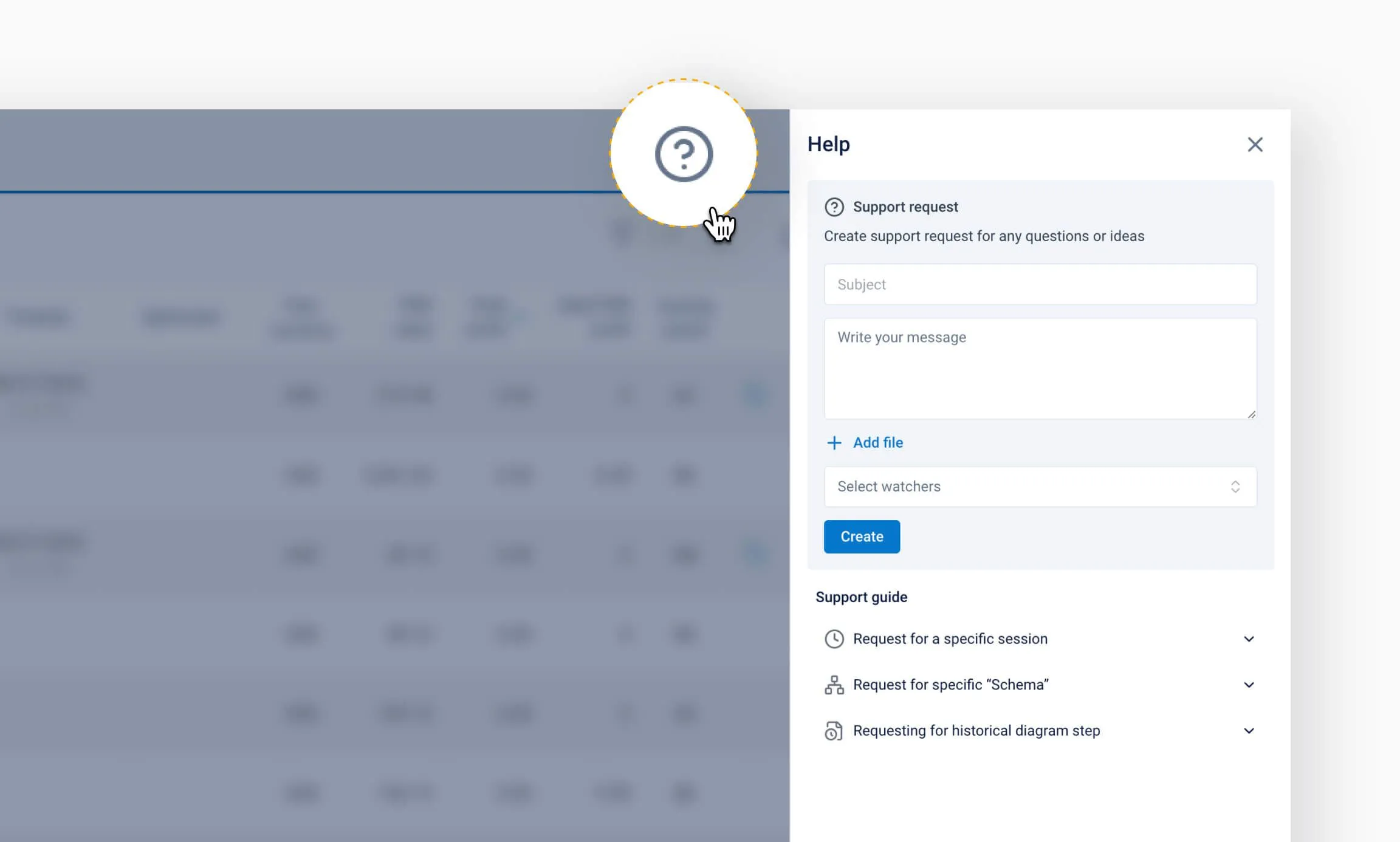
For general questions about the system, you can contact Trava Support directly.
For topic-specific issues – such as a particular step in the automation process – refer to the Support Guide section for alternative ways to submit a request. Our team will get back to you as soon as possible.
Use this menu to navigate between different modules of the system.
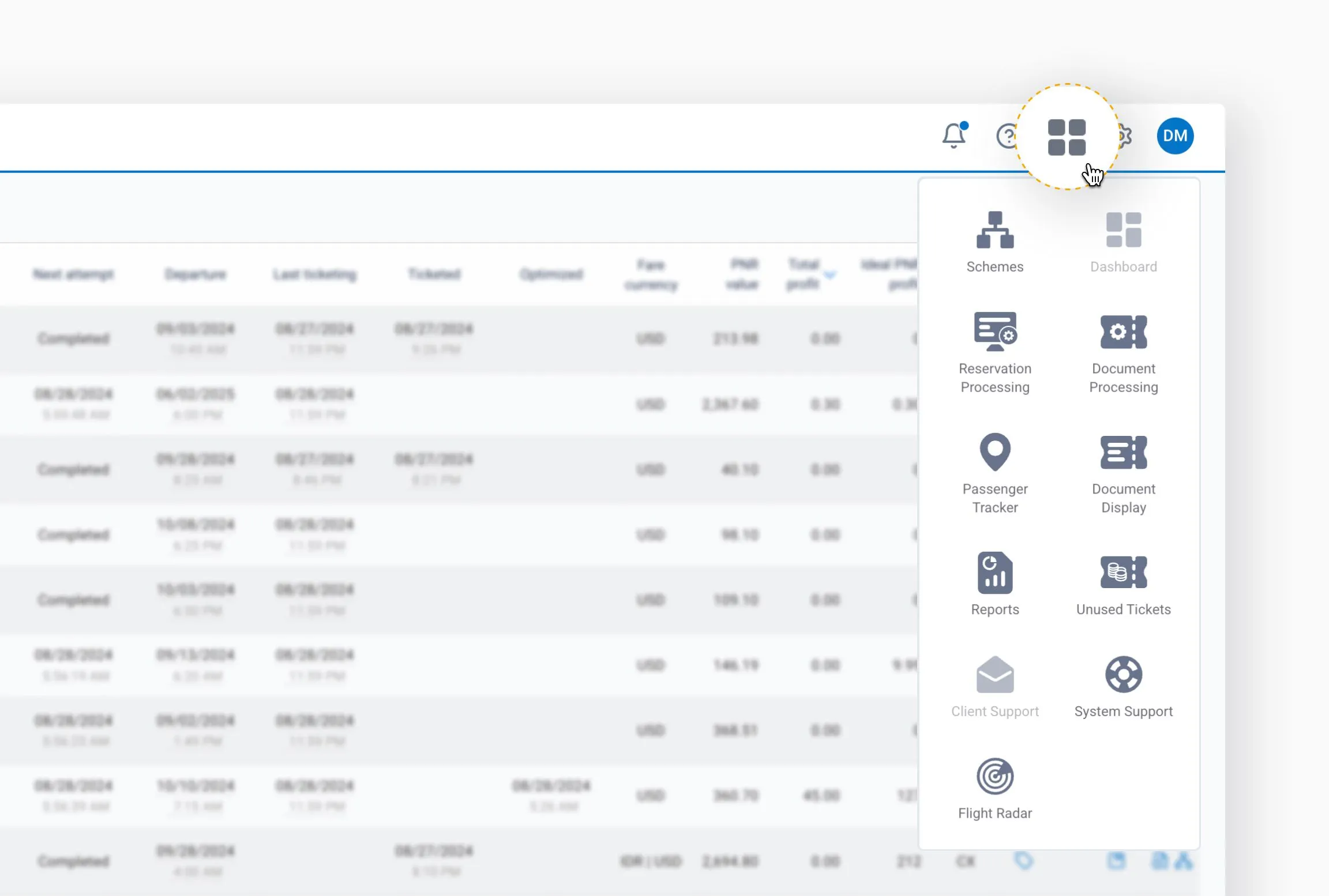
Schemes: View existing schemes or create a new one
- Reservation Processing: Access PNRs that are in progress, waiting for the next processing cycle, or already processed
- Document Processing: View documents (tickets and EMDs) in any stage of the processing cycle
- Passenger Tracker: An interactive map for tracking and managing passengers at various points in their journey*
- Document Display: [to be described]
- Unused Tickets: View proprietary reports on partially or fully unused tickets
- Client Support: A module for travel agents to support travelers and for travelers to view and manage their reservations in real time*
- System Support: Track and manage your support inquiries submitted to Trava
- Reports: Generate reports to analyze the performance of different system features
- Flight Radar: An interactive map with real-time locations of currently traveling clients
* – These are additional features, access to them may be restricted by user permissions or company policies.
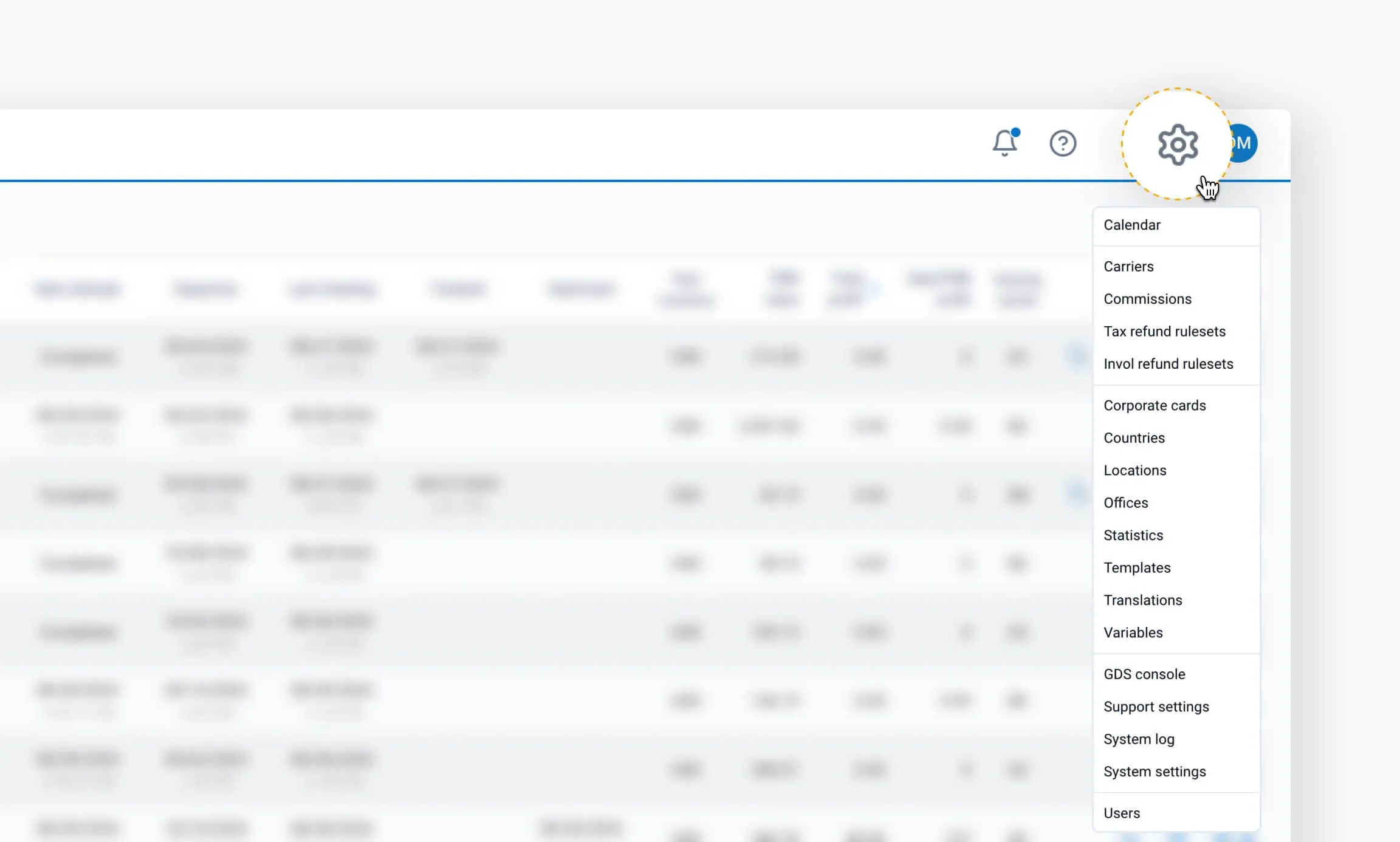
The basic set of settings is provided by Trava. Change them according to your needs and preferences.
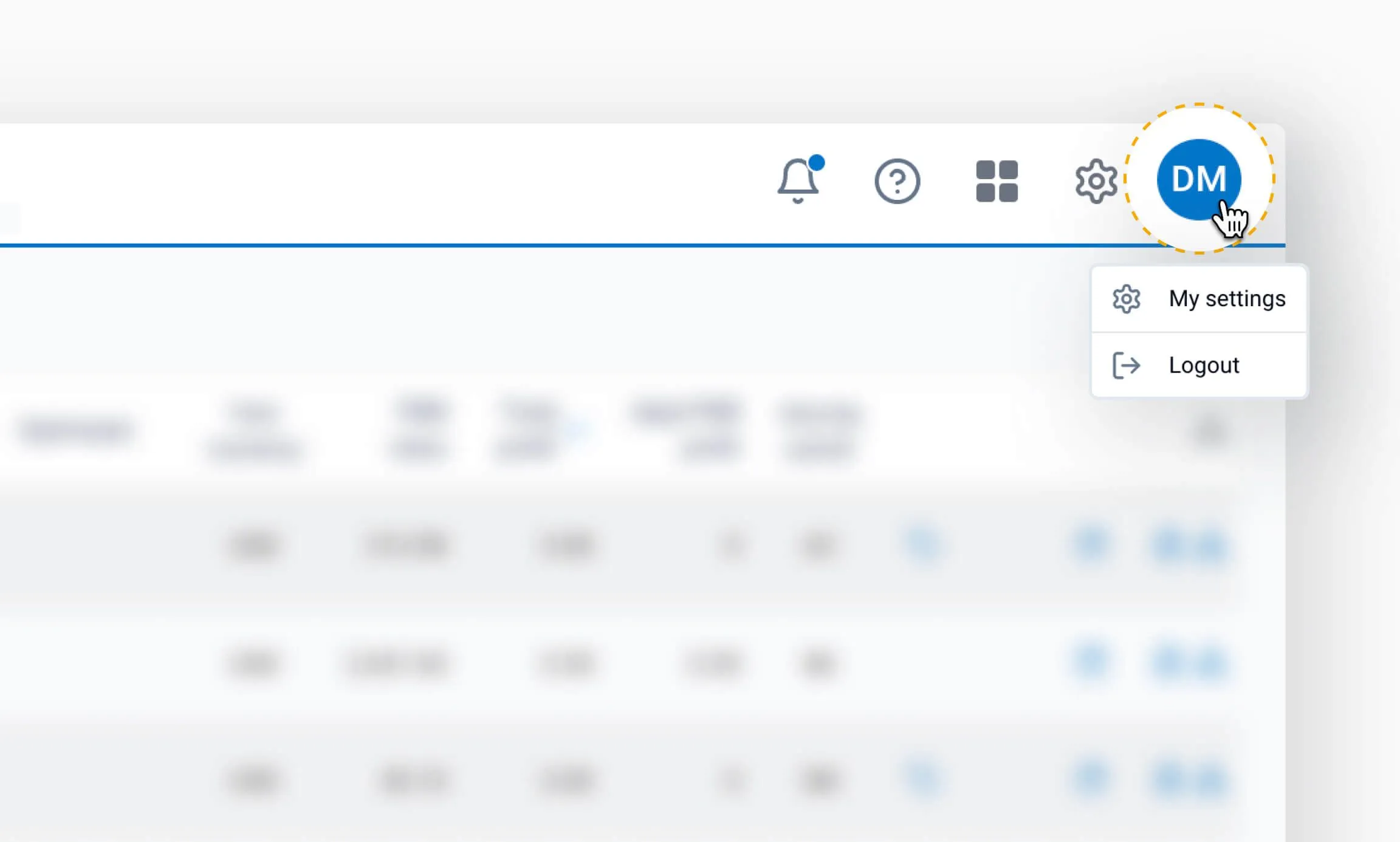
Click the user icon to access your account settings and log out of the system.
Make it a habit to check this tab regularly to stay up to date on any issues or system changes.
Title
Support
For general questions about the system, you can contact Trava Support directly.
For topic-specific issues – such as a particular step in the automation process – refer to the Support Guide section for alternative ways to submit a request. Our team will get back to you as soon as possible.
Functionality menu
Use this menu to navigate between different modules of the system.
Schemes: View existing schemes or create a new one
- Reservation Processing: Access PNRs that are in progress, waiting for the next processing cycle, or already processed
- Document Processing: View documents (tickets and EMDs) in any stage of the processing cycle
- Passenger Tracker: An interactive map for tracking and managing passengers at various points in their journey*
- Document Display: [to be described]
- Unused Tickets: View proprietary reports on partially or fully unused tickets
- Client Support: A module for travel agents to support travelers and for travelers to view and manage their reservations in real time*
- System Support: Track and manage your support inquiries submitted to Trava
- Reports: Generate reports to analyze the performance of different system features
- Flight Radar: An interactive map with real-time locations of currently traveling clients
* Additional features, access to them may be restricted by user permissions or company policies.
System settings
The basic set of settings is provided by Trava. Change them according to your needs and preferences.
User icon
Click the user icon to access your account settings and log out of the system.